> ## Documentation Index
> Fetch the complete documentation index at: https://magicads.mintlify.site/llms.txt
> Use this file to discover all available pages before exploring further.
# Clear Cache
> Keep your cache cleared whenever there is a need.
## Clearing Caches at Davinci AI
From time to time, there might be a need to clear your cache, both **browser caches** and **application caches**, this helps to either apply to changes after an update, or clear old historic data that remains caches in your domain and browser.
To clear your caches follow the steps below:
Clear your **browser cache** by going to your browser settings and selecting clear cache option, they usually allow you to select up to what certain historic date you want to clear your cache, salect the option that will be valid for your case.
To clear **application cache**, go to **Admin Panel** -> **General Settings** -> **System Settings** page.
On the **Clear Cache** box, click on the **Clear Cache** button.
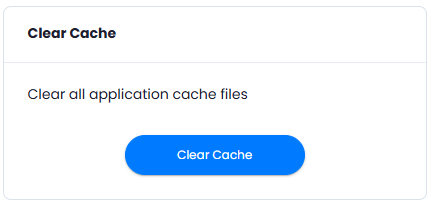 And that is it, it is that easy to clear your caches.
You have successfully finished clear caches at Davinci AI
And that is it, it is that easy to clear your caches.
You have successfully finished clear caches at Davinci AI