> ## Documentation Index
> Fetch the complete documentation index at: https://magicads.mintlify.site/llms.txt
> Use this file to discover all available pages before exploring further.
# SMTP Configuration
> Configure your SMTP settings for sending outgoing emails form Magic AI, such as email verification, support ticket creation, payment statuses etc
## Setting Up SMTP settings
In order to be able to standard sending emails, we highly recommend you to use SMTP settings of your hosting that is related to your domain.
Please note that some hostings have different smtp settings per domain, so play close attention to that
To set up smtp settings follow these steps:
Go to **Admin Panel** -> **Backend Settings** -> **SMTP Settings** page.
Fill up the following required fields:
```php theme={null}
SMTP Host
SMTP Port
SMTP Encryption
SMTP EMail Login (Username)
SMTP EMail Password
SMTP Sender Email Address
SMTP Sender Name
```
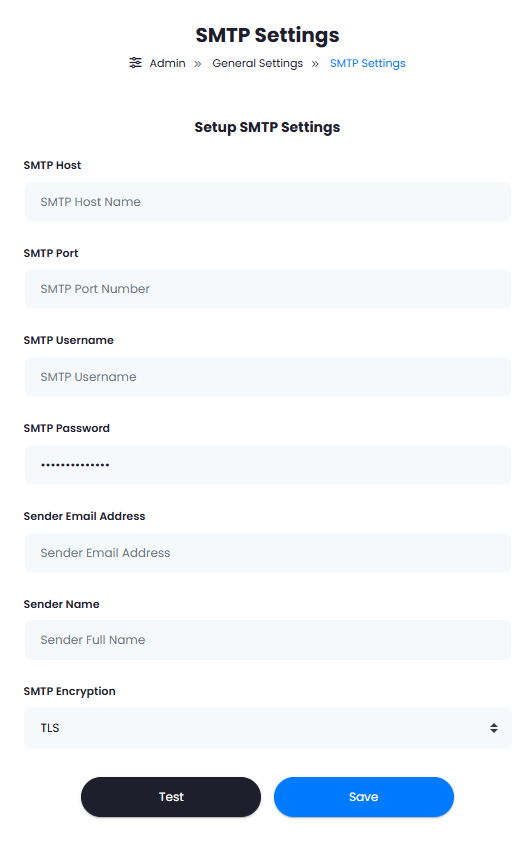 Once you have filled in all required fields based on your SMTP settings of your hosting, click on the **Test** button to check if you provided settings are valid.
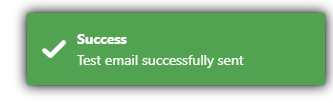
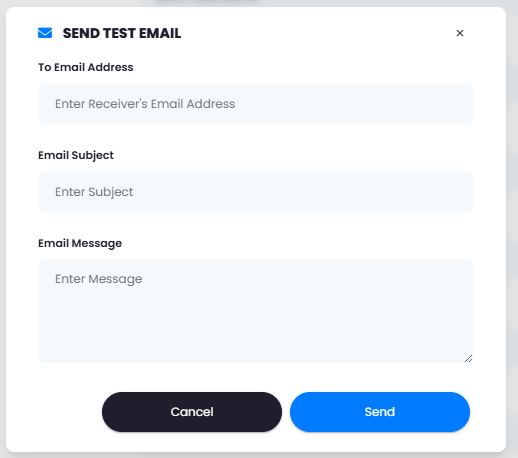 If all the provided information is accurate, you will see a success message, that means your SMTP settings was setup correct and working properly. If you don't see success message, then please double check your SMTP settings based on your hosting settings.
 For `SMTP User Passowrd`, make sure to generate a `random` password.
Congratulations! You have successfully configured the SMTP settings for Magic AI
For `SMTP User Passowrd`, make sure to generate a `random` password.
Congratulations! You have successfully configured the SMTP settings for Magic AI