> ## Documentation Index
> Fetch the complete documentation index at: https://magicads.mintlify.site/llms.txt
> Use this file to discover all available pages before exploring further.
# AI Images Setup
> Generate state of the art images in various shapes and form with AI Images feature of Davinci AI.
## Introduction
Davinci AI’s AI Images features unlocks advanced image generation capabilities for your platform. With access to cutting edge solutions for 5 different AI Vendors, you can create varous types of AI images.
### List of AI Images vendors
* Google - Nano Banana Pro
* Google - Nano Banana
* OpenAI - Dalle 3 HD
* OpenAI - Dalle 3
* OpenAI - Dalle 2
* Stability - Stable Diffusion Ultra
* Stability - Stable Diffusion Core
* Stability - Stable Diffusion 3.5 Large
* Stability - Stable Diffusion 3.5 Large Turbo
* Stability - Stable Diffusion 3.5 Medium
* Stability - SDXL 1.0
* Stability - Stable Diffusion v1.6
* Midjourney - Fast
* Midjourney - Relax
* Midjourney - Turbo
* Fal AI - FLUX.1 \[pro]
* Fal AI - FLUX.1 \[schnell]
* Fal AI - FLUX.1 \[dev]
* Clipdrop
* Local Server Storage
* Amazon S3
* Google Cloud Storage
* Wasabi Cloud
* Storj
* Cloudflare R2
* Dropbox
## Setup AI Images
To be able to use AI Images feature, follow these steps to setup integration.
Star with configuration of preferred cloud vendors. AI Images supports **OpenAI**, **Stable Diffusion**, **Midjourney** (Paid), **Fal AI**, **Clipdrop** vendors.
You can configure and enable any comination of these vendors.
You can activate only 1 vendor or all of them at the same time as needed
Please note that only the models of the activated vendor(s) will be available for your users.
### Configure preferred AI Images Vendors
Use each link to get a detailed step by step guide for setting AI Image vendors including the ones that come as extensions.
Setup OpenAI models
Setup Stability AI models
Setup Midjourney models `(Extension)`
Setup FLUX models `(Extension)`
Setup Clipdrop model `(Extension)`
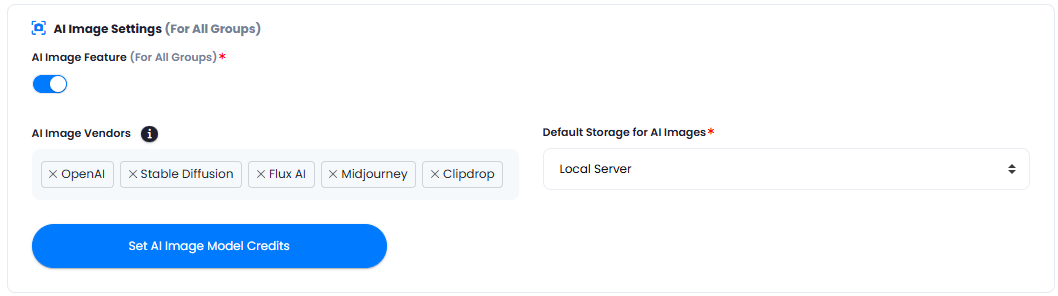
After you configured vendors and included their APIs go to the **Admin Panel** -> **AI Settings** -> **General AI Settings** and scroll down to **AI Image Settings** section.
 1. Turn on **AI Image Feature** checkbox.
2. Under **AI Image Vendors** dropdown, inlcude list of AI vendors that you want your users to have access to. You can also control it via Subscription Plan in case if you have Extended License.
Only models of the enabled vendors will be visible for your end users
You can also select the default storage where the generated results will be stored under **Default Storage for AI Images**.
In case if you plan to use cloud storage to store results, make sure it is properly configured first.
1. Turn on **AI Image Feature** checkbox.
2. Under **AI Image Vendors** dropdown, inlcude list of AI vendors that you want your users to have access to. You can also control it via Subscription Plan in case if you have Extended License.
Only models of the enabled vendors will be visible for your end users
You can also select the default storage where the generated results will be stored under **Default Storage for AI Images**.
In case if you plan to use cloud storage to store results, make sure it is properly configured first.
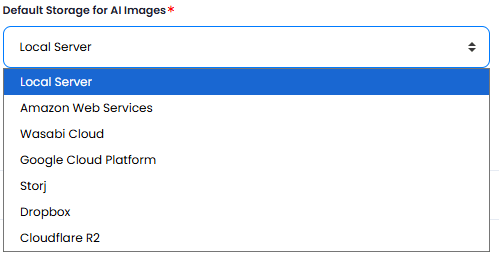 You can also set image task credits for each model under **Set AI Image Model Credits** button.
It contains only models that come natively with the script, the ones that come as extensions needs to be configured on those extension setup pages respectively.
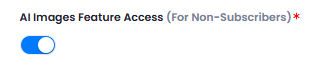
If you want your free tier users to also have access to models, go to **Admin Panel** -> **AI Settings** -> **Free Trial Features** tab and turn on **AI Image Feature Access (for Non-Subscrbers)** checkbox.
You can also set image task credits for each model under **Set AI Image Model Credits** button.
It contains only models that come natively with the script, the ones that come as extensions needs to be configured on those extension setup pages respectively.
If you want your free tier users to also have access to models, go to **Admin Panel** -> **AI Settings** -> **Free Trial Features** tab and turn on **AI Image Feature Access (for Non-Subscrbers)** checkbox.
 For Subscribers, you can list completely different models and limit free tier users with only few AI vendor access.
Congratulations! You have successfully completed the AI Images setup process.
## How to Use AI Images
After you have configured your respective AI vendors and setup rest of the settings as explained, go to **User Panel** -> **AI Images** tab.
1. On the right side menu panel, you can see your control panel.
For Subscribers, you can list completely different models and limit free tier users with only few AI vendor access.
Congratulations! You have successfully completed the AI Images setup process.
## How to Use AI Images
After you have configured your respective AI vendors and setup rest of the settings as explained, go to **User Panel** -> **AI Images** tab.
1. On the right side menu panel, you can see your control panel.
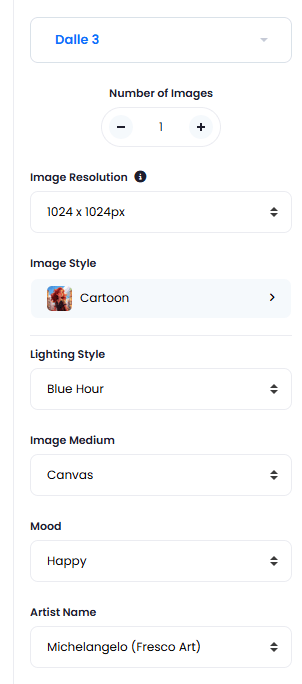 2. You can set following settings on the control panel:
* Change your image model
* Set number of images to generated
* Set image resolution
* Set image style
* Set image lighthing style
* Set image medium
* Set image mood
* Select image artist name
3. Next, enter your image prompt that you want to generate and click on the **Generate** button.
2. You can set following settings on the control panel:
* Change your image model
* Set number of images to generated
* Set image resolution
* Set image style
* Set image lighthing style
* Set image medium
* Set image mood
* Select image artist name
3. Next, enter your image prompt that you want to generate and click on the **Generate** button.
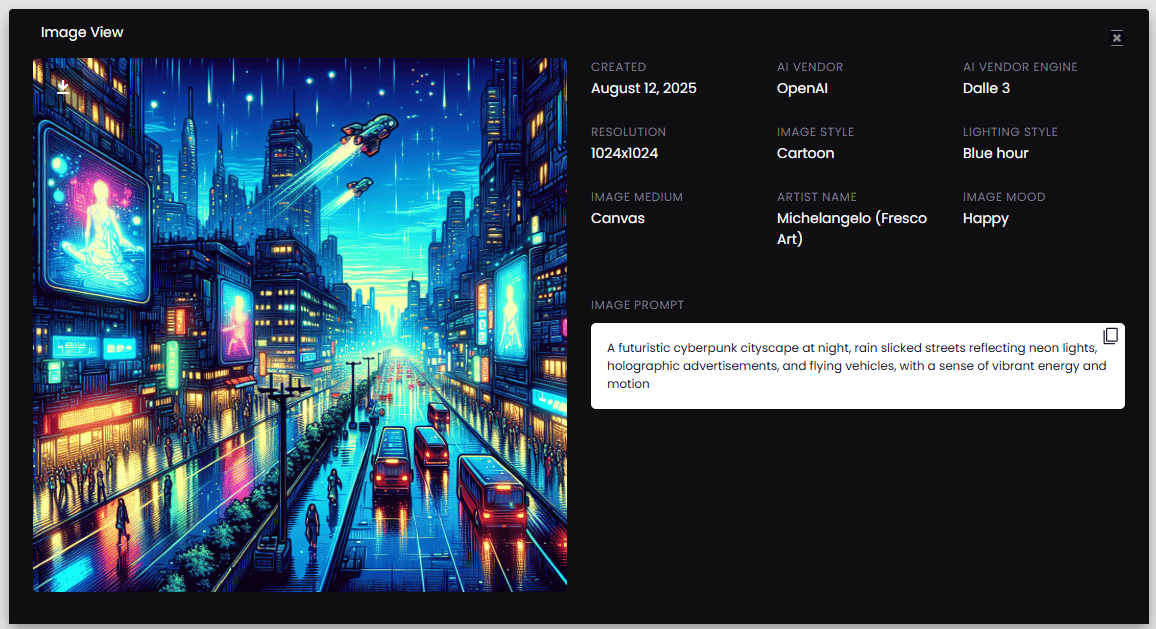
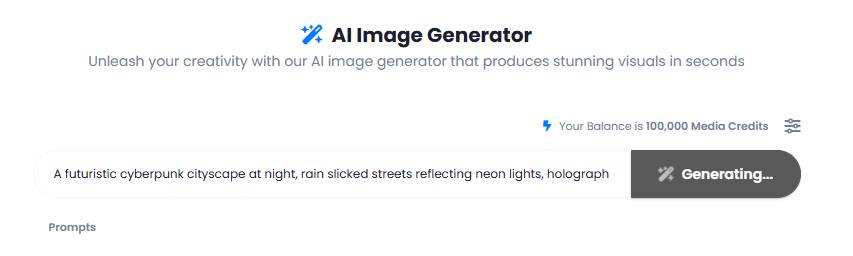 4. And you can see your image generated, if you click on **View** button, you can see all the details and settings related to that image.
 ## How to Create Image Prompts
You can also create default prompts that everyone would be able to use. To create one, follow the intructions below.
1. Go to the **Admin Panel** -> **AI Management** -> **AI Image Prompts** tab, and click on **Create New Prompt** button.
## How to Create Image Prompts
You can also create default prompts that everyone would be able to use. To create one, follow the intructions below.
1. Go to the **Admin Panel** -> **AI Management** -> **AI Image Prompts** tab, and click on **Create New Prompt** button.
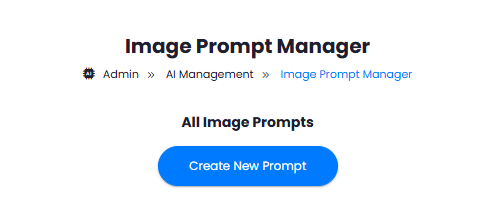 2. Provide prompt **Title** and the **Prompt** itself and click on **Create** button.
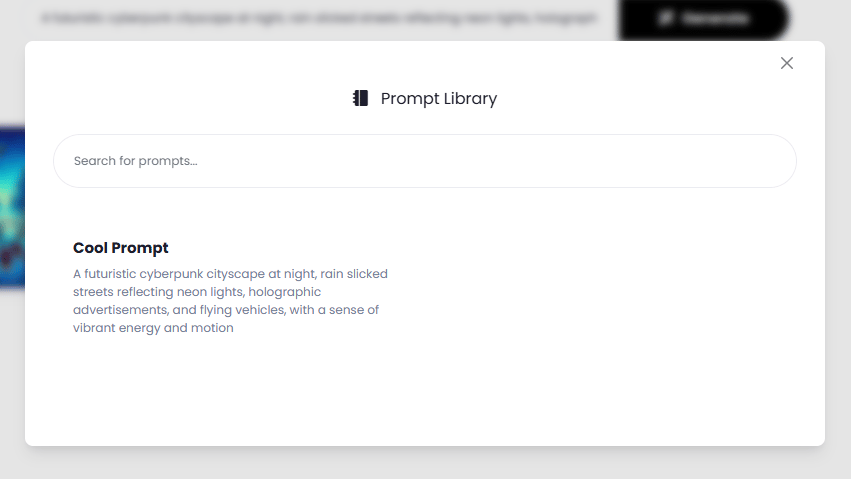
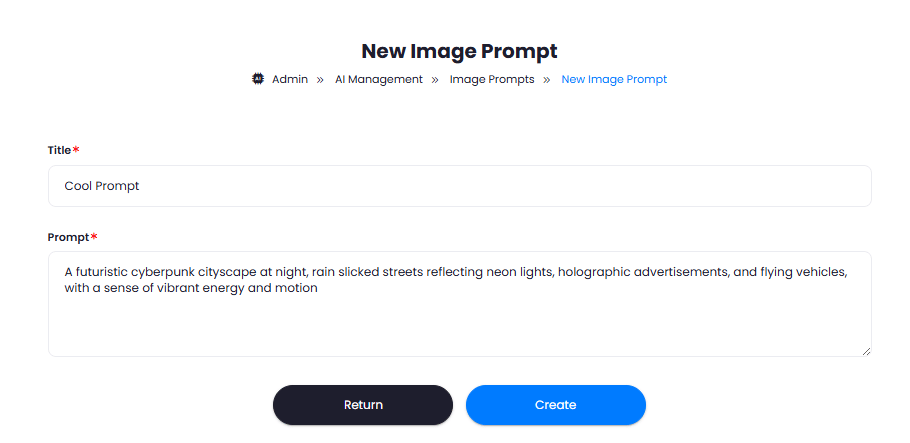 3. That is it, now your prompt is available under AI Images page. Simply click on the **Prompts** link there, and it will show you the list of created prompts.