> ## Documentation Index
> Fetch the complete documentation index at: https://magicads.mintlify.site/llms.txt
> Use this file to discover all available pages before exploring further.
# Personal API Keys
> Allow your users leverage their own API keys for supported vendors and AI tools within Davinci AI
## Introduction
Davinci AI gives you full flexibility on letting your end users to use their own API keys for select vendors and AI tools. Whenever you enable it via AI settings, all users will be required to include their API keys for the target AI Tools as listed below.
### List of AI Vendors that allow personal API key usage
* OpenAI
* Anthropic
* Gemini
* Stable Diffusion
* AI Chat (Original Chatbots) - OpenAI | Anthropic | Gemini
* AI Writer - OpenAI | Anthropic | Gemini
* AI Images - OpenAI | Stable Diffusion
* AI ReWriter - OpenAI
* AI Article Wizard - OpenAI
* AI Chat Image - OpenAI
* AI Code - OpenAI
* AI Speech to Text - OpenAI
* AI Vision - OpenAI
## How to enable Personal API feature
To control usage of Personal API Key features, follow these steps below:
### Enable for all user groups by default
To force users use their own API keys, you need to go to **Admin Panle** -> **AI Settings** page, and click on the **AI API Keys** tab.
Click on **OpenAI** tab there, and under **Personal OpenAI API Key** dropdown, select **Allow** and click **Save** button afterwards. This will enforce personal API usage for **Openai, Gemini, Anthropic** for the listed AI tools above.
Support enabling/disabling for individual personal API feature per AI vendor is coming soon
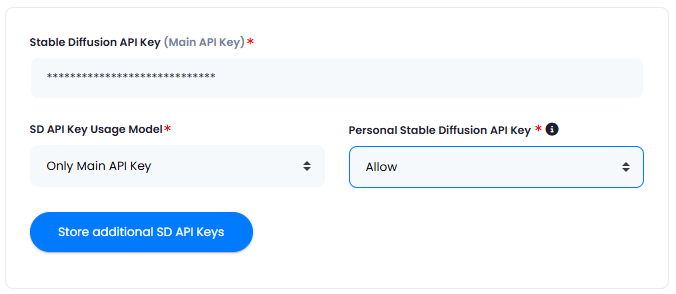
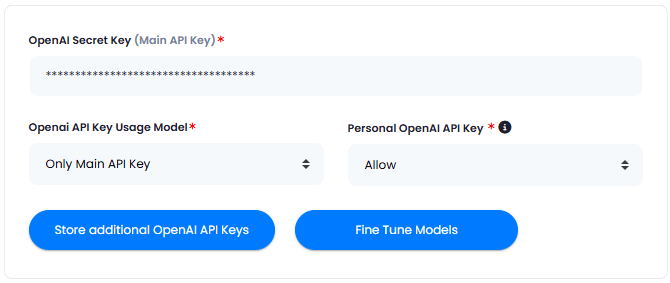 If you want to enable personal API feature usage for **Stable Diffusion**, on that same **AI API Keys** tab, click on **Stable Diffusion** there, and under **Personal Stable Diffusion API Key** dropdown, select **Allow** and click on **Save** button afterwards.
 Now all your users will be required to include their personal API keys under **My Accounts** -> **Personal API Keys** page. If they didn't provide any personal API keys and try to generate text in AI Chat for example, they will see a warning message which will ask them to provide an API key first.
Congratulations! You have successfully completed setting up Personal API Key feature for all user groups.
### Enable only for subscriber group
Davinci AI allows you to levarage Personal API Key feature only for subscribers of a certain subscription plans where you have turned on this feature.
First, make sure to **turn off** personal API Key feature for all users. Go to **Admin Panle** -> **AI Settings** page, and click on the **AI API Keys** tab.
Click on **OpenAI** tab there, and under **Personal OpenAI API Key** dropdown, select **Deny** and click **Save** button afterwards. This will disable personal API key usage for **Openai, Gemini, Anthropic** for the listed AI tools above. Do the same for Stable Diffusion if needed.
Now, go to your **Subscription Plan** that you have created or in the process of creation. And under **Included Features** section, you can control which AI vendors you want to enable for personal API key usage. Those that enabled, will ask user to include their own API keys first, rest will continue using your API key set at the AI settings page for those AI Vendors.
Now all your users will be required to include their personal API keys under **My Accounts** -> **Personal API Keys** page. If they didn't provide any personal API keys and try to generate text in AI Chat for example, they will see a warning message which will ask them to provide an API key first.
Congratulations! You have successfully completed setting up Personal API Key feature for all user groups.
### Enable only for subscriber group
Davinci AI allows you to levarage Personal API Key feature only for subscribers of a certain subscription plans where you have turned on this feature.
First, make sure to **turn off** personal API Key feature for all users. Go to **Admin Panle** -> **AI Settings** page, and click on the **AI API Keys** tab.
Click on **OpenAI** tab there, and under **Personal OpenAI API Key** dropdown, select **Deny** and click **Save** button afterwards. This will disable personal API key usage for **Openai, Gemini, Anthropic** for the listed AI tools above. Do the same for Stable Diffusion if needed.
Now, go to your **Subscription Plan** that you have created or in the process of creation. And under **Included Features** section, you can control which AI vendors you want to enable for personal API key usage. Those that enabled, will ask user to include their own API keys first, rest will continue using your API key set at the AI settings page for those AI Vendors.
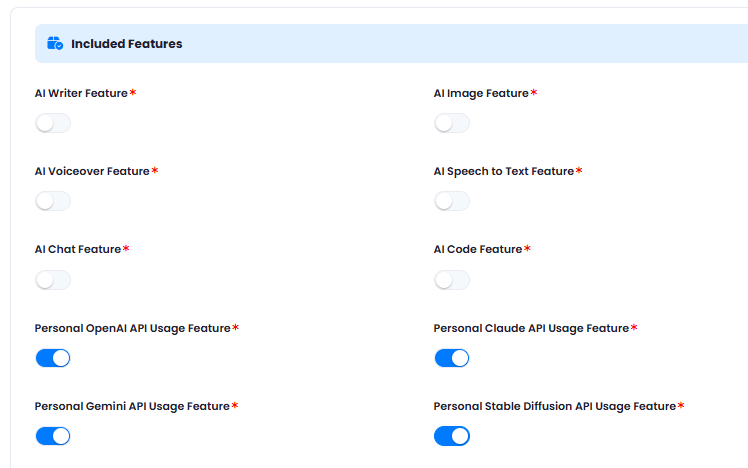 Now all your subscribers of this particular plan will be required to include their personal API keys under **My Accounts** -> **Personal API Keys** page for the AI Vendors that you have turned on in your subscription plan. If they didn't provide any personal API keys and try to generate text in AI Chat for example, they will see a warning message which will ask them to provide an API key first.
Congratulations! You have successfully completed setting up Personal API Key feature for subscriber group.
Now all your subscribers of this particular plan will be required to include their personal API keys under **My Accounts** -> **Personal API Keys** page for the AI Vendors that you have turned on in your subscription plan. If they didn't provide any personal API keys and try to generate text in AI Chat for example, they will see a warning message which will ask them to provide an API key first.
Congratulations! You have successfully completed setting up Personal API Key feature for subscriber group.