> ## Documentation Index
> Fetch the complete documentation index at: https://magicads.mintlify.site/llms.txt
> Use this file to discover all available pages before exploring further.
# Azure OpenAI
> Azure OpenAI Extension offers industry-leading coding and language AI models that you can fine-tune to your specific needs for a variety of use cases.
This is a free extension available for anyone
* OpenAI | o3 mini
* OpenAI | o1 mini
* OpenAI | o1
* OpenAI | GPT 4.5
* OpenAI | GPT 4 Turbo
* OpenAI | GPT 4o mini
* OpenAI | GPT 4o
* OpenAI | GPT 4
* OpenAI | GPT 3.5 Turbo
* More will be added soon...
Please note that at the moment we have added support for OpenAI models in AI Writer and AI Chat feature, other models will be supported soon with Azure OpenAI.
## Extension Configuration
To be able to use Azure OpenAI feature, follow these steps to setup Azure OpenAI Extension.
Go to the **Marketplace** in **Admin Panel** and install **Azure OpenAI** extension.
 After installation is completed, go to **AI Settings** page in Admin Panel and click on **Extensions** tab there. Click on **Azure OpenAI** there.
 Register with OpenRouter:
1. Go to Azure OpenAI website and sign up with them in case if don't have an account with them.
2. After your are logged into your OpenRouter account, click on the **API Keys** and click on **Create Key** button.
Register with OpenRouter:
1. Go to Azure OpenAI website and sign up with them in case if don't have an account with them.
2. After your are logged into your OpenRouter account, click on the **API Keys** and click on **Create Key** button.
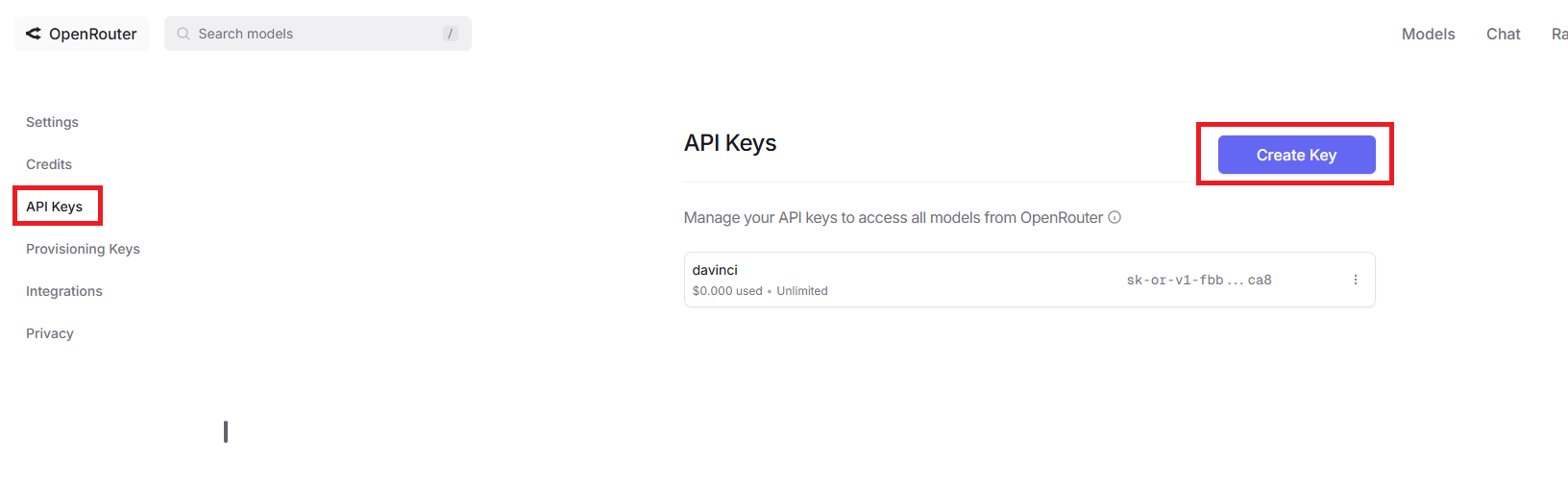 3. Also make sure you fill up your credits under **Credits** tab in your OpenRouter account as OpenRouter does not offer any free credits to use their platform.
Store your API key securely and never share it publicly. The key can provide direct access to your account.
To control the settings of **OpenRouter** exension, return to **AI Settings** page in Admin Panel and click on the **Extensions** tab, and select **Azure OpenAI** extension.
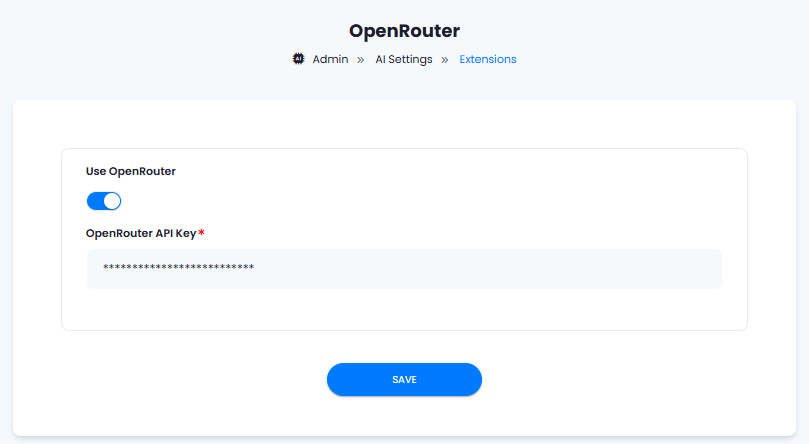
Configuration of Azure OpenAI is done on this page, there will be no new menu item added in the Admin Panel. Below is the explanation of each field on Azure OpenAI page.
* Enter your **Azure OpenAI API Key**
* Turn on **Use Azure OpenAI** checkbox if you want to use your Azure OpenAI account instead other vendors, and AI Writer and AI Chat features will automatically start using Azure OpenAI for supported LLM models.
3. Also make sure you fill up your credits under **Credits** tab in your OpenRouter account as OpenRouter does not offer any free credits to use their platform.
Store your API key securely and never share it publicly. The key can provide direct access to your account.
To control the settings of **OpenRouter** exension, return to **AI Settings** page in Admin Panel and click on the **Extensions** tab, and select **Azure OpenAI** extension.
Configuration of Azure OpenAI is done on this page, there will be no new menu item added in the Admin Panel. Below is the explanation of each field on Azure OpenAI page.
* Enter your **Azure OpenAI API Key**
* Turn on **Use Azure OpenAI** checkbox if you want to use your Azure OpenAI account instead other vendors, and AI Writer and AI Chat features will automatically start using Azure OpenAI for supported LLM models.
 You know have completed the Azure OpenAI extension configuration.
You have successfully comleted the setup process of this extension.
You know have completed the Azure OpenAI extension configuration.
You have successfully comleted the setup process of this extension.