> ## Documentation Index
> Fetch the complete documentation index at: https://magicads.mintlify.site/llms.txt
> Use this file to discover all available pages before exploring further.
# Chat Share
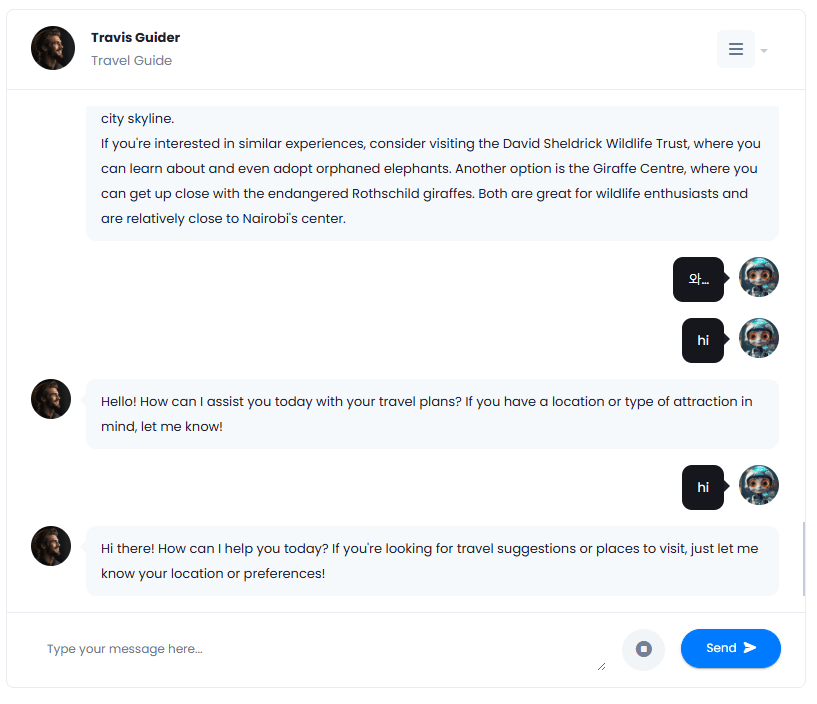
> Share your chatbot conversation with anyone you prefer with just one click and have full control of its features
This is a free extension available for anyone
Chat share feature is set to use by default **GPT 4o mini** which is one the cheapest and fastest models of OpenAI
## Extension Configuration
To be able to use Chat Share in AI Chat feature, follow these steps to setup Chat Share Extension.
Go to the **Marketplace** in **Admin Panel** and install **Chat Share** extension.
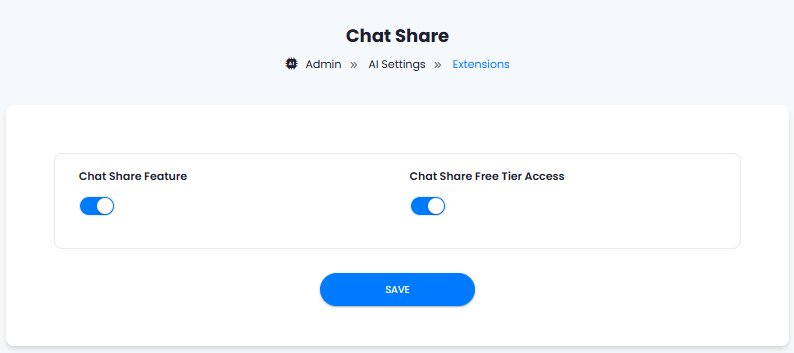
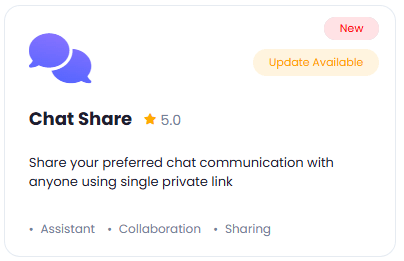 After installation is completed, go to **AI Settings** page in Admin Panel and click on **Extensions** tab there. Click on **Chat Share** there.
 1. Turn on the checkboxes for **Chat Share Feature** and **Chat Share Free Tier Access**
If you don't turn on Chat Share Free Tier Access, then users who did not subscribe to any subscription plan where you have Chat Share feature enabled, will not have any access to this feature
2. After you are done with setup click on **Save** button.
1. Turn on the checkboxes for **Chat Share Feature** and **Chat Share Free Tier Access**
If you don't turn on Chat Share Free Tier Access, then users who did not subscribe to any subscription plan where you have Chat Share feature enabled, will not have any access to this feature
2. After you are done with setup click on **Save** button.
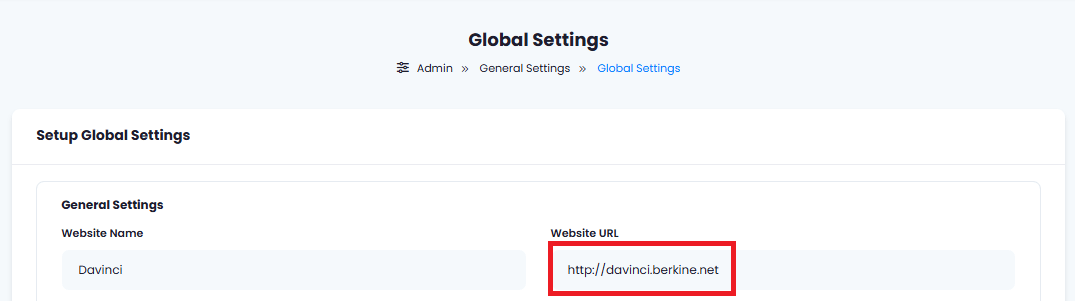
 Make sure you have your domain URL set under **Admin Panel** -> **General Settings** -> **Global Settings**.
Set your **Website URL** to be matching your domain name. Make sure that it does **not** end it "/" at the end of your domain name.
 You know have completed the Chat Share extension configuration. Proceed to the section below on how to use it.
## How to Use
Chat Share extension is a feature of AI Chat. It allows you to share any selected conversation with external users outside of Davinci AI.
You know have completed the Chat Share extension configuration. Proceed to the section below on how to use it.
## How to Use
Chat Share extension is a feature of AI Chat. It allows you to share any selected conversation with external users outside of Davinci AI.
Chat Share extension let's you control whether or not you want to share as read only chat, or let them use it to ask any questions from the chatbot.
You can also set custom expiration dates after which shared chat link will not be available to anyone.
The Chat share extension, will consume your tokens, so share responsible
### Generate Chat Share URL
1. Go to **AI Chat** feature in the **User Panel**
2. After you have enabled Chat Share extension, a new **Share** button appears in the top features section of the chatbot.
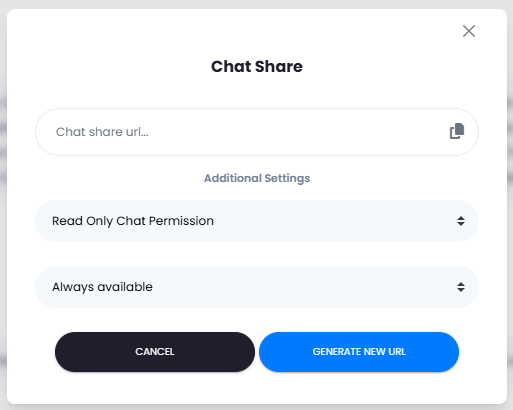
 3. When you click on a, a popup windows appears with following settings:
* **Generate New URL** button, that will generate you a new chat share URL for you.
* **Read Only Chat Permission** setting, as the name implies, will not let the user to ask any question, and user will have the entire chat conversation in read only mode
* **Full Chat Permission** on the other hand, will let the user ask any questions, and use it as a normal chat interaction
* **Always available** option means that generate chat url will alway be available until the shared converstion is not deleted completely
* **Available until specified time** will let the link be available only until the exact date and time you specify
3. When you click on a, a popup windows appears with following settings:
* **Generate New URL** button, that will generate you a new chat share URL for you.
* **Read Only Chat Permission** setting, as the name implies, will not let the user to ask any question, and user will have the entire chat conversation in read only mode
* **Full Chat Permission** on the other hand, will let the user ask any questions, and use it as a normal chat interaction
* **Always available** option means that generate chat url will alway be available until the shared converstion is not deleted completely
* **Available until specified time** will let the link be available only until the exact date and time you specify
 4. After you have generated your chat share link, copy paste it into a browser tab, and you will see the selected conversation in chat share mode.