> ## Documentation Index
> Fetch the complete documentation index at: https://magicads.mintlify.site/llms.txt
> Use this file to discover all available pages before exploring further.
# AI External Chatbot Analytics
> Get comprehensive usage insights of all your External Chatbots in one place with External Chatbot Analytics extension with Davinci AI.
This is a **Paid** extension that you need to first purchase via **Marketplace**
## Introduction
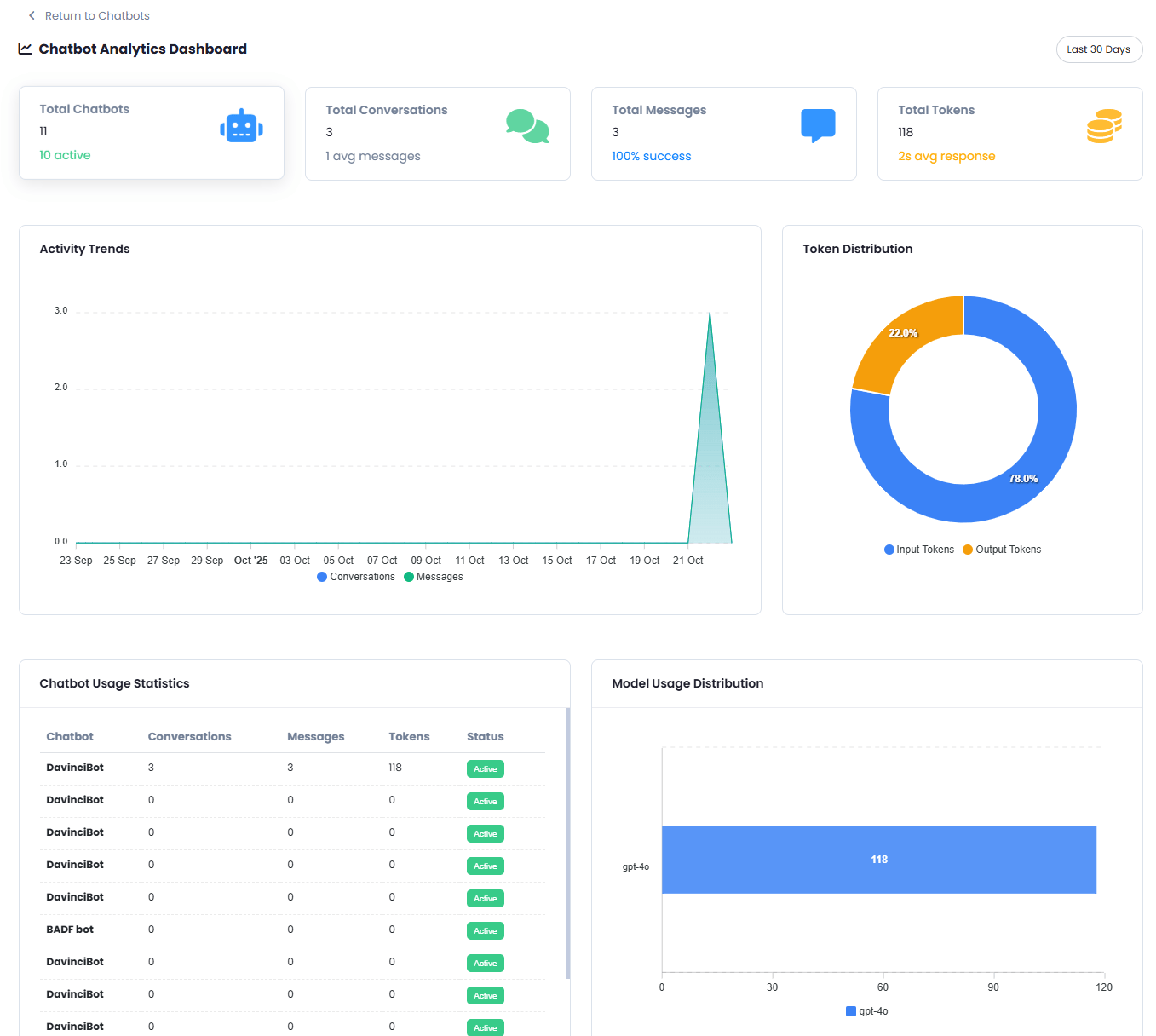
Unlock the full potential of your external chatbots with the **External Chatbot Analytics** extension, your all-in-one solution for comprehensive usage insights in a single, intuitive dashboard. This powerful tool empowers businesses to monitor and optimize chatbot performance like never before, providing a clear view of key metrics to drive smarter decision-making. With features like Activity Trends to track engagement over time, Token Distribution and Token Consumption by Chatbot to manage resource allocation, Chatbot Usage Statistics and Model Usage Distribution to understand interaction patterns, Channel Performance to evaluate effectiveness across platforms, Top Domains to identify high-impact sources, and Detailed Conversation Analysis to dive deep into user interactions, this extension delivers actionable data to enhance efficiency, improve user experiences, and maximize ROI. Take control of your chatbot ecosystem and elevate your strategy with External Chatbot Analytics today!
* Activity Trends Monitoring
* Token Distribution
* Model Usage Distribution
* Chatbot Usage Statistics
* Channel Performance
* Top Domains
* Token Consumption by Chatbot
* Detailed Conversation Analysis
* More will be added soon...
## Extension Configuration
Go to the **Marketplace** in **Admin Panel** and install **External Chatbot Analytics** extension after successfully purchasing it first.
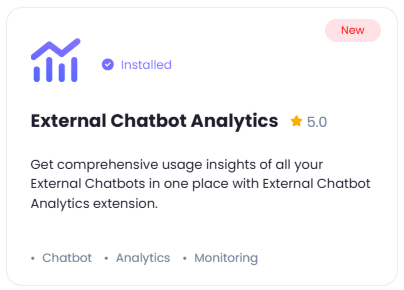 After installation is completed, go to **AI Settings** page in Admin Panel and click on **Extensions** tab there. Click on **External Chatbot Analytics** there.
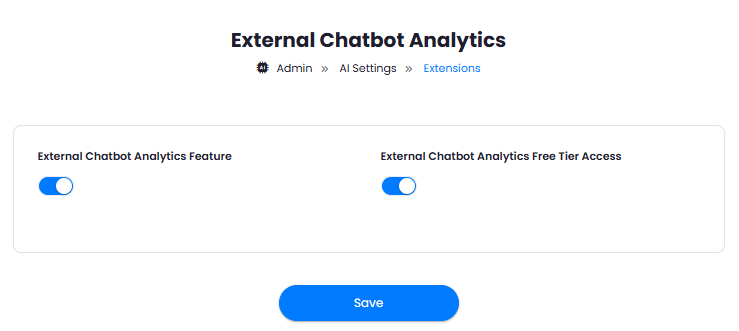
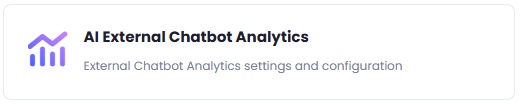 To control the settings of **External Chatbot Analytics** exension, return to **AI Settings** page in Admin Panel and click on the **Extensions** tab, and select **External Chatbot Analytics** extension.
1. Turn on the checkboxes for **External Chatbot Analytics Feature** and **External Chatbot Analytics Free Tier Access**
If you don't turn on External Chatbot Analytics Free Tier Access, then users who did not subscribe to any subscription plan where you have External Chatbot Analytics feature enabled, will not have any access to this feature
2. After you are done with configuration, click on the **Save** button.
To control the settings of **External Chatbot Analytics** exension, return to **AI Settings** page in Admin Panel and click on the **Extensions** tab, and select **External Chatbot Analytics** extension.
1. Turn on the checkboxes for **External Chatbot Analytics Feature** and **External Chatbot Analytics Free Tier Access**
If you don't turn on External Chatbot Analytics Free Tier Access, then users who did not subscribe to any subscription plan where you have External Chatbot Analytics feature enabled, will not have any access to this feature
2. After you are done with configuration, click on the **Save** button.
 Congratulations! You now have completed the External Chatbot Analytics extension configuration. Proceed to the section below on how to use it.
## How to Use
Using External Chatbot Analytics extension is very easy and straightforward. It gives user the full metics on his external chatbot usages and metrics including sentiment analysis.
1. Go to **AI Chatbots** in User panel.
2. If user's account has access to External Chatbot Analytics, he can see a new **Chatbot Analytics** button there.
Congratulations! You now have completed the External Chatbot Analytics extension configuration. Proceed to the section below on how to use it.
## How to Use
Using External Chatbot Analytics extension is very easy and straightforward. It gives user the full metics on his external chatbot usages and metrics including sentiment analysis.
1. Go to **AI Chatbots** in User panel.
2. If user's account has access to External Chatbot Analytics, he can see a new **Chatbot Analytics** button there.
 3. Upon clicking on it, user will see all details of each of their external chatbots.