> ## Documentation Index
> Fetch the complete documentation index at: https://magicads.mintlify.site/llms.txt
> Use this file to discover all available pages before exploring further.
# Human Agent
> Easily switch from AI to realtime human agent support with the Live Real Human Agent extension.
This is a **Paid** extension that you need to first purchase via **Marketplace**
This extension requires to have access to **External Chatbot** extension, which is also available in the **Marketplace** for purchase
## Introduction
Seamlessly transition from AI to human support with the Live Real Human Agent extension. This powerful feature allows for real-time, direct communication with human agents within your external chatbot, ensuring that your users receive personalized, empathetic assistance when AI isn’t enough to address their needs. Whether it’s a complex issue, a unique request, or the need for more in-depth support, the Live Real Agent extension bridges the gap between automated responses and human expertise, delivering a smooth and efficient experience for both your users and your support team.
## Key Features and Benefits:
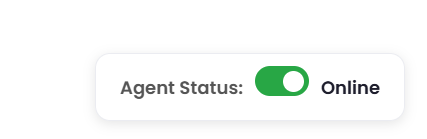
* **Agent Status**: Human Agents can turn on and off their statuses
* **Real Time Notification**: Human Agents can see real time incoming notifications and accept the request to step in and take over the chat communication
* **Custom Away Messaging**: Customize messages for AI bots in case if agent status if off and continue the conversation with the user
* **Escalation Timeout** : Set escalation timeone which is a time to wait for an agent before offering to return to AI mode.
* **Custom Trigger Phrases**: Include your own custom trigger phrases or use the default ones.
## Extension Configuration
Go to the **Marketplace** in **Admin Panel** and install **Human Agent for External Chatbot** extension after successfully purchasing it first.
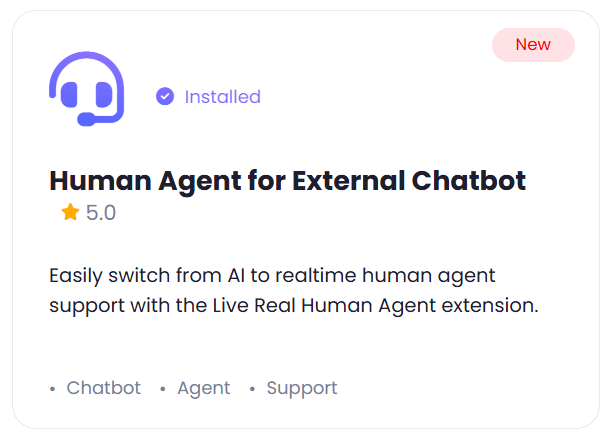 After installation is completed, go to **AI Settings** page in Admin Panel and click on **Extensions** tab there. Click on **Human Agent for External Chatbot** there.
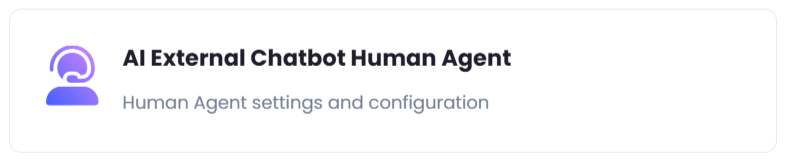 To control the settings of **Human Agent** exension, return to **AI Settings** page in Admin Panel and click on the **Extensions** tab, and select **Human Agent** extension.
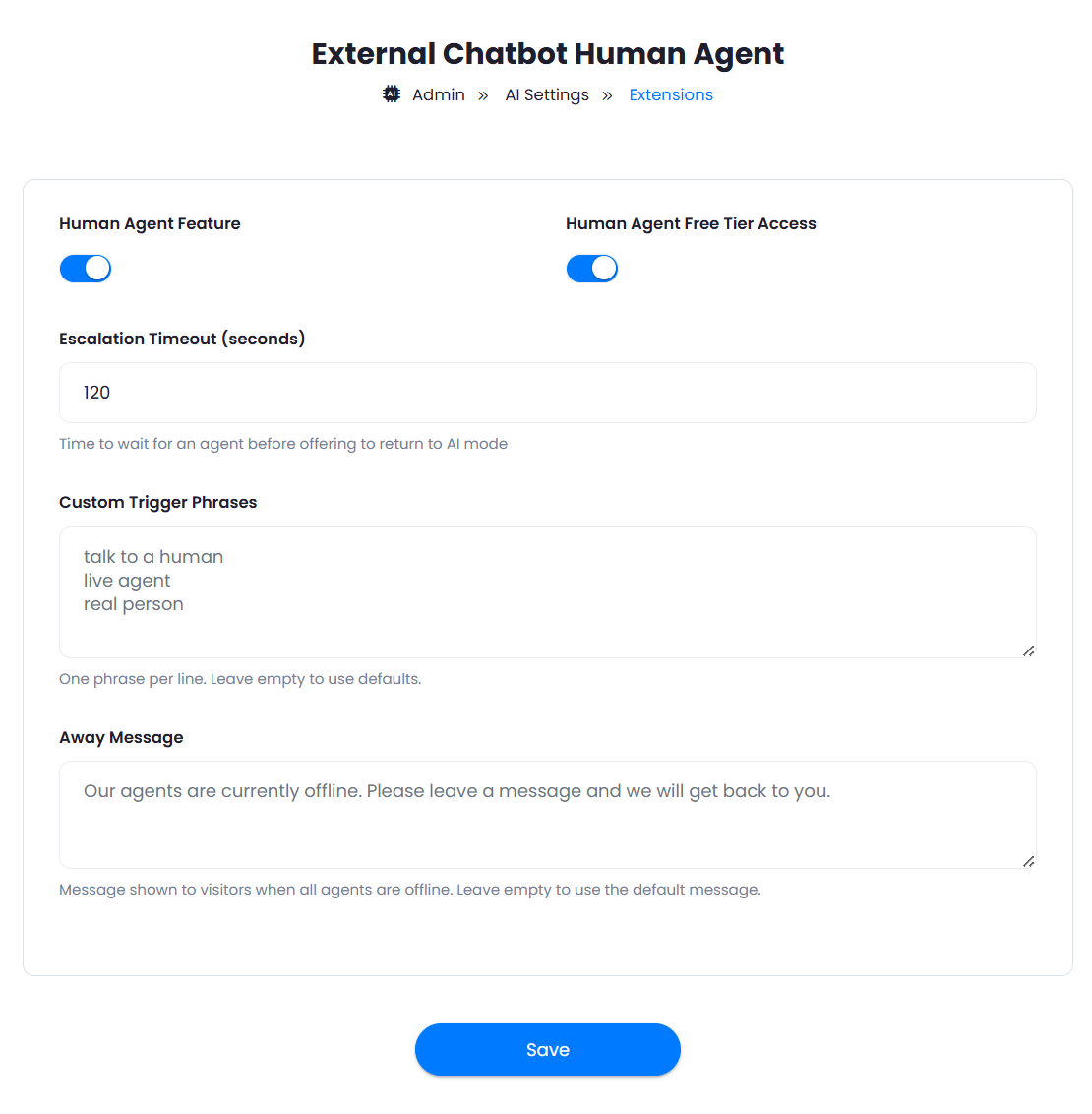
1. Turn on the checkboxes for **Human Agent Feature** and **Human Agent Free Tier Access**
If you don't turn on Human Agent Free Tier Access, then users who did not subscribe to any subscription plan where you have Human Agent feature enabled, will not have any access to this feature
2. Set **Escalation Timeout (seconds)**, Time to wait for an agent before offering to return to AI mode
3. Include **Custom Trigger Phrases** if needed, otherwise it will by defualt listed for these:
* 'talk to a human',
* 'live agent',
* 'real person',
* 'speak to someone',
* 'human support',
* 'connect me to agent',
* 'live support',
* 'talk to agent',
* 'need a human',
* 'customer service',
* 'speak with a person',
* 'real agent',
4. Set **Away Message** in case if Agent Status is set to Off.
5. After you are done with configuration, click on the **Save** button.
To control the settings of **Human Agent** exension, return to **AI Settings** page in Admin Panel and click on the **Extensions** tab, and select **Human Agent** extension.
1. Turn on the checkboxes for **Human Agent Feature** and **Human Agent Free Tier Access**
If you don't turn on Human Agent Free Tier Access, then users who did not subscribe to any subscription plan where you have Human Agent feature enabled, will not have any access to this feature
2. Set **Escalation Timeout (seconds)**, Time to wait for an agent before offering to return to AI mode
3. Include **Custom Trigger Phrases** if needed, otherwise it will by defualt listed for these:
* 'talk to a human',
* 'live agent',
* 'real person',
* 'speak to someone',
* 'human support',
* 'connect me to agent',
* 'live support',
* 'talk to agent',
* 'need a human',
* 'customer service',
* 'speak with a person',
* 'real agent',
4. Set **Away Message** in case if Agent Status is set to Off.
5. After you are done with configuration, click on the **Save** button.
 Include your Pusher APP API keys in the .env file in the root directory of your script installation path.
Congratulations! You now have completed the Human Agent extension configuration. Proceed to the section below on how to use it.
## How to Use
Using Human Agent extension is very easy and straightforward.
1. You first need to create External Chatbot in the **External Chatbot** extension, and make sure to include valid Pusher API keys in the .env file of the script.
2. Next, embed your newly created External Chatbot on your preferred 3rd party website.
3. Make sure that your Human Agent status is set to **Active** first of all in the Human Agent page in the User panel in Davinci AI.
Include your Pusher APP API keys in the .env file in the root directory of your script installation path.
Congratulations! You now have completed the Human Agent extension configuration. Proceed to the section below on how to use it.
## How to Use
Using Human Agent extension is very easy and straightforward.
1. You first need to create External Chatbot in the **External Chatbot** extension, and make sure to include valid Pusher API keys in the .env file of the script.
2. Next, embed your newly created External Chatbot on your preferred 3rd party website.
3. Make sure that your Human Agent status is set to **Active** first of all in the Human Agent page in the User panel in Davinci AI.
 3. Once it is there, user can start a conversation with the chatbot, and by default it is first covered by AI using your LLM model that you selected during chatbot creation.
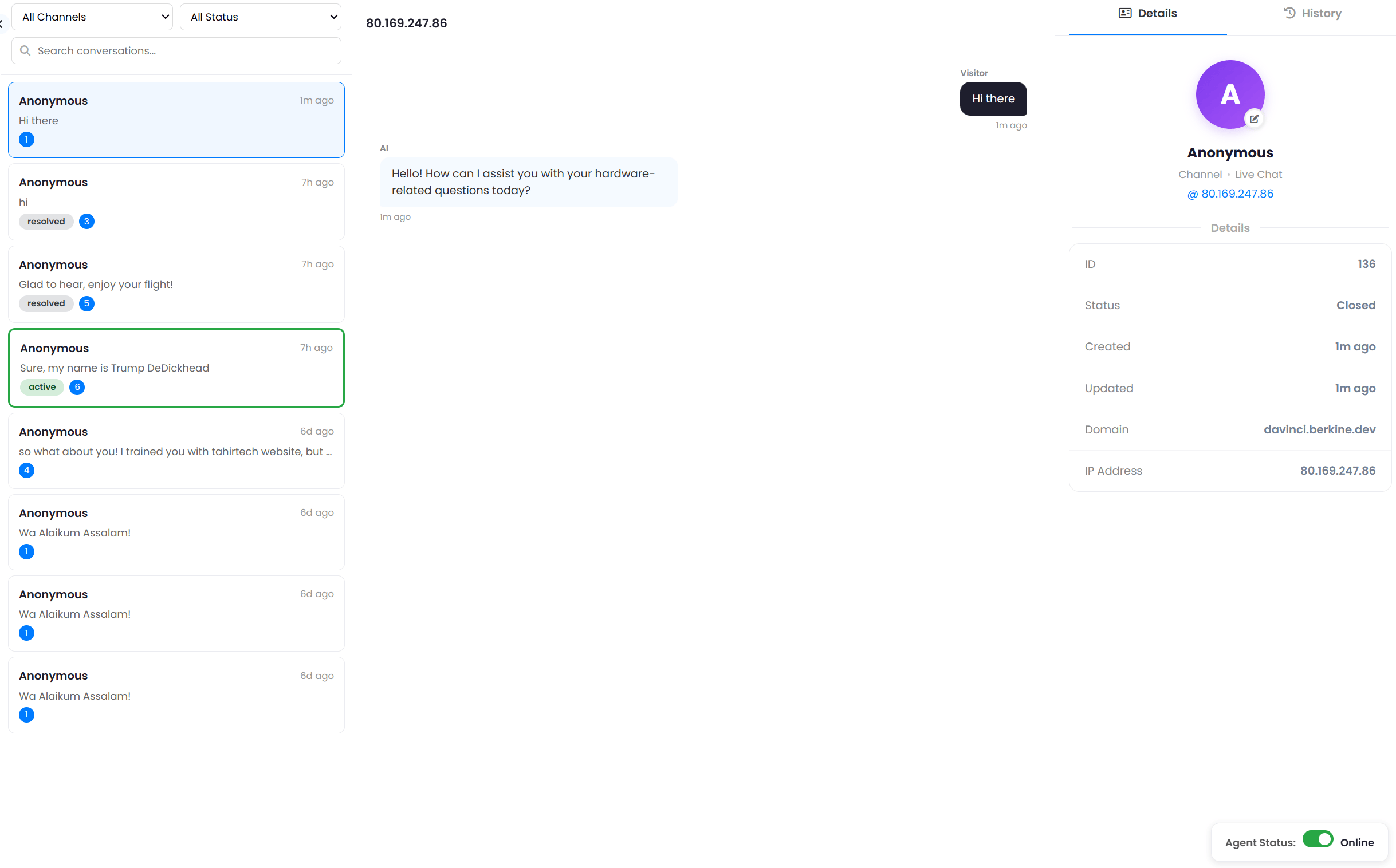
4. By default, human agent can see all the communication, but cannot interact with them unless user asked for live human support, the conversations that had live human support request are highlited in:
* **Green**\*: (Active conversations that human agent has accepted),
* **Yellow**: (Pending conversations that human agent didn't accept yet)
* **Greay**: (Resolved cases by human agent)
3. Once it is there, user can start a conversation with the chatbot, and by default it is first covered by AI using your LLM model that you selected during chatbot creation.
4. By default, human agent can see all the communication, but cannot interact with them unless user asked for live human support, the conversations that had live human support request are highlited in:
* **Green**\*: (Active conversations that human agent has accepted),
* **Yellow**: (Pending conversations that human agent didn't accept yet)
* **Greay**: (Resolved cases by human agent)
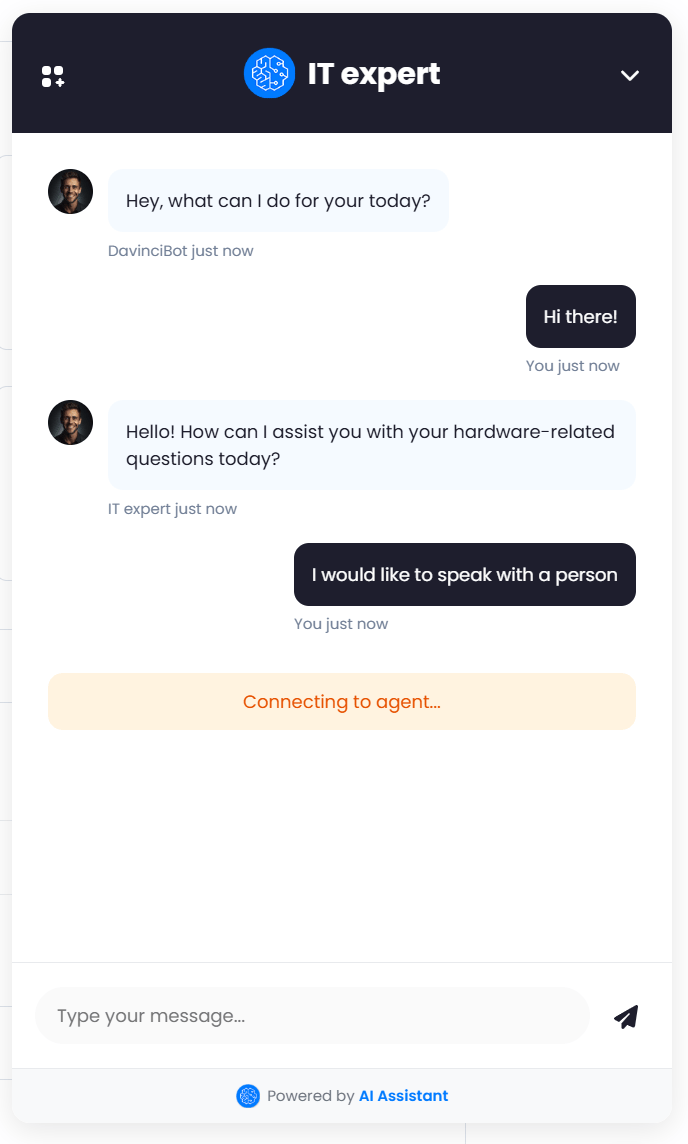
 4. During the converation in the chatbot, user can ask to "speak with a person" like in the example shown below, and he will see a message: **Connecting to agent...**
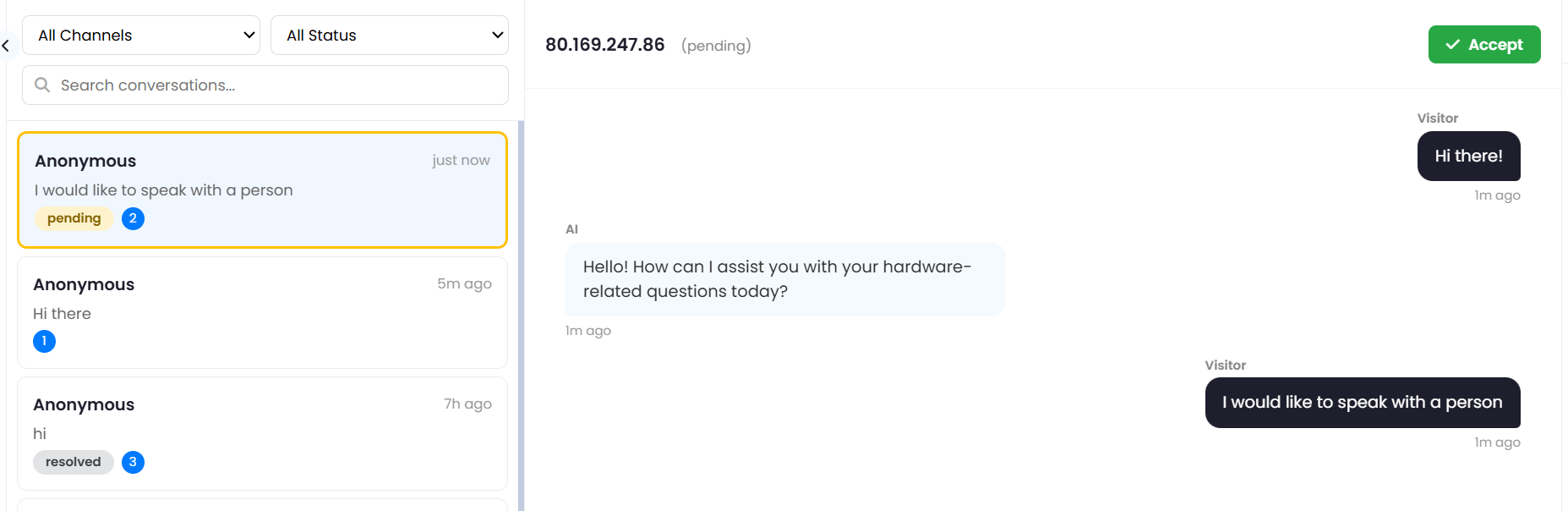
 5. On the Human Agent interface, a new conversation with yellow box will appear, and a new green **Accept** button will appear on the center of the screen as shown in the image below.
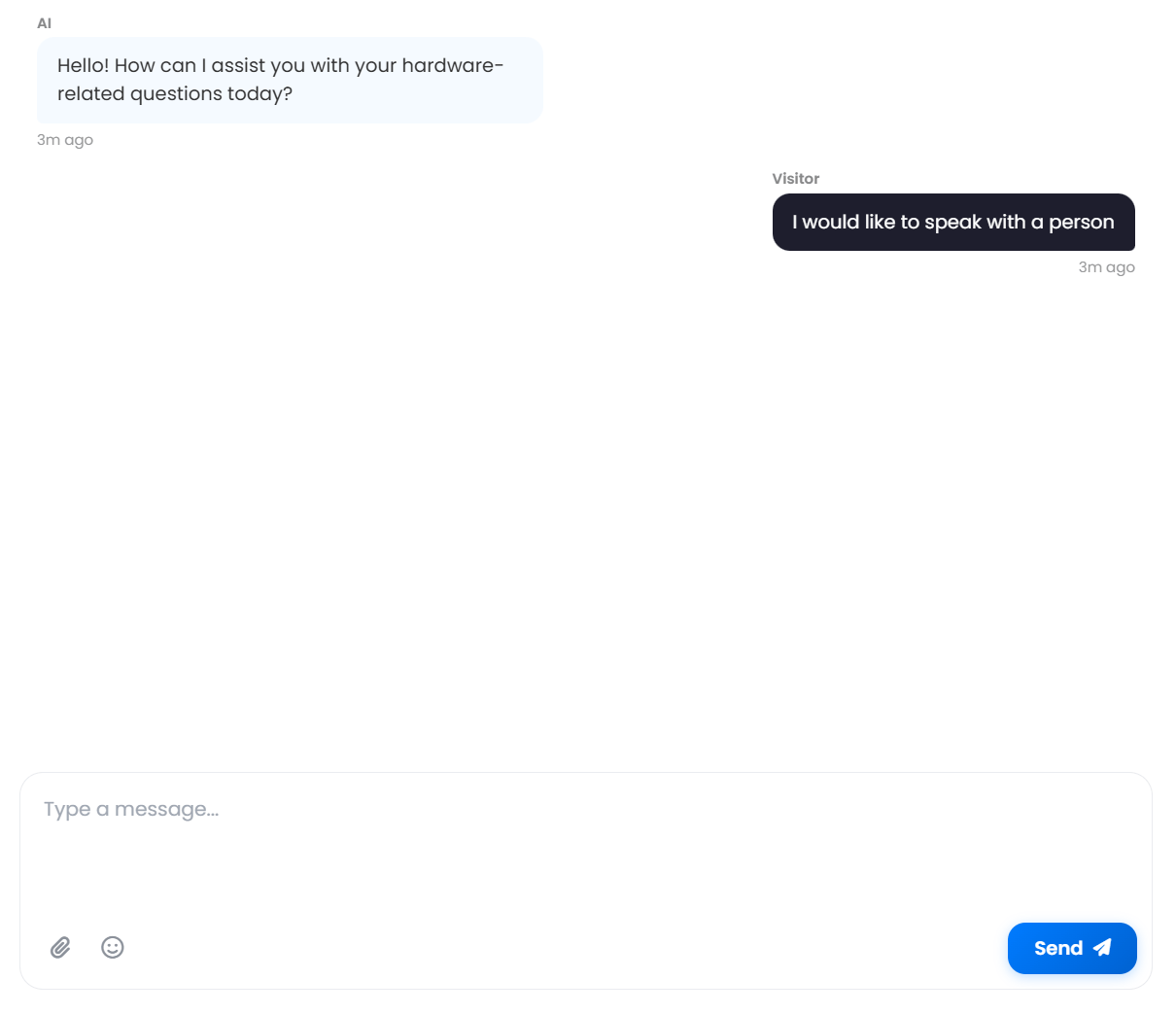
 6. As soon as Human Agent clicks on Accept button, a **textarea** will apear under the messages section of that conversation, and Human Agent can start the live conversation.
 7. Once agent accepts the conversation, user will see immediately a notifcation that **A human agent has joined the conversation.**.
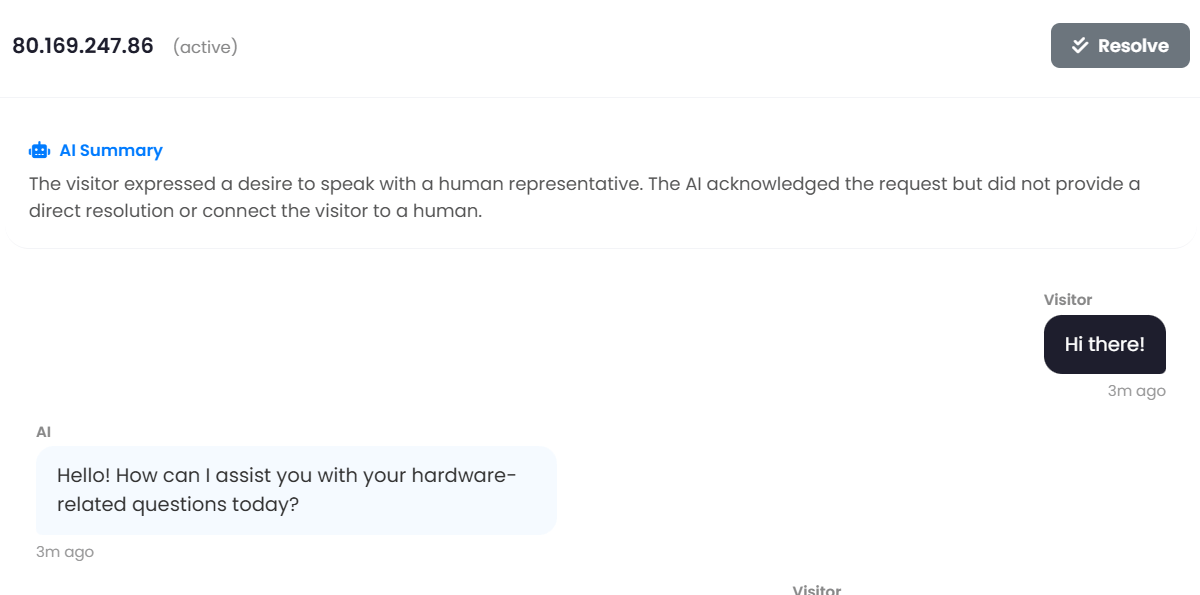
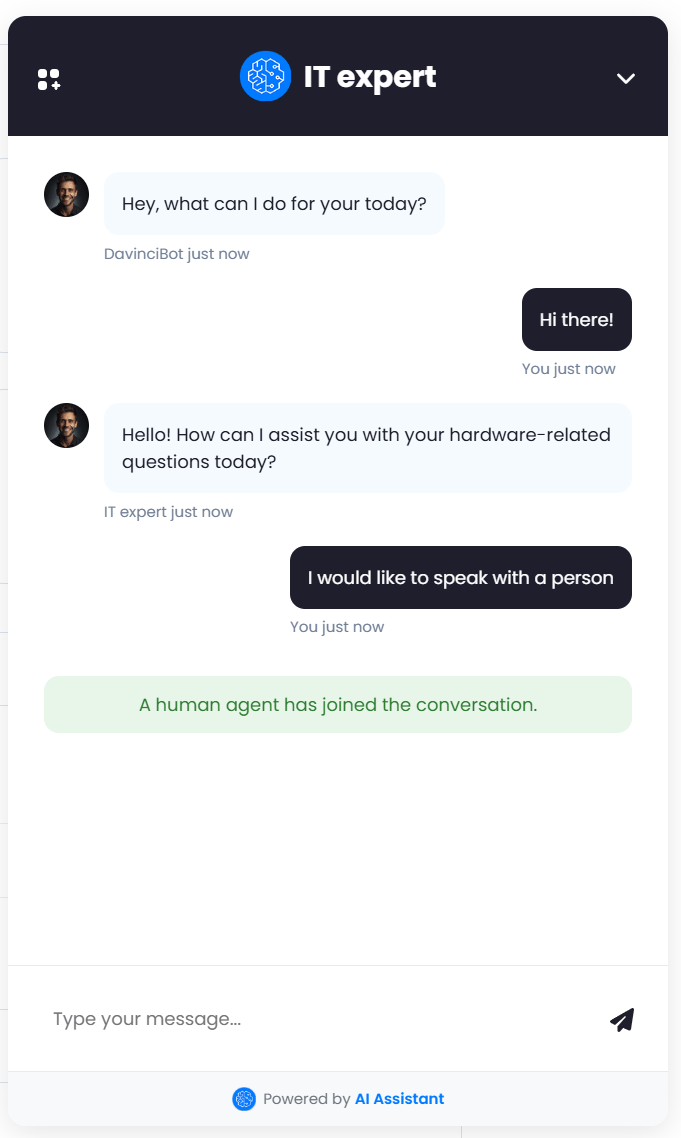 8. And human agent can start the conversation with the user, also be aware that agent get **AI Summary** at the top of the messages so that it summarize what was conversation initially about, so that agent doesn't have to read each and every message.
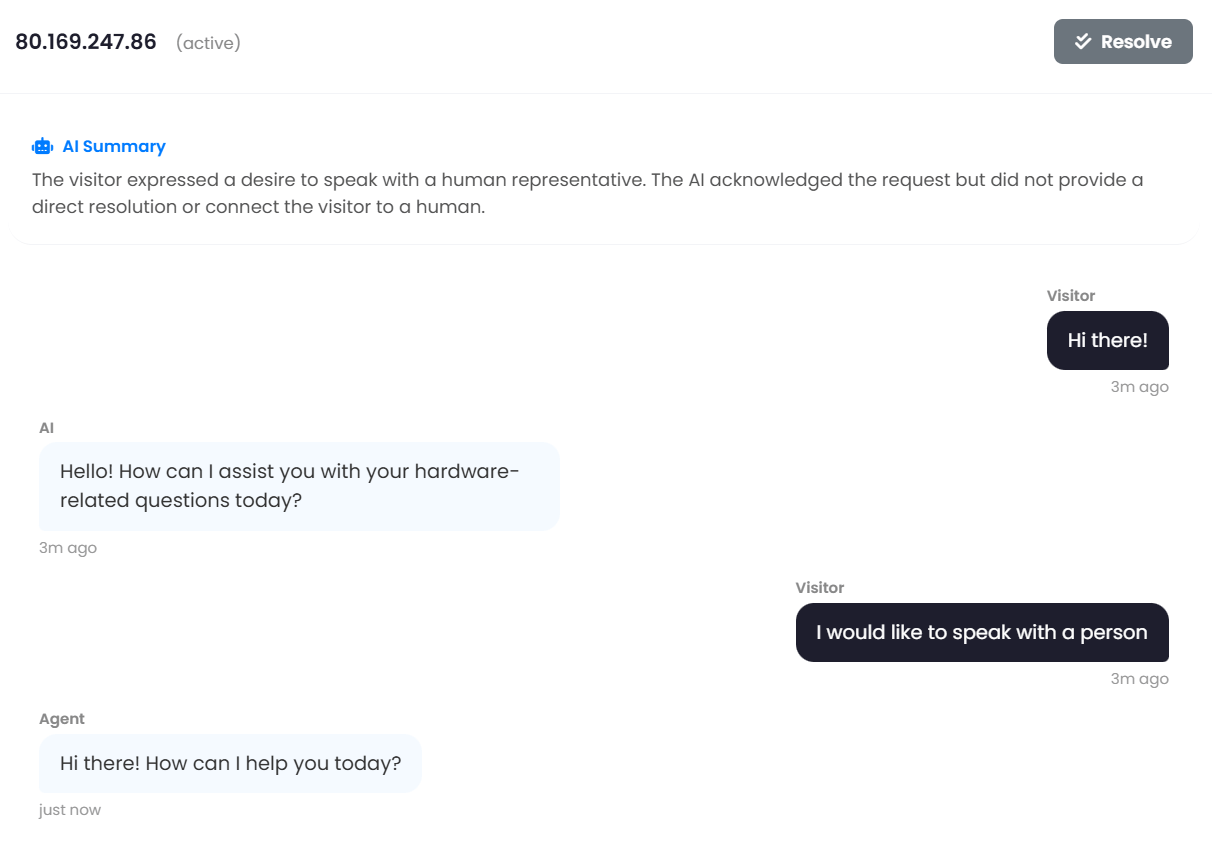 9. After the conversation is over and agent helped out the user, agent can click on the **Resolve** button to close the case. After the case is resolved, human agent will no longer have access to the textarea field.
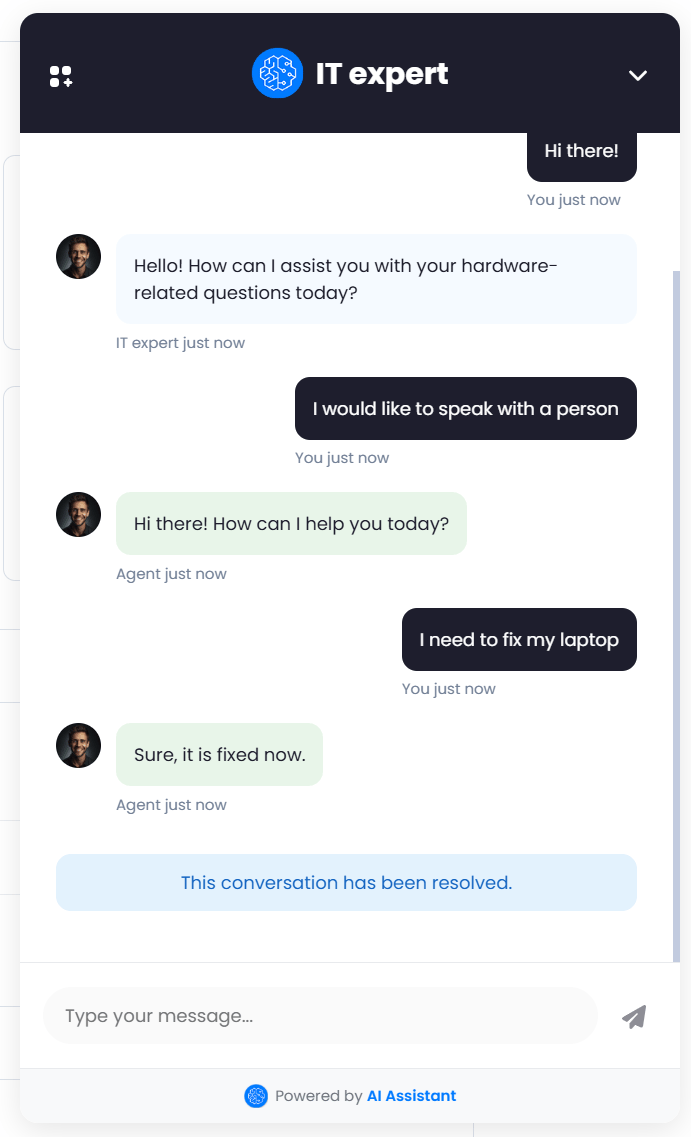
 10. User will get respective notification if conversation is resolved by the agent.
 Congratulations! You have completed the human agent setup and usage.