> ## Documentation Index
> Fetch the complete documentation index at: https://magicads.mintlify.site/llms.txt
> Use this file to discover all available pages before exploring further.
# Menu Builder
> Customize the layout of side menu panel however your prefer with our Menu Builder Extension.
This is a **Paid** extension that you need to first purchase via **Marketplace**
## Extension Configuration
To be able to use Menu Builder feature, follow these steps to setup Menu Builder Extension.
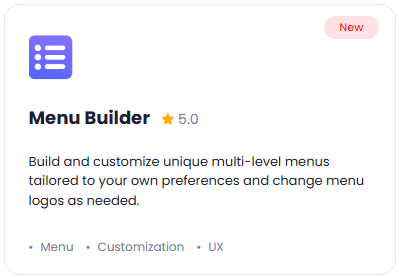
Go to the **Marketplace** in **Admin Panel** and install **Menu Builder** extension after successfully purchasing it first.
 After installation is completed, go to **Menu Builder** tab in Admin Panel.
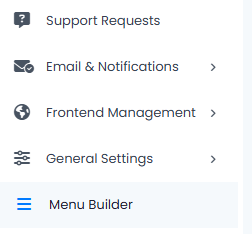 You now have completed the Menu Builder extension installation. Proceed to the section below on how to use it.
## How to Use
Sidebar menu panel consists of two types of menu items, the ones that below to **User Panel** and to **Admin Panel**, users by default do not see any admin related menu items.
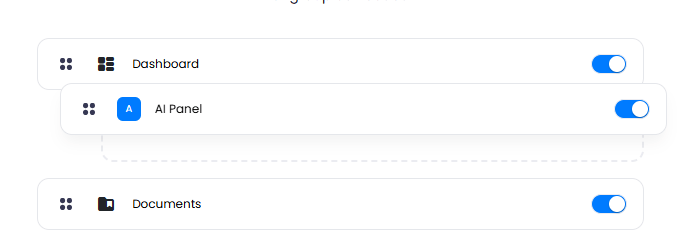
* You can grab any menu item and grag and drop under/above any other menu item, or move it to be it's child element
You now have completed the Menu Builder extension installation. Proceed to the section below on how to use it.
## How to Use
Sidebar menu panel consists of two types of menu items, the ones that below to **User Panel** and to **Admin Panel**, users by default do not see any admin related menu items.
* You can grab any menu item and grag and drop under/above any other menu item, or move it to be it's child element
 * Menu items that are available only for Admin groups are market with this special icon:
 * Menu items that are extensions, hence requires separatley instsallations first via the Marketplace are marked with this special icon:
 * If you turn off a menu item checkbox, then it will not be visible to anyone in the sidebar menu panel.
* You can rename the menu item by simply clicking on the menu item name
* You can change the menu item icon by simply clicking on the menu item icon
* By clicking on the **Add Menu Item** button, you can generate new:
* Group title
* Divider line
* New Menu item element
You have successfully comleted the setup process of this extension.
* If you turn off a menu item checkbox, then it will not be visible to anyone in the sidebar menu panel.
* You can rename the menu item by simply clicking on the menu item name
* You can change the menu item icon by simply clicking on the menu item icon
* By clicking on the **Add Menu Item** button, you can generate new:
* Group title
* Divider line
* New Menu item element
You have successfully comleted the setup process of this extension.