> ## Documentation Index
> Fetch the complete documentation index at: https://magicads.mintlify.site/llms.txt
> Use this file to discover all available pages before exploring further.
# AI Music
> Generate music and audio content using natural language easily via AI Music extension
This is a **Paid** extension that you need to first purchase via **Marketplace**
* Stable Audio
* Minimax Music
## Extension Configuration
To be able to use AI Music feature, follow these steps to setup this extension.
Go to the **Marketplace** in **Admin Panel** and install **AI Music** extension after successfully purchasing it first.
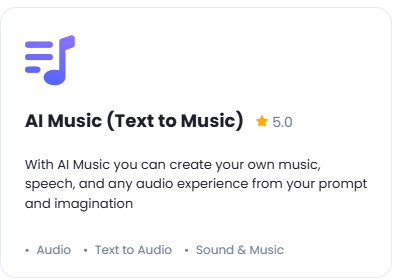 After installation is completed, go to **AI Settings** page in Admin Panel and click on **Extensions** tab there. Click on **AI Music** there.
 Go to aimlapi.com website, sign up with them and get your **API Key** on your profile page after you successfully complete the registration process on their website.
Store your API key securely and never share it publicly. The key provides direct access to your account.
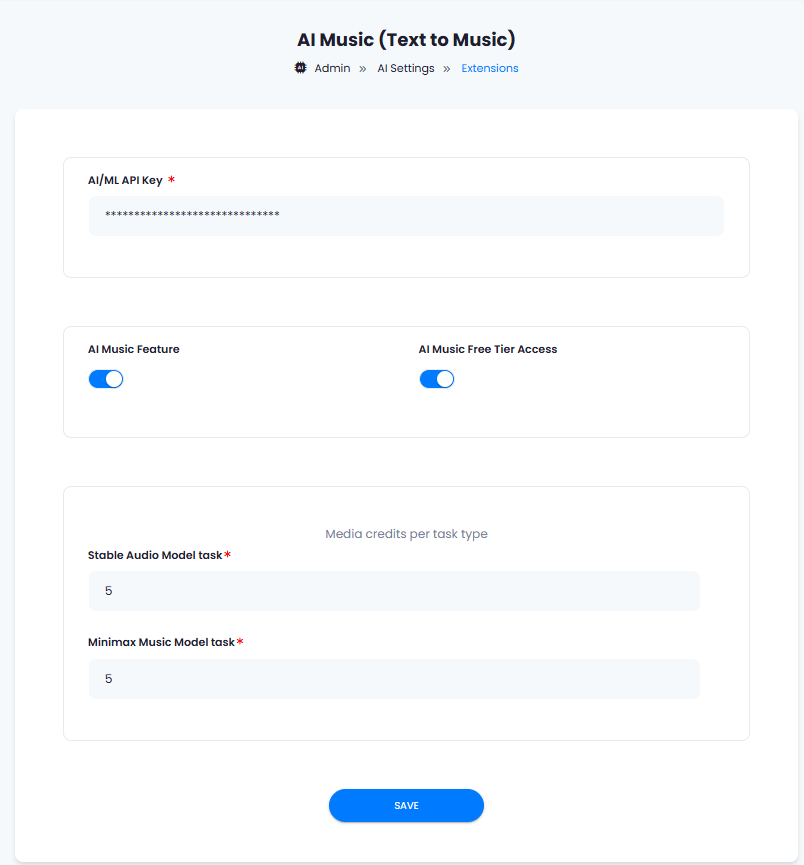
1. Enter your **API Key** in the Extensions tab - AI Music page.
2. Turn on the checkboxes for **AI Music Feature** and **AI Music Free Tier Access**
If you don't turn on AI Music Free Tier Access, then users who did not subscribe to any subscription plan where you have AI Music feature enabled, will not have any access to this feature
3. Under the **Media credits per task type** section, set how much media credits each text to music model will consume per task. Davinci AI gives you full control on how you want to charge your users based on media tasks.
4. After you are done with configuration, click on the **Save** button.
Go to aimlapi.com website, sign up with them and get your **API Key** on your profile page after you successfully complete the registration process on their website.
Store your API key securely and never share it publicly. The key provides direct access to your account.
1. Enter your **API Key** in the Extensions tab - AI Music page.
2. Turn on the checkboxes for **AI Music Feature** and **AI Music Free Tier Access**
If you don't turn on AI Music Free Tier Access, then users who did not subscribe to any subscription plan where you have AI Music feature enabled, will not have any access to this feature
3. Under the **Media credits per task type** section, set how much media credits each text to music model will consume per task. Davinci AI gives you full control on how you want to charge your users based on media tasks.
4. After you are done with configuration, click on the **Save** button.
 You know have completed the Midjourney extension configuration. Proceed to the section below on how to use it.
You have successfully comleted the setup process of this extension.
## How to Use
After you are done with the configuration of AI Music feature, it will appear on the User panel there you can start using this extension.\
Depending on which Music generation model you select, settings will change dynamically.
### Using with Stable Audio model
Stable Audio is an advanced audio generation model designed to create high-quality audio tracks from textual prompts.
Key Features:
* High-Quality Output: Generates audio at 44.1 kHz stereo, providing professional-grade sound quality.
* Length Flexibility: Capable of producing tracks with coherent musical structures including intros, developments, and outros.
* Diverse Sound Creation: Generates melodies, sound effects, and various audio styles, catering to musicians and sound designers.
* Length of Generated Tracks is up to 47s
Audio Generation process:
1. Include **Title** for your music generation task as needed
2. Include your **Prompt**, be as much description as possible.
3. Make sure you have selected **Stable Audio**
4. Set **Total Secods**, max genered result can be up to 47 secods.
5. Set **Steps** to denoise the audio, or leave it as default.
You know have completed the Midjourney extension configuration. Proceed to the section below on how to use it.
You have successfully comleted the setup process of this extension.
## How to Use
After you are done with the configuration of AI Music feature, it will appear on the User panel there you can start using this extension.\
Depending on which Music generation model you select, settings will change dynamically.
### Using with Stable Audio model
Stable Audio is an advanced audio generation model designed to create high-quality audio tracks from textual prompts.
Key Features:
* High-Quality Output: Generates audio at 44.1 kHz stereo, providing professional-grade sound quality.
* Length Flexibility: Capable of producing tracks with coherent musical structures including intros, developments, and outros.
* Diverse Sound Creation: Generates melodies, sound effects, and various audio styles, catering to musicians and sound designers.
* Length of Generated Tracks is up to 47s
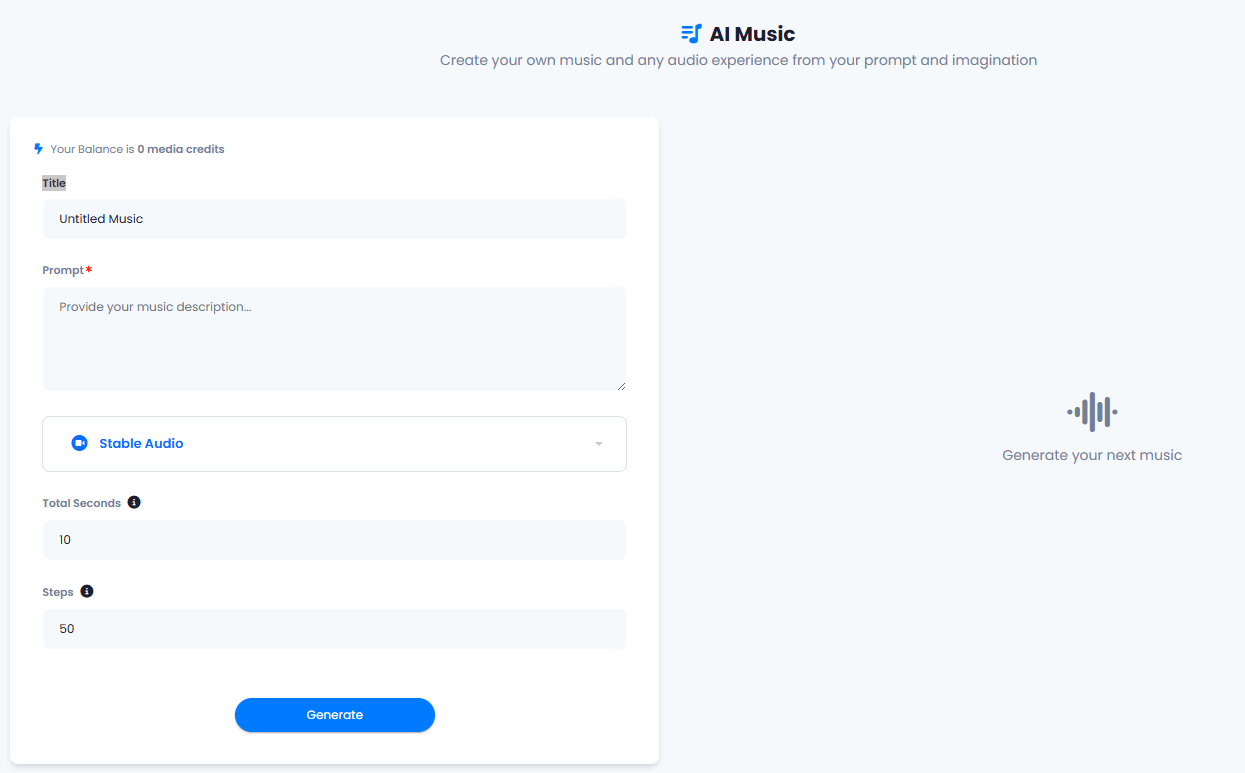
Audio Generation process:
1. Include **Title** for your music generation task as needed
2. Include your **Prompt**, be as much description as possible.
3. Make sure you have selected **Stable Audio**
4. Set **Total Secods**, max genered result can be up to 47 secods.
5. Set **Steps** to denoise the audio, or leave it as default.
 ### Using with Minimax Music model
MiniMax Music is an advanced AI model developed by Hailuo AI that generates high-quality music from text prompts. This model allows users to create diverse musical compositions by analyzing and reproducing musical patterns, rhythms, and vocal styles from reference tracks.
Key Features:
* Simultaneous Accompaniment and Vocals: Generates both accompaniment and vocals simultaneously, creating a complete musical piece.
* Style Learning from Reference Tracks: Users can upload reference music to guide the style of the generated music.
* Lyrics-to-Music Generation: Converts lyrics into music, allowing users to create songs with ease.
* Multiple Genre Support: Supports various genres including classical, pop, rock, electronic, and more.
* Maximum Output Duration: Currently limited to 60 seconds
Audio Generation process:
1. Include **Title** for your music generation task as needed
2. Include your **Prompt**, be as much description as possible.
3. Make sure you have selected **Minimax Music**
4. Upload your **Reference Audio** file that could be used as a reference during music generation.
### Using with Minimax Music model
MiniMax Music is an advanced AI model developed by Hailuo AI that generates high-quality music from text prompts. This model allows users to create diverse musical compositions by analyzing and reproducing musical patterns, rhythms, and vocal styles from reference tracks.
Key Features:
* Simultaneous Accompaniment and Vocals: Generates both accompaniment and vocals simultaneously, creating a complete musical piece.
* Style Learning from Reference Tracks: Users can upload reference music to guide the style of the generated music.
* Lyrics-to-Music Generation: Converts lyrics into music, allowing users to create songs with ease.
* Multiple Genre Support: Supports various genres including classical, pop, rock, electronic, and more.
* Maximum Output Duration: Currently limited to 60 seconds
Audio Generation process:
1. Include **Title** for your music generation task as needed
2. Include your **Prompt**, be as much description as possible.
3. Make sure you have selected **Minimax Music**
4. Upload your **Reference Audio** file that could be used as a reference during music generation.