> ## Documentation Index
> Fetch the complete documentation index at: https://magicads.mintlify.site/llms.txt
> Use this file to discover all available pages before exploring further.
# Perplexity AI
> Perplexity AI is an AI-powered web search engine and answer engine that uses advanced language models to interpret natural language queries, search the internet in real time, and generate concise, cited answers in a conversational format
This is a free extension available for anyone
* Perplexity Sonar
* Perplexity Sonar Pro
* Perplexity Reasoning
* Perplexity Reasoning Pro
* Realtime Search API for AI Chat and AI Writer
* Perplexity AI Models for AI Chat
* Perplexity AI Models for AI Writer
## Extension Configuration
To be able to use Perplexity AI feature, follow these steps to setup Perplexity AI Extension.
Go to the **Marketplace** in **Admin Panel** and install **Perplexity AI** extension.
 After installation is completed, go to **AI Settings** page in Admin Panel and click on **Extensions** tab there. Click on **Perplexity AI** there.
 Register with Perplexity AI:
1. Go to Perplexity AI website and sign up with them in case if don't have an account with them.
2. After your are logged into your Perplexity AI account, click on the **API** tab under the Workspace section and click on **Generate** button in the **API Keys** section.
Register with Perplexity AI:
1. Go to Perplexity AI website and sign up with them in case if don't have an account with them.
2. After your are logged into your Perplexity AI account, click on the **API** tab under the Workspace section and click on **Generate** button in the **API Keys** section.
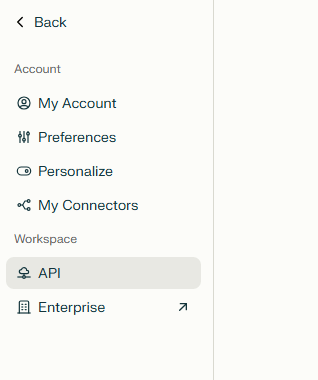 3. Also make sure you fill up your credits on that same page in your Perplexity AI account as Perplexity AI does not offer any free credits to use their platform.
Store your API key securely and never share it publicly. The key can provide direct access to your account.
To control the settings of **Perplexity AI** exension, return to **AI Settings** page in Admin Panel and click on the **Extensions** tab, and select **Perplexity AI** extension.
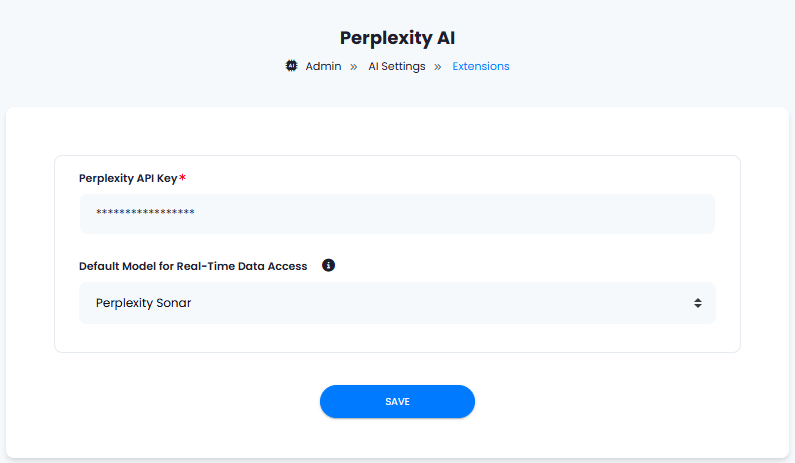
Configuration of Perplexity AI is done on this page, there will be no new menu item added in the Admin Panel. Below is the explanation of each field on Perplexity AI page.
* Enter your **Perplexity API Key**
* Under **Default Model for Real-Time Data Access** list, you can select which Perplexity model will be default for all internet searches for all users.
3. Also make sure you fill up your credits on that same page in your Perplexity AI account as Perplexity AI does not offer any free credits to use their platform.
Store your API key securely and never share it publicly. The key can provide direct access to your account.
To control the settings of **Perplexity AI** exension, return to **AI Settings** page in Admin Panel and click on the **Extensions** tab, and select **Perplexity AI** extension.
Configuration of Perplexity AI is done on this page, there will be no new menu item added in the Admin Panel. Below is the explanation of each field on Perplexity AI page.
* Enter your **Perplexity API Key**
* Under **Default Model for Real-Time Data Access** list, you can select which Perplexity model will be default for all internet searches for all users.
 You know have completed the Perplexity AI extension configuration. Refer to the How to use section below to learn more.
## How to Use
There are 2 options to use Perplexity AI, first is for real time internet data search, second is to use Perplexity AI Models for text generation.
### Real-Time Data Search
1. Go to **AI Settings** page in Admin Panel and select **General AI Settings** page
2. Scroll to **Real Time Data Access Engine** section and select **Perplexity** among the list as shown on the image below and click **Save** button.
You know have completed the Perplexity AI extension configuration. Refer to the How to use section below to learn more.
## How to Use
There are 2 options to use Perplexity AI, first is for real time internet data search, second is to use Perplexity AI Models for text generation.
### Real-Time Data Search
1. Go to **AI Settings** page in Admin Panel and select **General AI Settings** page
2. Scroll to **Real Time Data Access Engine** section and select **Perplexity** among the list as shown on the image below and click **Save** button.
 3. On that same **AI Settings** page go to **Free Trial Features** and turn on **Realtime Time Data Access** checkbox if you want your non-subscribers to use it and click **Save** button.
 4. Now the **Real-time Data** checkbox automatically will appear on AI Chat and AI Writer features.
### Using Perplexity AI Models
1. Go to **AI Settings** page in Admin Panel and select **Free Trial Features** page
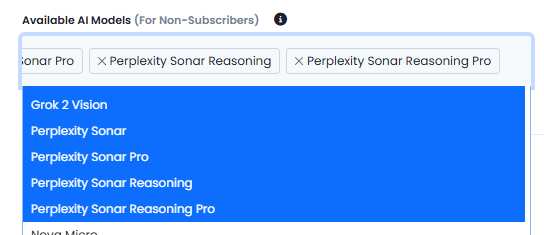
2. Include Perplexity models as needed by simply selecting them and click save button, thus non-subscribers will have access to this models. Or you can enable it only for subscribers by including it in one of your subscription plans.
4. Now the **Real-time Data** checkbox automatically will appear on AI Chat and AI Writer features.
### Using Perplexity AI Models
1. Go to **AI Settings** page in Admin Panel and select **Free Trial Features** page
2. Include Perplexity models as needed by simply selecting them and click save button, thus non-subscribers will have access to this models. Or you can enable it only for subscribers by including it in one of your subscription plans.
 You have successfully comleted the setup process of this extension.