> ## Documentation Index
> Fetch the complete documentation index at: https://magicads.mintlify.site/llms.txt
> Use this file to discover all available pages before exploring further.
# AI Realtime Voice Chat
> Use real time live communication with the chat without typing any of your questions with AI Realtime Voice Chat extension
This is a **Paid** extension that you need to first purchase via **Marketplace**
## Extension Configuration
To be able to use AI Realtime Voice Chat feature, follow these steps to setup this extension.
Go to the **Marketplace** in **Admin Panel** and install **AI Realtime Voice Chat** extension after you have successfully completed the purchase process.
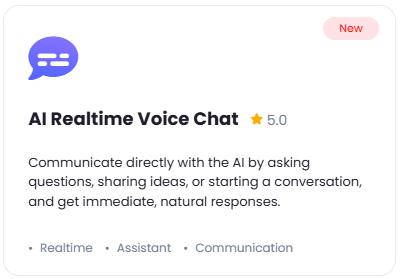 After installation is completed, go to **AI Settings** page in Admin Panel and click on **Extensions** tab there. Click on **AI Realtime Voice Chat** there.
 **AI Realtime Voice Chat** by default uses your main **OpenAI API Key**, so you don't need to enter any seprate API key.
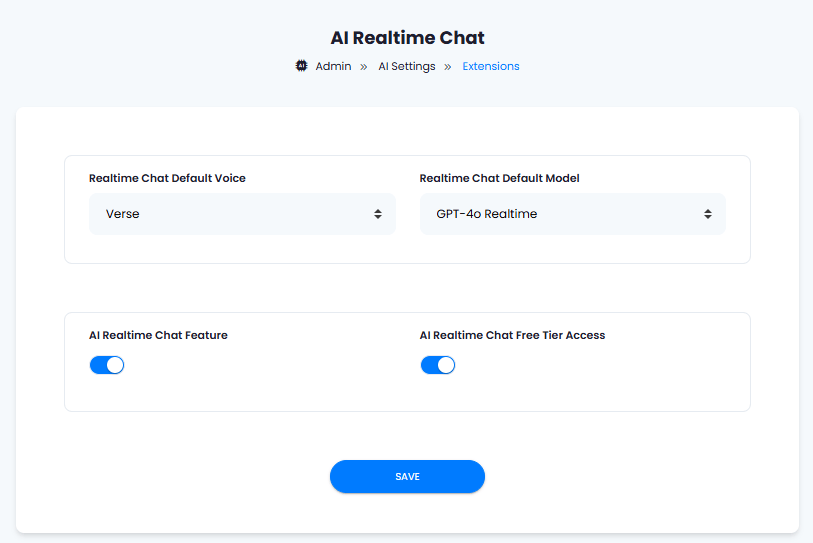
1. The **Realtime Chat Default Voice** field let's you set default voice for all Realtime Chat responses, you can select 1 out of 8 available voices
2. The **Realtime Chat Default Model** field allows you to decide which OpenAI realtime model version you want your users to use by default.
3. Turn on the checkboxes for **AI Realtime Chat Feature** and **AI Realtime Chat Free Tier Access**
If you don't turn on AI Realtime Chat Free Tier Access, then users who did not subscribe to any subscription plan where you have AI Realtime Chat feature enabled, will not have any access to this feature
4. After you are done with configuration, click the **Save** button.
**AI Realtime Voice Chat** by default uses your main **OpenAI API Key**, so you don't need to enter any seprate API key.
1. The **Realtime Chat Default Voice** field let's you set default voice for all Realtime Chat responses, you can select 1 out of 8 available voices
2. The **Realtime Chat Default Model** field allows you to decide which OpenAI realtime model version you want your users to use by default.
3. Turn on the checkboxes for **AI Realtime Chat Feature** and **AI Realtime Chat Free Tier Access**
If you don't turn on AI Realtime Chat Free Tier Access, then users who did not subscribe to any subscription plan where you have AI Realtime Chat feature enabled, will not have any access to this feature
4. After you are done with configuration, click the **Save** button.
 You now have completed the AI Realtime Voice Chat extension configuration. Proceed to the section below on how to use it.
You have successfully comleted the setup process of this extension.
## How to Use
After you are done with the configuration of AI Realtime Voice Chat feature, it will appear on the User panel there you can start using this extension.
1. Go to **AI Realtime Voice Chat** tab in the User panel
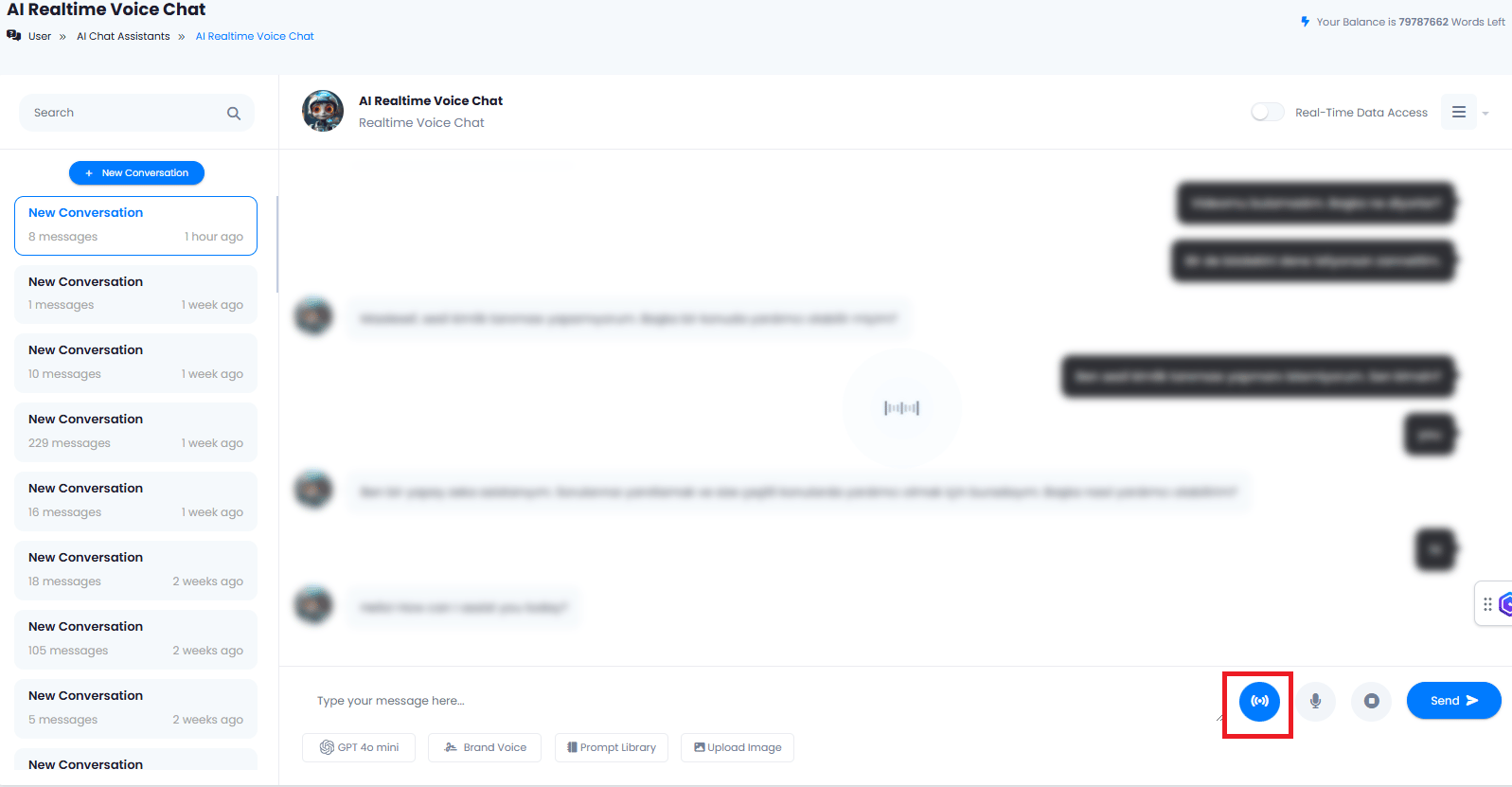
2. Click on the start realtime chat button, make sure to turn on your mic when browser will request it, now you can ask your question and have a live conversation with AI.
You now have completed the AI Realtime Voice Chat extension configuration. Proceed to the section below on how to use it.
You have successfully comleted the setup process of this extension.
## How to Use
After you are done with the configuration of AI Realtime Voice Chat feature, it will appear on the User panel there you can start using this extension.
1. Go to **AI Realtime Voice Chat** tab in the User panel
2. Click on the start realtime chat button, make sure to turn on your mic when browser will request it, now you can ask your question and have a live conversation with AI.