> ## Documentation Index
> Fetch the complete documentation index at: https://magicads.mintlify.site/llms.txt
> Use this file to discover all available pages before exploring further.
# General Settings
> This tutorial covers general settings of the Social Media Suite extension.
This is a **Paid** extension that you need to first purchase via **Marketplace**
## Social Media Suite Settings
Please follow the steps below on how to configure Social Media Suite extension.
Make sure that you are running v7.2 of Davinci AI, this is the minimum required version for the latest Social Media Suite extension.
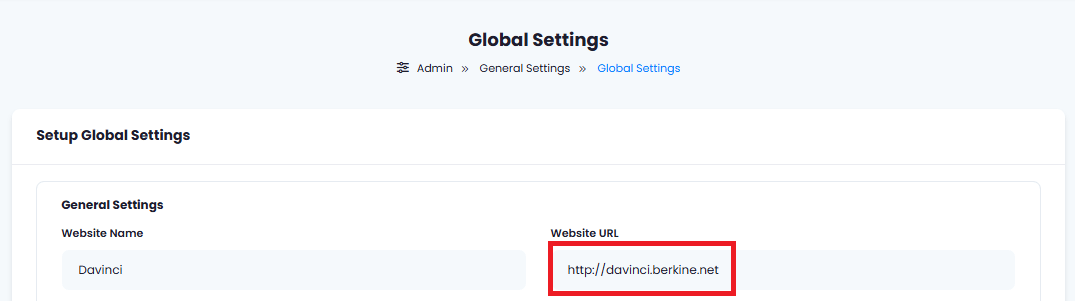
First make sure you have your domain URL set under **Admin Panel** -> **General Settings** -> **Global Settings**.
Set your **Website URL** to be matching your domain name. Make sure that it does **not** end it "/" at the end of your domain name. It is very important to receive proper callbacks from Social Media providers later.\
Please note that you cannot run Social Media Suite extension on localhost as Social Networks do not accept localhost URL as callback address.
 Go to the **Marketplace** in **Admin Panel** and install **AI Social Media Suite** extension after successfully purchasing it first.
 Next, go to **AI Settings** page in Admin Panel, click on **Extensions** tab, and select **Social Media Suite** extension.
 Turn on the checkboxes for **AI Social Media Feature** and **AI Social Media Free Tier Access**
If you don't turn on AI Social Media Free Tier Access, then users who did not subscribe to any subscription plan where you have AI Social Media feature enabled, will not have any access to this feature
Subscription plans are only available for **Extended License** users
Now configure each of your Social Media accounts and include their API keys into respective sections below.
Turn on the checkboxes for **AI Social Media Feature** and **AI Social Media Free Tier Access**
If you don't turn on AI Social Media Free Tier Access, then users who did not subscribe to any subscription plan where you have AI Social Media feature enabled, will not have any access to this feature
Subscription plans are only available for **Extended License** users
Now configure each of your Social Media accounts and include their API keys into respective sections below.
For your convenience we have included step by step guide for each and every Social Media platforms below.
You have full control on which Social Media platform to enable for your customers.
Configure your X account
Configure your LinkedIn account
Configure your Facebook account
Configure your Instagram account
Configure your TikTok account
After you have included all API keys as needed click **Save** button.
You know have completed the AI Social Media Suite extension.