> ## Documentation Index
> Fetch the complete documentation index at: https://magicads.mintlify.site/llms.txt
> Use this file to discover all available pages before exploring further.
# Sound Studio
> Advanced Sound Studio extensioncan take your synthesized text results to the next level by adding background music and merging audio tracks between each other
This is a **Paid** extension that you need to first purchase via **Marketplace**
## Extension Configuration
To be able to use Sound Studio feature, follow these steps to setup this extension.
Go to the **Marketplace** in **Admin Panel** and install **Sound Studio** extension after successfully purchasing it first.
 After installation is completed, go to **AI Settings** page in Admin Panel and click on **Extensions** tab there. Click on **Sound Studio** there.
 Make sure you have setup **ffmpeg** during the installation of the script, if not, then please follow these steps.
PHP **shell\_exec** command must be enabled in your hosting to be able to merge multiple audio files between each other
1. Go to your hosting platform, and to the main folder where you have installed the script.
2. Find the **vendor** folder in the root directory of your documentation
3. Find the **ffmpeg** folder within the vendor folder.
4. Change file permission of ffmpeg to be executable by anyone as shown in below
Make sure you have setup **ffmpeg** during the installation of the script, if not, then please follow these steps.
PHP **shell\_exec** command must be enabled in your hosting to be able to merge multiple audio files between each other
1. Go to your hosting platform, and to the main folder where you have installed the script.
2. Find the **vendor** folder in the root directory of your documentation
3. Find the **ffmpeg** folder within the vendor folder.
4. Change file permission of ffmpeg to be executable by anyone as shown in below
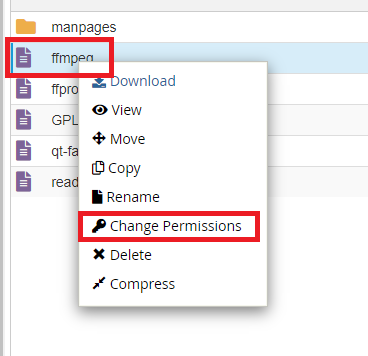
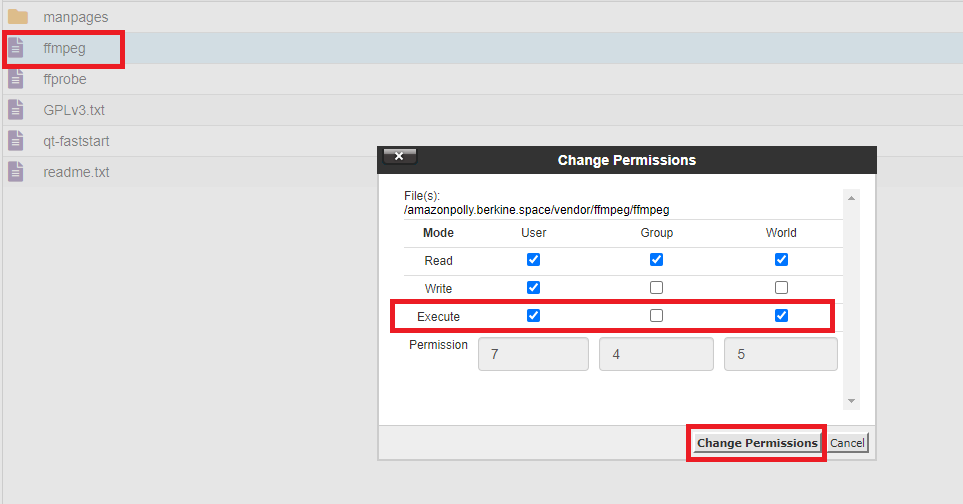 To control the settings of **Sound Studio** exension, return to **AI Settings** page in Admin Panel and click on the **Extensions** tab, and select **Sound Studio** extension.
From there you have full control of this extension for all users.
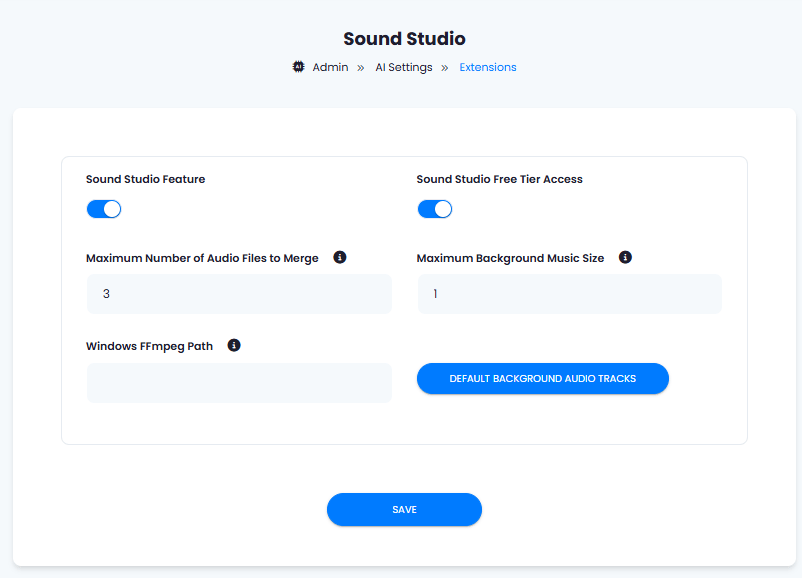
1. Turn on the checkboxes for **Sound Studio Feature** and **Sound Studio Free Tier Access**
If you don't turn on Sound Studio Free Tier Access, then users who did not subscribe to any subscription plan where you have Sound Studio feature enabled, will not have any access to this feature
2. The **Maximum Number of Audio Files to Merge** field allows to control how many audio files user is allowed to merge
3. The **Maximum Background Music Size** field allows you to set limit on the background audio files sizes that user can upload
4. The **Windows FFmpeg Path** is needed only if you want to run on a Windows localhost environment, you can ignore it if you will be running it on a public hosting platforms.
5. The **Default Background Audio Tracks** button, let's you upload background audio files that will be visible and available to all users by default.
6. After you are done with configuration, click the **Save** button.
To control the settings of **Sound Studio** exension, return to **AI Settings** page in Admin Panel and click on the **Extensions** tab, and select **Sound Studio** extension.
From there you have full control of this extension for all users.
1. Turn on the checkboxes for **Sound Studio Feature** and **Sound Studio Free Tier Access**
If you don't turn on Sound Studio Free Tier Access, then users who did not subscribe to any subscription plan where you have Sound Studio feature enabled, will not have any access to this feature
2. The **Maximum Number of Audio Files to Merge** field allows to control how many audio files user is allowed to merge
3. The **Maximum Background Music Size** field allows you to set limit on the background audio files sizes that user can upload
4. The **Windows FFmpeg Path** is needed only if you want to run on a Windows localhost environment, you can ignore it if you will be running it on a public hosting platforms.
5. The **Default Background Audio Tracks** button, let's you upload background audio files that will be visible and available to all users by default.
6. After you are done with configuration, click the **Save** button.
 You know have completed the Sound Studio extension configuration. Proceed to the section below on how to use it.
You have successfully comleted the setup process of this extension.
## How to Use
After you are done with the configuration of Sound Studio feature, it will appear on the User panel there you can start using this extension.
### Merging results of AI Voiceover
You can merge results of AI Voiceover based on the limits set by Admin in the Sound Studio settings.
1. To merge results of AI Voiceover, select which rows you want to merge by simply selecting the row.
2. You can also grag and drop to rows above or below each other, the one on the top will be the first one in the final result followed by the next one and so one in their respective order in the table.
You know have completed the Sound Studio extension configuration. Proceed to the section below on how to use it.
You have successfully comleted the setup process of this extension.
## How to Use
After you are done with the configuration of Sound Studio feature, it will appear on the User panel there you can start using this extension.
### Merging results of AI Voiceover
You can merge results of AI Voiceover based on the limits set by Admin in the Sound Studio settings.
1. To merge results of AI Voiceover, select which rows you want to merge by simply selecting the row.
2. You can also grag and drop to rows above or below each other, the one on the top will be the first one in the final result followed by the next one and so one in their respective order in the table.
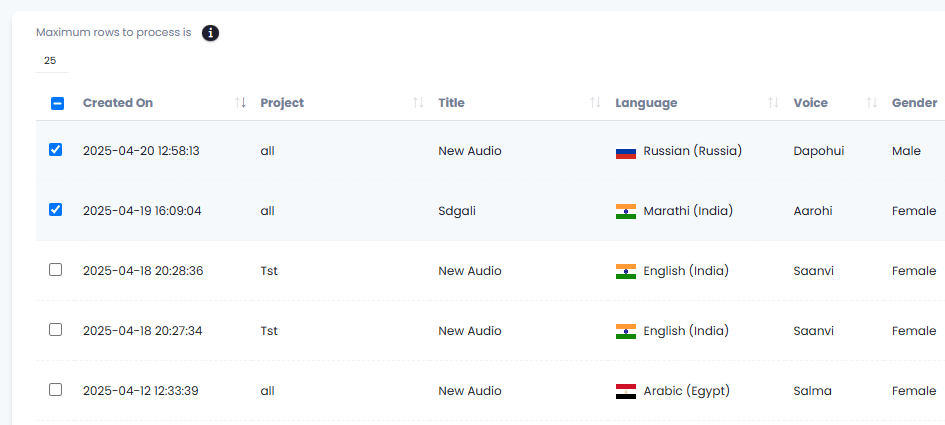 3. All merged results in Sound Studio are listed under **Sound Studio Results** table on the Sound Studio page.
### Add Background Audio to final result
During the merge of AI Voiceover results, you can add custom background music and control background audio volume as needed.
1. Select your background audio from the **Select Backround Music** list, or upload your own via **Upload Music File** section on the right.
3. All merged results in Sound Studio are listed under **Sound Studio Results** table on the Sound Studio page.
### Add Background Audio to final result
During the merge of AI Voiceover results, you can add custom background music and control background audio volume as needed.
1. Select your background audio from the **Select Backround Music** list, or upload your own via **Upload Music File** section on the right.
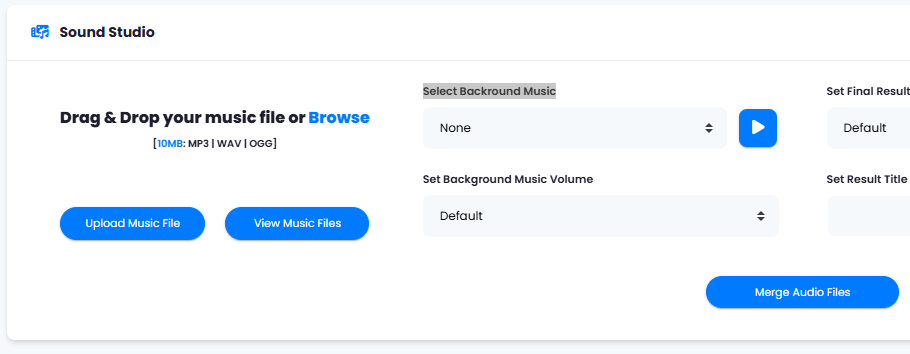 2. After you have selected your target audio files and selected your background audio, click on the **Merge Audio Files** button, and it will produce a combined output in a single audio file which will be listed under **Sound Studio Results** table below.