> ## Documentation Index
> Fetch the complete documentation index at: https://magicads.mintlify.site/llms.txt
> Use this file to discover all available pages before exploring further.
# AI Speech to Text Pro
> Extend your Speech to Text capabilities to the next level with Davinci AI Speech to Text Pro extension.
This is a **Paid** extension that you need to first purchase via **Marketplace**
## Introduction
Achieve industry-leading transcription accuracy in 99 languages with Davinci AI's Speech to Text Pro extension, featuring character-level timestamps, speaker diarization, and audio-event tagging.
Use Audio transcription and Live transcription features to get the most accurate text out of your audio content.
## Extension Configuration
To be able to use AI Speech to Text Pro feature, follow these steps to setup Speech to Text Pro Extension.
Go to the **Marketplace** in **Admin Panel** and install **AI Speech to Text Pro** extension after successfully purchasing it first.
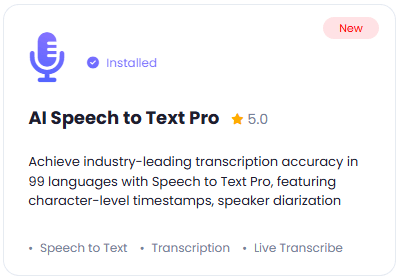 After installation is completed, go to **AI Settings** page in Admin Panel and click on **Extensions** tab there. Click on **AI Speech to Text Pro** there.
 Speech to Text Pro has 2 main features:
1. **Audio Transcribe**, it is powered by **Elevenlabs**, get your Elevenlabs API [as explained here](/integrations/ai/elevenlabs), and copy your API keys for the next step
2. **Live Transcribe**, it is powered by **OpenAI**, get your OpenAI API [as explained here](/integrations/ai/openai), and copy your API keys for the next step
At the moment Elevenlabs does not support live transcription, as soon as they will have, we will integrate into this script
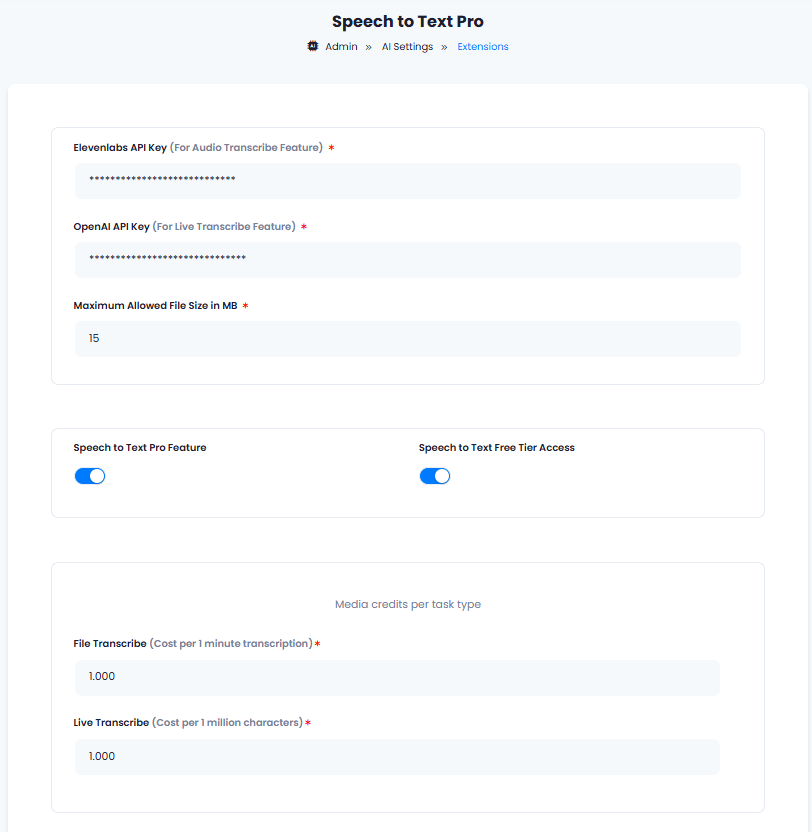
**AI Speech to Text Pro** extension settings page is the main configuration of this extension.
1. Enter your **Elevenlabs API Key** in the input field, this will allow your users to be able to use **Audio Transcribe** feature.
2. Enter your **OpenAI API Key** in the input field, this will allow your users to be able to use **Live Transcribe** feature.
3. You can control the meximum allowed media file size under **Maximum Allowed File Size in MB** field, this value will be applicable to all users.
4. Turn on the checkboxes for **Speech to Text Pro Feature** and **Speech to Text Pro Free Tier Access**
If you don't turn on Speech to Text Pro Free Tier Access, then users who did not subscribe to any subscription plan where you have Speech to Text Pro feature enabled, will not have any access to this feature
5. **Media credits per task type** section allows you set how many media credits each File Transcribe or Live Transcribe task will use per transcription task. Davinci AI give you full control on credit assignment per each media task.
6. After you are done with configuration, click the **Save** button.
Speech to Text Pro has 2 main features:
1. **Audio Transcribe**, it is powered by **Elevenlabs**, get your Elevenlabs API [as explained here](/integrations/ai/elevenlabs), and copy your API keys for the next step
2. **Live Transcribe**, it is powered by **OpenAI**, get your OpenAI API [as explained here](/integrations/ai/openai), and copy your API keys for the next step
At the moment Elevenlabs does not support live transcription, as soon as they will have, we will integrate into this script
**AI Speech to Text Pro** extension settings page is the main configuration of this extension.
1. Enter your **Elevenlabs API Key** in the input field, this will allow your users to be able to use **Audio Transcribe** feature.
2. Enter your **OpenAI API Key** in the input field, this will allow your users to be able to use **Live Transcribe** feature.
3. You can control the meximum allowed media file size under **Maximum Allowed File Size in MB** field, this value will be applicable to all users.
4. Turn on the checkboxes for **Speech to Text Pro Feature** and **Speech to Text Pro Free Tier Access**
If you don't turn on Speech to Text Pro Free Tier Access, then users who did not subscribe to any subscription plan where you have Speech to Text Pro feature enabled, will not have any access to this feature
5. **Media credits per task type** section allows you set how many media credits each File Transcribe or Live Transcribe task will use per transcription task. Davinci AI give you full control on credit assignment per each media task.
6. After you are done with configuration, click the **Save** button.
 Congratulations! You have successfully completed the Speech to Text Pro extension configuration. Proceed to the section below on how to use it.
## How to Use
After properly configuring your Speech to Text Pro settings, to start transcribing your audio files, go to **Speech to Text Pro** extension in the **User Panel**.
* In the dashboard you can see your usage metrics such as:
* **Total Audio Tasks** that you created
* **Total Live Tasks** usage, note that it will only count the saved tasks
* **Total Minutes Transcribed** is applicable only for Audio Transcribe feature
* **Total Media Credits Used** counts media credit utilizaiton from both features
* **Audio Transcribe** feature allows you to upload various audio and video files up to **1GB** in size or up to **4.5 hours** of audio length.
Make sure that you have a proper paid subscription plan with Elevenlabs to process large audio files as their free tier is not enough
To process large audio files make sure that in your `php.ini` file you have set `max_execution_time` to large values so that you don't time out while waiting for processing of large audio files by Elevenlabs
* Select your media file and you can select the main language of the audio file, this way you can slightly accelerate the transcription time
Congratulations! You have successfully completed the Speech to Text Pro extension configuration. Proceed to the section below on how to use it.
## How to Use
After properly configuring your Speech to Text Pro settings, to start transcribing your audio files, go to **Speech to Text Pro** extension in the **User Panel**.
* In the dashboard you can see your usage metrics such as:
* **Total Audio Tasks** that you created
* **Total Live Tasks** usage, note that it will only count the saved tasks
* **Total Minutes Transcribed** is applicable only for Audio Transcribe feature
* **Total Media Credits Used** counts media credit utilizaiton from both features
* **Audio Transcribe** feature allows you to upload various audio and video files up to **1GB** in size or up to **4.5 hours** of audio length.
Make sure that you have a proper paid subscription plan with Elevenlabs to process large audio files as their free tier is not enough
To process large audio files make sure that in your `php.ini` file you have set `max_execution_time` to large values so that you don't time out while waiting for processing of large audio files by Elevenlabs
* Select your media file and you can select the main language of the audio file, this way you can slightly accelerate the transcription time
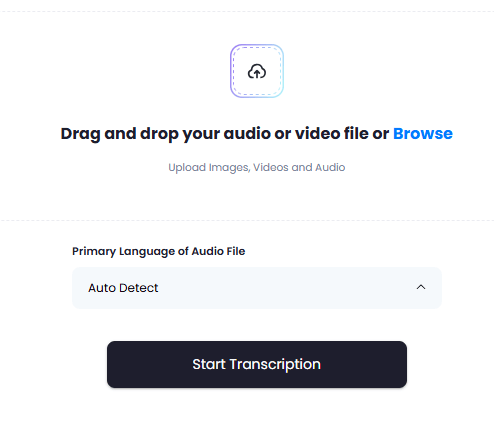 * **Live Transcribe** will let's you directly transcribe your words as you speak. Simply click on the Mic button and start your speech. Note that access to Mic is required, hence your local browser will not work for this feature as secure https connection is needed to be able to use Mic for voice streaming and processing.
* You can see your results under the main **Dashboard** tab
* **Live Transcribe** will let's you directly transcribe your words as you speak. Simply click on the Mic button and start your speech. Note that access to Mic is required, hence your local browser will not work for this feature as secure https connection is needed to be able to use Mic for voice streaming and processing.
* You can see your results under the main **Dashboard** tab
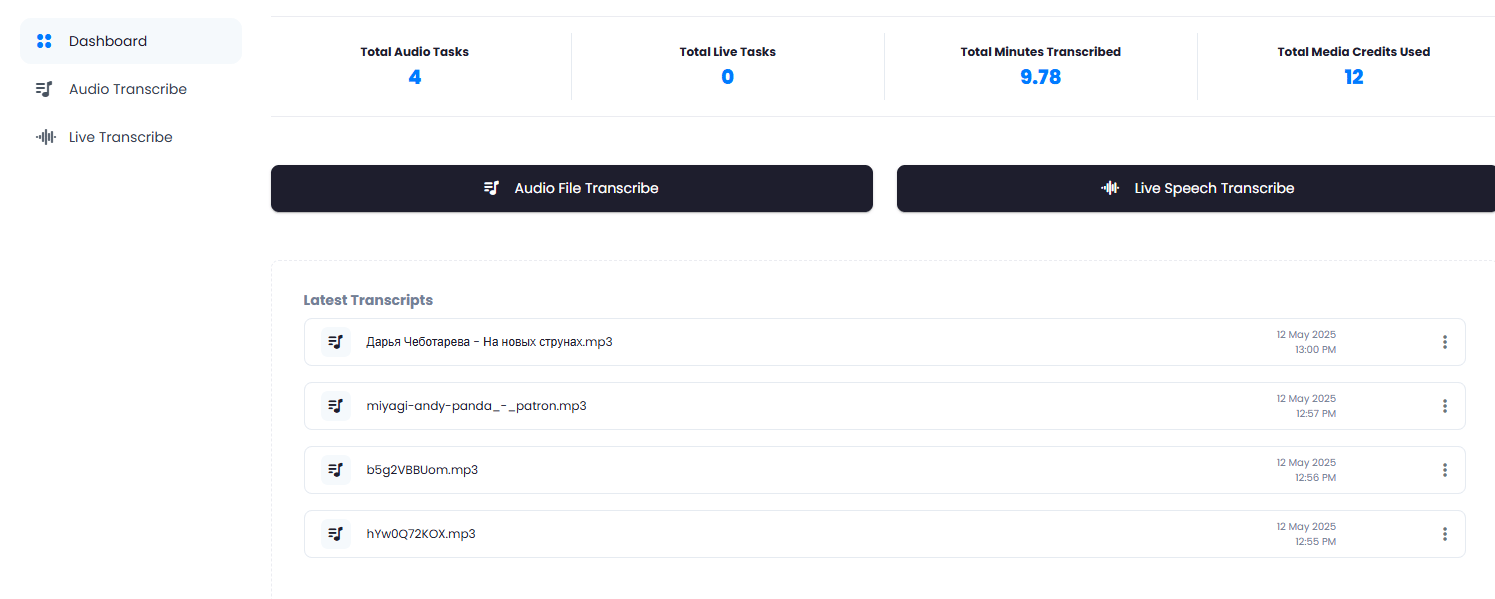 * Simply click on the transcript you want to view and it will open it on a separate page
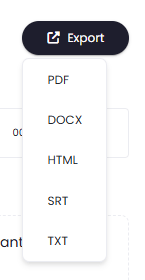
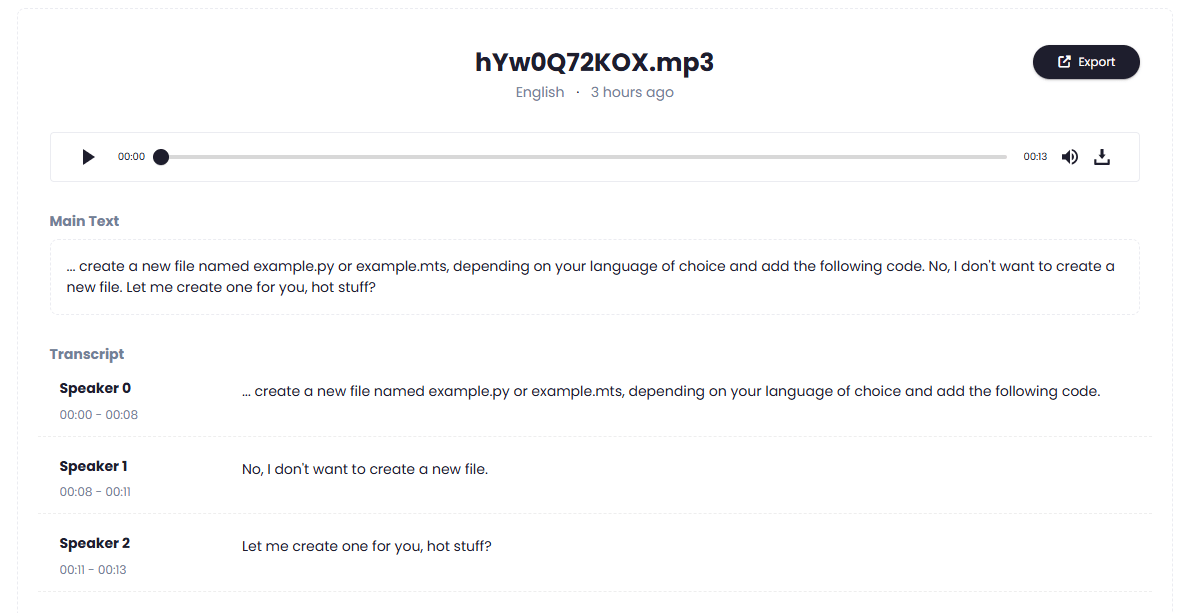 * There you can **edit its title** if needed and **export** the text in one of the listed formats: **PDF | DOCX | HTML | SRT | TXT**