> ## Documentation Index
> Fetch the complete documentation index at: https://magicads.mintlify.site/llms.txt
> Use this file to discover all available pages before exploring further.
# Speechify Voice Clone
> Clone your own voice to synthesize any text with the help of our Speechify Voice Clone extension
This is a **Paid** extension that you need to first purchase via **Marketplace**
## Extension Configuration
To be able to use Speechify Voice Clone feature, follow these steps to setup this extension.
Go to elevenlabs.io website, sign up with them and get your **API Key** on your profile page after you successfully complete the registration process on their website.
To be able to use Speechify Voice Clone feature, you must subscribe to one of the paid plans in your Speechify account, their free tier account does not allow any voice clone creation.
Store your API key securely and never share it publicly. The key provides direct access to your account.
Next, go to the **Marketplace** in **Admin Panel** and install **Speechify Voice Clone** extension after your successful purchase of the extension.
 After installation is completed, go to **AI Settings** page in Admin Panel and click on **Extensions** tab there. Click on **Speechify Voice Clone** there.
 1. Enter your **Speechify API Key** in the input field.
2. Turn on the checkboxes for **Voice Clone Feature** and **Voice Clone Free Tier Access**
If you don't turn on Voice Clone Free Tier Access, then users who did not subscribe to any subscription plan where you have Voice Clone feature enabled, will not have any access to this feature
3. **Voice Clone Limit** field allows you to set limit on how many voice clones can free tier users create.
Elevenlabs have a limited voice clones depending on their subscription plans, make sure you understand your limitations with them
4. After you are done with configuration, click the **Save** button.
1. Enter your **Speechify API Key** in the input field.
2. Turn on the checkboxes for **Voice Clone Feature** and **Voice Clone Free Tier Access**
If you don't turn on Voice Clone Free Tier Access, then users who did not subscribe to any subscription plan where you have Voice Clone feature enabled, will not have any access to this feature
3. **Voice Clone Limit** field allows you to set limit on how many voice clones can free tier users create.
Elevenlabs have a limited voice clones depending on their subscription plans, make sure you understand your limitations with them
4. After you are done with configuration, click the **Save** button.
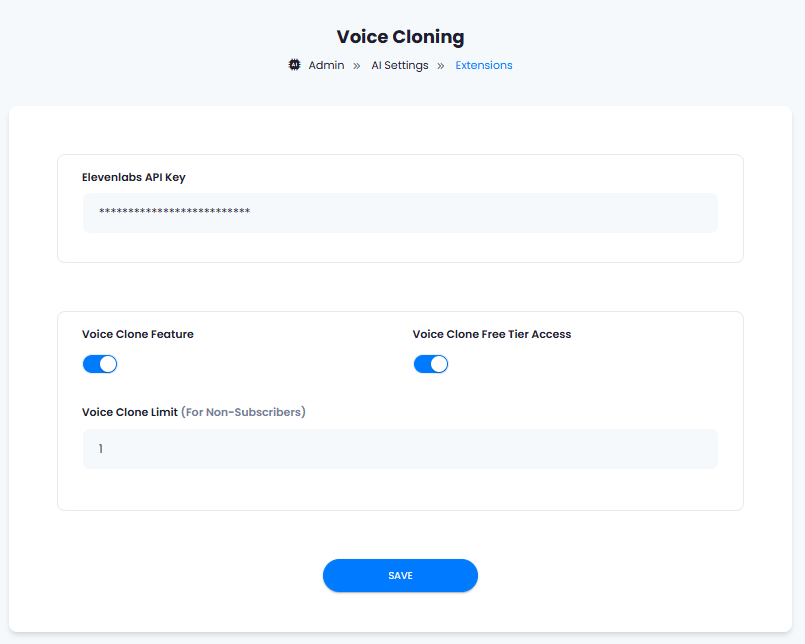 You know have completed the Voice Clone extension configuration. Proceed to the section below on how to use it.
You have successfully comleted the setup process of this extension.
## How to Use
You can create maximum voice clones based on what is allowed in your Elevenlabs account, that includes already existing voice clones created directly on your Elevenlabs account.
If you have reached your limit and need to create a new one, simply delete one of the existing voice clones.
### Create New Voice Clone
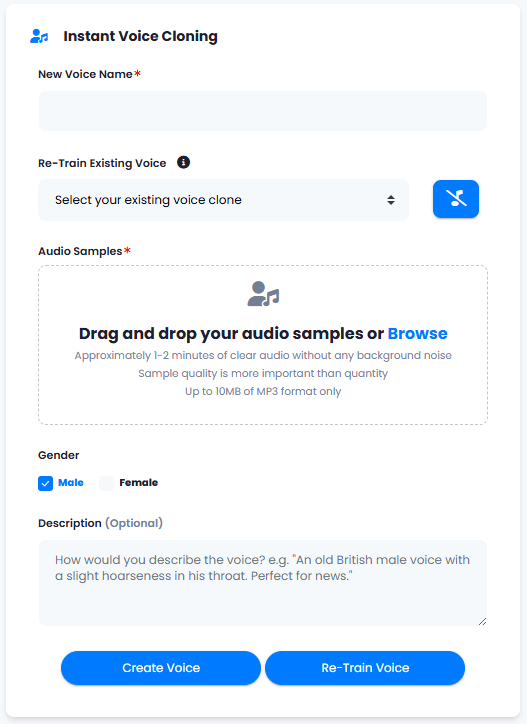
1. Go to Voice Cloning tab in the User panel
2. Create or Re-Train existing voice:
* Provide **New Voice Name**, this is how identify your clones voice among other ones
* if want to retrain your already cloned voice, then select it under **Re-Train Existing Voice** field
* Upload your short **Audio Samples**, make they have high quality voice sounds without any background noises
* Select **Gender** (has no impact on the qualify of the produced result)
* You can provide optional description for your own reference
* If it is a task to create a new voice clone then click on **Create Voice** button
* If it is a task to re-train an existing cloned voice, then click on **Re-Train Voice** button
You know have completed the Voice Clone extension configuration. Proceed to the section below on how to use it.
You have successfully comleted the setup process of this extension.
## How to Use
You can create maximum voice clones based on what is allowed in your Elevenlabs account, that includes already existing voice clones created directly on your Elevenlabs account.
If you have reached your limit and need to create a new one, simply delete one of the existing voice clones.
### Create New Voice Clone
1. Go to Voice Cloning tab in the User panel
2. Create or Re-Train existing voice:
* Provide **New Voice Name**, this is how identify your clones voice among other ones
* if want to retrain your already cloned voice, then select it under **Re-Train Existing Voice** field
* Upload your short **Audio Samples**, make they have high quality voice sounds without any background noises
* Select **Gender** (has no impact on the qualify of the produced result)
* You can provide optional description for your own reference
* If it is a task to create a new voice clone then click on **Create Voice** button
* If it is a task to re-train an existing cloned voice, then click on **Re-Train Voice** button
 ## Common Errors
* If you are getting **Voice Limit Reached**, that means you have reached total number of allowed voice clones according to your Elevenlabs subscription plan, you will need to delete some to be able to create new ones.
* If you are getting **Note enough characters to process** notification during text synthesize task, simply add characters credits to your user via Admin Panel - User list - View - Add credits page, or subscribe to a subscription plan which contains sufficient character credits.
## Common Errors
* If you are getting **Voice Limit Reached**, that means you have reached total number of allowed voice clones according to your Elevenlabs subscription plan, you will need to delete some to be able to create new ones.
* If you are getting **Note enough characters to process** notification during text synthesize task, simply add characters credits to your user via Admin Panel - User list - View - Add credits page, or subscribe to a subscription plan which contains sufficient character credits.