> ## Documentation Index
> Fetch the complete documentation index at: https://magicads.mintlify.site/llms.txt
> Use this file to discover all available pages before exploring further.
# Speechify Text to Speech
> Enhance your Davinci AI platform with Speechify Text to Speech capabilities. This guide walks you through setting up and leveraging Speechify text to speech feature.
This is a free extension available for anyone
Speechify TTS extension is part of AI Voiceover feature to convert Text to Speech, it is not a standlone feature
## Introduction
Davinci AI’s Speechify TTS integration unlocks advanced text to speech capabilities for your platform. With access to various languages and voices that Speechify supports, you can let your users use them at the AI Voiceover service.
## Speechify Text to Speech Extension Setup
To be able to use your **Speechify Text to Speech** extension with **AI Voiceover** feature, follow these steps to setup your Speechify account.
Go to the **Marketplace** in **Admin Panel** and install **Speechify Text to Speech** extension.
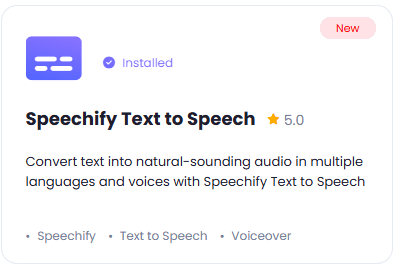 After installation is completed, go to **AI Settings** page in Admin Panel and click on **Extensions** tab there. Click on **Speechify Text to Speech** there.
 Now, on a different tab in your browser, go to the [Speechify Website](https://console.sws.speechify.com/) homepage and create an acount with them, they give you 50K chars free credits upon first registration.
After you have completed the registration and logged in, click on the **API Keys** tab on the left menu panel. Click on the **Generate New Key** button and copy your newly created API key.
Make sure that your API key is always stored securely.
Now go back to the **Admin Panel** where you have **Speechify Text to Speech** extension settings page opened earlier and enter your **Speechify API Key**. Also make sure that **Speechify TTS Feature** checkbox is turned on.
Now, on a different tab in your browser, go to the [Speechify Website](https://console.sws.speechify.com/) homepage and create an acount with them, they give you 50K chars free credits upon first registration.
After you have completed the registration and logged in, click on the **API Keys** tab on the left menu panel. Click on the **Generate New Key** button and copy your newly created API key.
Make sure that your API key is always stored securely.
Now go back to the **Admin Panel** where you have **Speechify Text to Speech** extension settings page opened earlier and enter your **Speechify API Key**. Also make sure that **Speechify TTS Feature** checkbox is turned on.
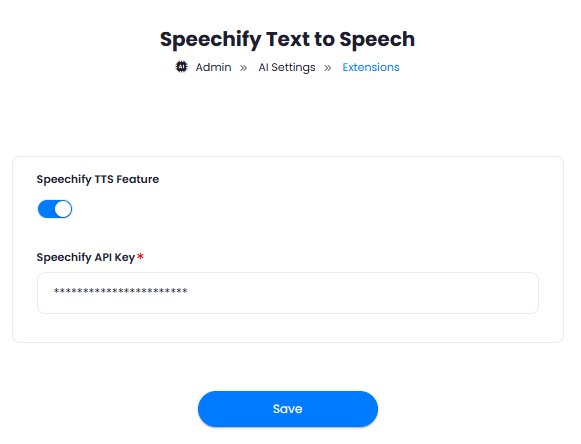 After you are done with all the settings, click on **Save** button.
Now you need to include Speechify voices into the list of allowed vendors for both, your free tier users and subscribers. For that, please refer to the detailed [AI Voiceover intructions](/core/voiceover)
Congratulations! You have successfully comleted the setup process of Speechify Text to Speech extension.
After you are done with all the settings, click on **Save** button.
Now you need to include Speechify voices into the list of allowed vendors for both, your free tier users and subscribers. For that, please refer to the detailed [AI Voiceover intructions](/core/voiceover)
Congratulations! You have successfully comleted the setup process of Speechify Text to Speech extension.