> ## Documentation Index
> Fetch the complete documentation index at: https://magicads.mintlify.site/llms.txt
> Use this file to discover all available pages before exploring further.
# Telegram Bot
> Extend your External Chatbots to support Telegram bots, one of the popular messenger platforms in the world.
This is a **Paid** extension that you need to first purchase via **Marketplace**
This extension requires you to have first External Chatbot extension installed
## Introduction
Telegram extension enables the integration of external chatbots with Telegram, facilitating a seamless and secure messaging experience on a reputable and widely utilized platform. Have your chatbots fully trained to take care of your Telegram bots efficiently as you prefer. Your bot adeptly manages conversations. Add your Telegram channel with just a few clicks and you are fully setup. Please note: This extension requires to have External Chatbot extension.
## Extension Configuration
To be able to use Telegram Bot feature, follow these steps to setup Telegram Extension.
Go to the **Marketplace** in **Admin Panel** and install **Telegram** extension after successfully purchasing it first.
 After installation is completed, go to **AI Settings** page in Admin Panel and click on **Extensions** tab there. Click on **Telegram** there.
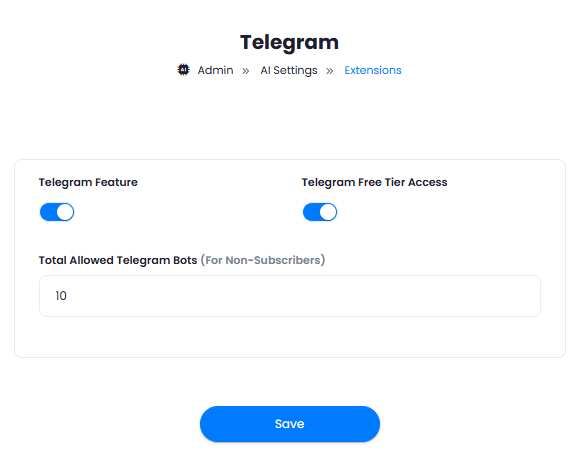
 **Telegram** extension settings page is the main configuration of this extension.
1. You can control the maximum allowed telegram bots under **Total Allowed Telegram Bots** field, this value will be applicable to all users who are not subscribed to any subscription plans. You can also set custom values as needed in the Subscription plans, and those limits will apply to the subscribers of that plan.
2. Turn on the checkboxes for **Telegram Feature** and **Telgram Free Tier Access**
If you don't turn on Telegram Free Tier Access, then users who did not subscribe to any subscription plan where you have Telegram feature enabled, will not have any access to this feature
3. After you are done with configuration, click the **Save** button.
**Telegram** extension settings page is the main configuration of this extension.
1. You can control the maximum allowed telegram bots under **Total Allowed Telegram Bots** field, this value will be applicable to all users who are not subscribed to any subscription plans. You can also set custom values as needed in the Subscription plans, and those limits will apply to the subscribers of that plan.
2. Turn on the checkboxes for **Telegram Feature** and **Telgram Free Tier Access**
If you don't turn on Telegram Free Tier Access, then users who did not subscribe to any subscription plan where you have Telegram feature enabled, will not have any access to this feature
3. After you are done with configuration, click the **Save** button.
 Congratulations! You have successfully completed the Telegram extension configuration. Proceed to the section below on how to use it.
## How to Use
After properly configuring your Telegram settings, you can start including your Telegram Channels into your External Chatbots, for that, go to **External Chatbot** extension in the **User Panel**.
1. Create your External Chatbot as needed, which is explained [here](/extensions/external-chat)
2. Under the **Step 5** you will see a new **Channels** feature. Click on **Telegram** from there.
Congratulations! You have successfully completed the Telegram extension configuration. Proceed to the section below on how to use it.
## How to Use
After properly configuring your Telegram settings, you can start including your Telegram Channels into your External Chatbots, for that, go to **External Chatbot** extension in the **User Panel**.
1. Create your External Chatbot as needed, which is explained [here](/extensions/external-chat)
2. Under the **Step 5** you will see a new **Channels** feature. Click on **Telegram** from there.
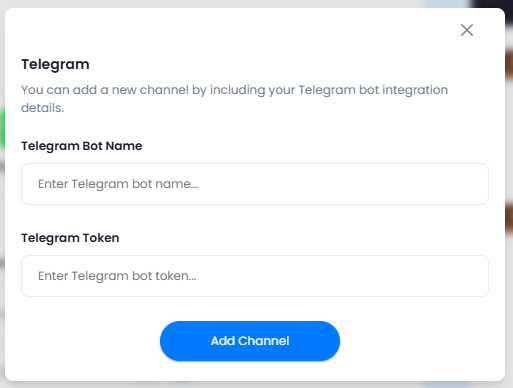
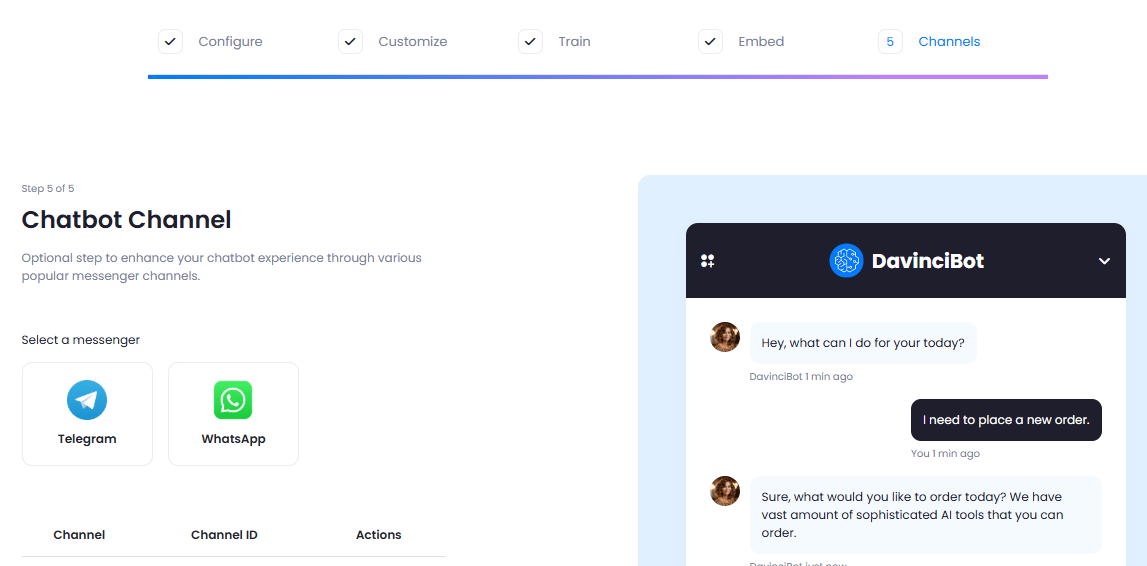 3. Now enter your **Telegram Bot Name** and your **Telegram Token**. If you don't know where to get them, refer to step 4 below. After entering your data, click on **Add Channel** button.
 4. The following are the steps for creating a Telegram bot and its API access token (auth token):
* 1) Open the Telegram Messenger application and sign in or create a new account if you don’t have one
* 2. Enter **@BotFather** in the search bar and choose the official Telegram account with a blue verification mark, as shown in the below image.
*
4. The following are the steps for creating a Telegram bot and its API access token (auth token):
* 1) Open the Telegram Messenger application and sign in or create a new account if you don’t have one
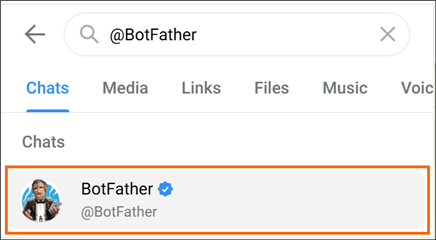
* 2. Enter **@BotFather** in the search bar and choose the official Telegram account with a blue verification mark, as shown in the below image.
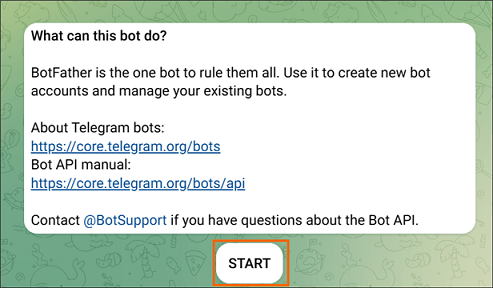
*  * 3. Click **Start** to activate the BotFather bot. You will receive a list of commands to manage the bots.
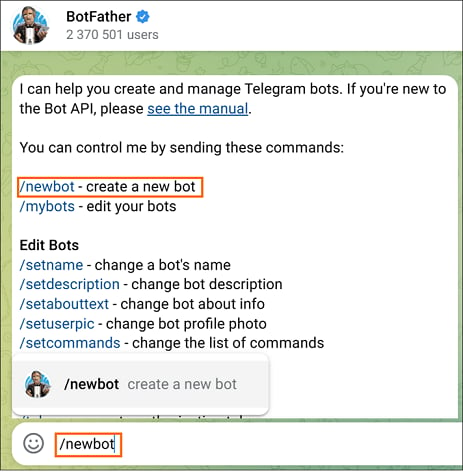
 * 4. Select or enter the **/newbot** command and click **Send**.
 * 5. Enter a name for your bot, which will be visible in your visitor’s conversations.
* 6. Then, enter a username for your bot. It must be unique and end with the word **bot**, allowing visitors to find and contact you easily.
* 7. After your bot has been created successfully, copy the provided API access token code for account configuration purposes.
* 5. Enter a name for your bot, which will be visible in your visitor’s conversations.
* 6. Then, enter a username for your bot. It must be unique and end with the word **bot**, allowing visitors to find and contact you easily.
* 7. After your bot has been created successfully, copy the provided API access token code for account configuration purposes.
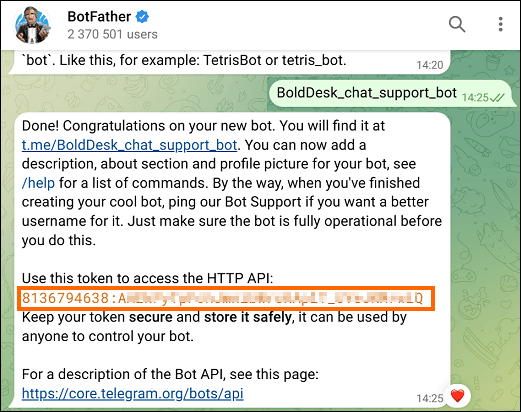 Your bot token is its unique identifier – store it in a secure place, and avoid sharing with anyone or publishing your bot token anywhere.