> ## Documentation Index
> Fetch the complete documentation index at: https://magicads.mintlify.site/llms.txt
> Use this file to discover all available pages before exploring further.
# AI Textract
> Setup AI Textract to automatically retrieve text, handwriting, and data from scanned documents
This is a **Paid** extension that you need to first purchase via **Marketplace**
## Introduction
AI Textract automatically retrieves text, handwriting, and data from scanned documents, surpassing basic optical character recognition (OCR) by interpreting and extracting information from forms and tables. Unlike many organizations that rely on labor-intensive manual extraction from PDFs, images (PNG | JPEG), tables, and forms — or use basic OCR tools requiring frequent manual adjustments—AI Textract employs machine learning to process any document type efficiently, delivering precise results without human intervention in mere minutes rather than hours or days. Additionally, its Receipt Analyze feature can detect vendor names embedded in logos without explicit labels and extract items, quantities, and prices even from unstructured line items lacking column headers.
## Extension Configuration
To be able to use AI Textract feature, follow these steps to setup AI Textract Extension.
Go to the **Marketplace** in **Admin Panel** and install **AI Textract** extension after successfully purchasing it first.
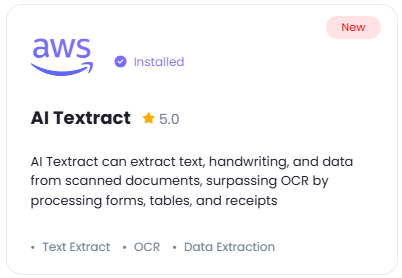 After installation is completed, go to **AI Settings** page in Admin Panel and click on **Extensions** tab there. Click on **AI Textract** there.
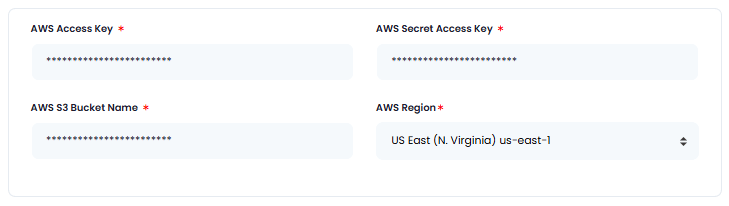
 You will need to include following required AWS credentials:
* **AWS Access Key**
* **AWS Secret Access Key**
* **AWS S3 Bucket Name**
* **AWS Region**
You will need to include following required AWS credentials:
* **AWS Access Key**
* **AWS Secret Access Key**
* **AWS S3 Bucket Name**
* **AWS Region**
To create IAM user with **Access Key** and **Secret Access Key** refer to the **AWS IAM User Creation** intructions below.
To create Amazon S3 bucket, [refer to this page](/integrations/storage/s3)
 Next, turn on the checkboxes for **AI Textract Feature** and **AI Textract Free Tier Access**
If you don't turn on AI Textract Free Tier Access, then users who did not subscribe to any subscription plan where you have AI Textract feature enabled, will not have any access to this feature
You have also full control on the maximum file sizes that are allowed, which are **PNG | JPEG | PDF** and also control how much media credits are needed to process each task.
Next, turn on the checkboxes for **AI Textract Feature** and **AI Textract Free Tier Access**
If you don't turn on AI Textract Free Tier Access, then users who did not subscribe to any subscription plan where you have AI Textract feature enabled, will not have any access to this feature
You have also full control on the maximum file sizes that are allowed, which are **PNG | JPEG | PDF** and also control how much media credits are needed to process each task.
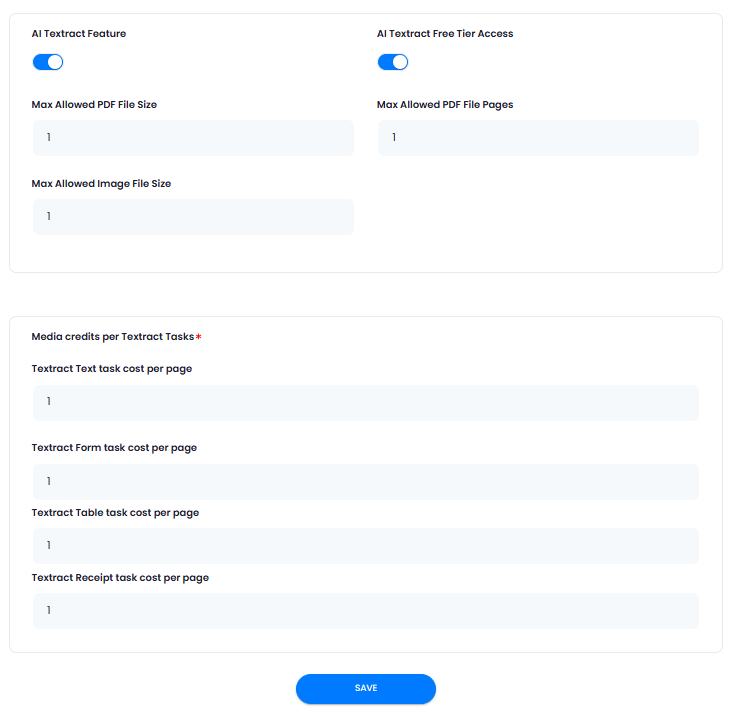 After you are done with the configuration, click on the **Save** button.
Congratulations! You have successfully completed the AI Textract extension configuration. Proceed to the section below on how to use it.
## AWS IAM User Creation
By default all access to IAM users are denied, except for the root user. Make sure to keep your root user credentials in a secure place, you don't need them for Davinci AI.
Sign in to the [AWS Management Console](https://console.aws.amazon.com/console/) and open the [IAM](https://console.aws.amazon.com/iam/) console.
Or simply search for IAM service once you are logged in
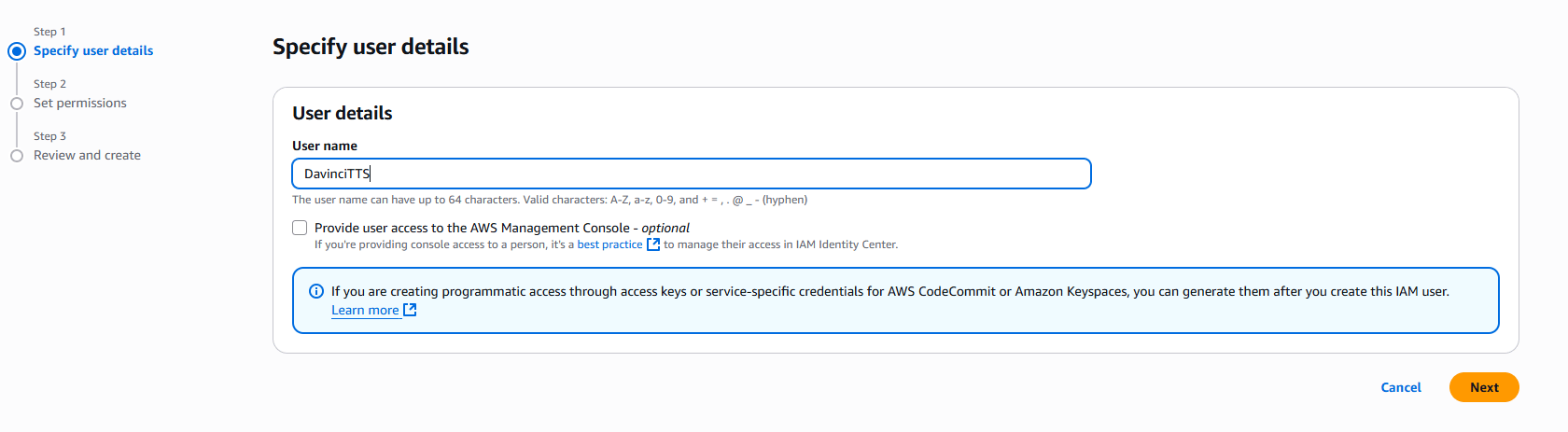
Once you are at the IAM service page, in the left navigation pane, choose **Access management** -> **Users** and then click on **Create User** button.
1. Provide **User name** as needed, and click on **Next** button
After you are done with the configuration, click on the **Save** button.
Congratulations! You have successfully completed the AI Textract extension configuration. Proceed to the section below on how to use it.
## AWS IAM User Creation
By default all access to IAM users are denied, except for the root user. Make sure to keep your root user credentials in a secure place, you don't need them for Davinci AI.
Sign in to the [AWS Management Console](https://console.aws.amazon.com/console/) and open the [IAM](https://console.aws.amazon.com/iam/) console.
Or simply search for IAM service once you are logged in
Once you are at the IAM service page, in the left navigation pane, choose **Access management** -> **Users** and then click on **Create User** button.
1. Provide **User name** as needed, and click on **Next** button
 2. On the **Set permissions** page, specify how you want to assign permissions to this set of new users. Choose **Attach policies directly option**. It will show you all the availalbe policies.
Select and add following 2 policies:
* **AmazonS3FullAccess**
* **AmazonTextractFullAccess**
Click on **Next** button afterwards
3. On the **Review and create** step, you should see following policies being added.
Click on **Create User** button.
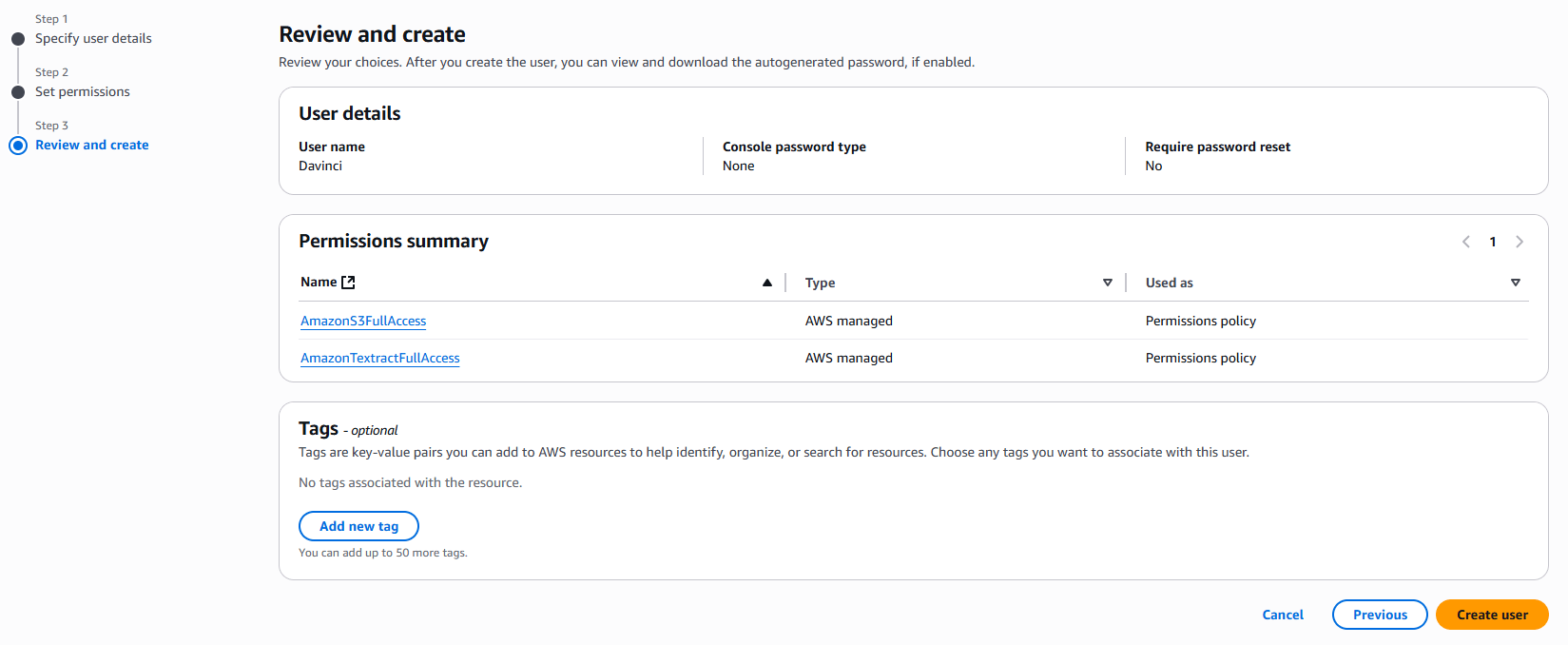 Once you have created a new IAM user, he will be available at the **Users** list. Click on your newly created user. You will be shown full details of that newly created user. Next:
1. Select the **Security credentials** tab
2. And click on **Create access key** button
Once you have created a new IAM user, he will be available at the **Users** list. Click on your newly created user. You will be shown full details of that newly created user. Next:
1. Select the **Security credentials** tab
2. And click on **Create access key** button
 3. Select **Third-party service** from the list and click on **Next** button.
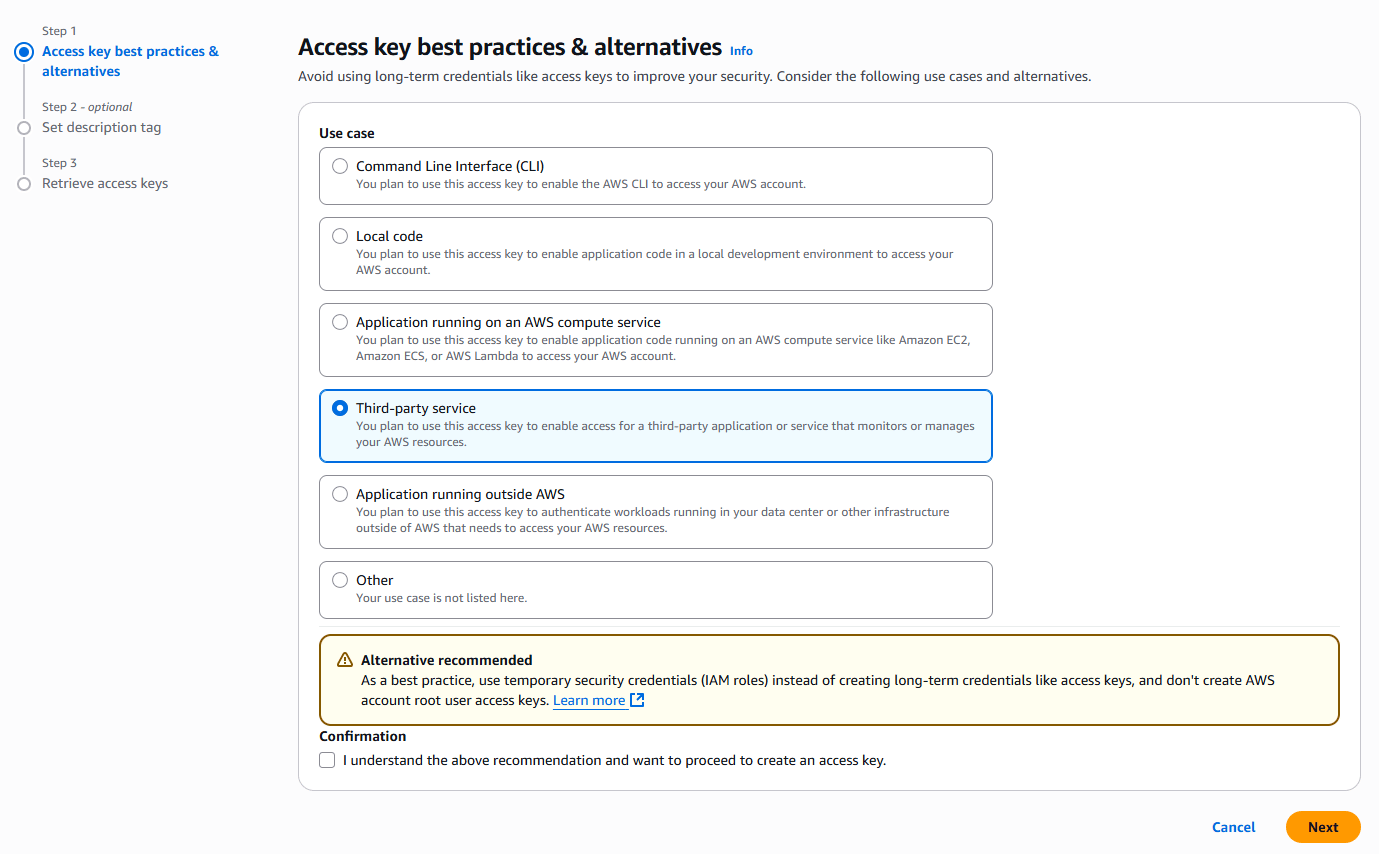 4. Copy your **Access Key** and **Secret Access key** and store them in a secure place.
Next, go back to **Step 3** of **Extension Configuration** section above and continue.
You have completed the AWS IAM creation process.
## How to Use
Using AI Textract is an easy task. You can extract text and data from **PNG | JPEG | PDF** files. Simply select and upload your target file and click
For processing `PDF` files, you need to setup your `CRON` job correctly, refer to the CRON Job tab in the docs for further details.
Get started:
1. After successful installation and configuration of AI Textract extension, go to the User Panel and click on AI Textract tab.
2. Next, select and upload your target document
4. Copy your **Access Key** and **Secret Access key** and store them in a secure place.
Next, go back to **Step 3** of **Extension Configuration** section above and continue.
You have completed the AWS IAM creation process.
## How to Use
Using AI Textract is an easy task. You can extract text and data from **PNG | JPEG | PDF** files. Simply select and upload your target file and click
For processing `PDF` files, you need to setup your `CRON` job correctly, refer to the CRON Job tab in the docs for further details.
Get started:
1. After successful installation and configuration of AI Textract extension, go to the User Panel and click on AI Textract tab.
2. Next, select and upload your target document
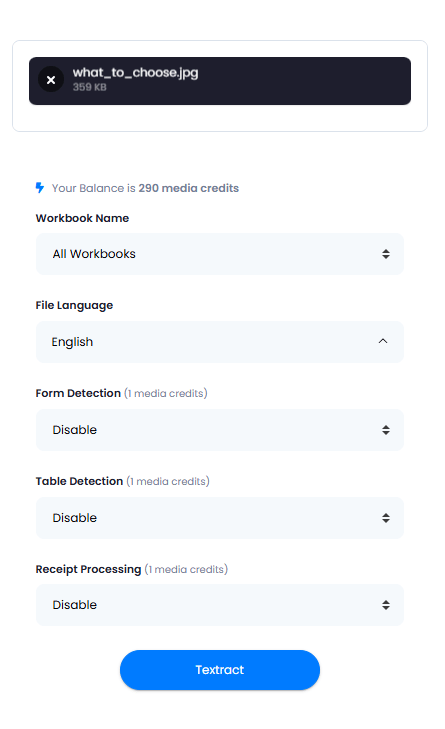 2. You can set optional features as well, such as:
* **Workbook Name**
* **File Language**
* **Form Detection** in case if you will have forms in your file
* **Table Detection** in case if you will have any tables in your file
* **Receipt Processing** in case if the file you want to upload is a scan copy of a teceipt
3. Next, click on **Textract** button, it will start the anylyzing process
4. Once processing is completed, results will be available under **Textract Tasks** section.
2. You can set optional features as well, such as:
* **Workbook Name**
* **File Language**
* **Form Detection** in case if you will have forms in your file
* **Table Detection** in case if you will have any tables in your file
* **Receipt Processing** in case if the file you want to upload is a scan copy of a teceipt
3. Next, click on **Textract** button, it will start the anylyzing process
4. Once processing is completed, results will be available under **Textract Tasks** section.
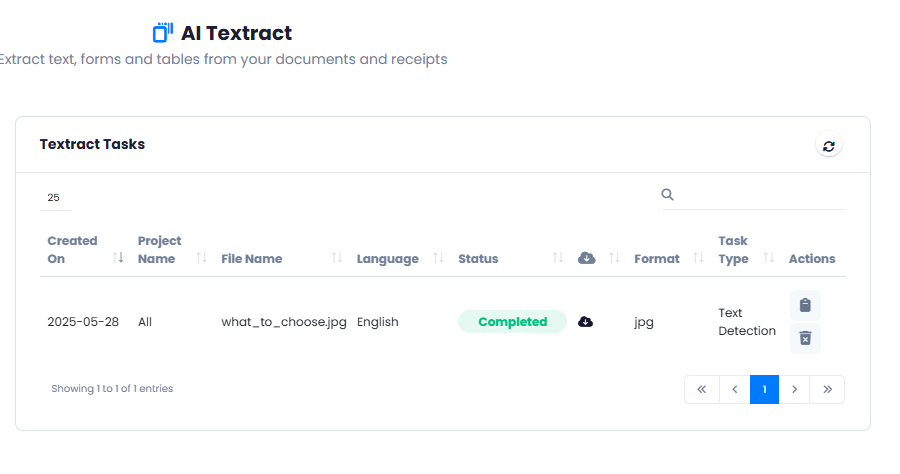 5. You can click on the **View** icon as well, and you will be shown the result.
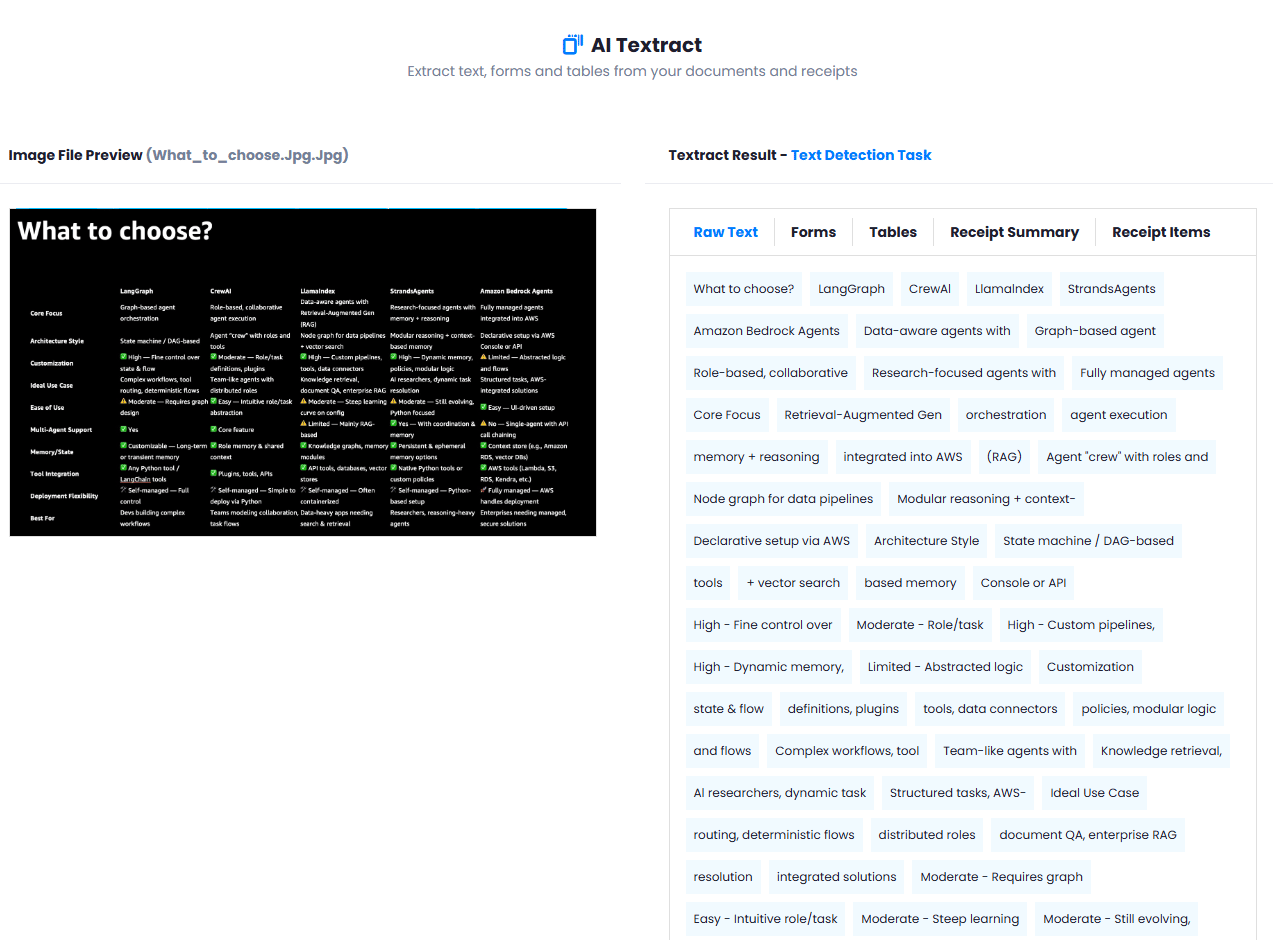 6. You can also download the results in CSV format and in row JSON formats.
 Congratulations! You have successfully processed your first document with AI Textract.