> ## Documentation Index
> Fetch the complete documentation index at: https://magicads.mintlify.site/llms.txt
> Use this file to discover all available pages before exploring further.
# AI Text to Video
> Transform your text into dynamic, captivating videos with our cutting-edge AI Text to Video extension, powered by the groundbreaking **Kling | Haiper | Luma | Mochi | MiniMax | Hunyuan** video models.
This is a **Paid** extension that you need to first purchase via **Marketplace**
* OpenAI Sora 2 - powered by **Openai**
* OpenAI Sora 2 Pro - powered by **Openai**
* Google Veo3 - powered by **fal.ai**
* Kling 2.1 Master - powered by **fal.ai**
* Kling 1.6 Pro - powered by **fal.ai**
* Haiper 2.0 Video - powered by **fal.ai**
* MiniMax Video - powered by **fal.ai**
* Mochi 1 - powered by **fal.ai**
* Luma Dream Machine - powered by **fal.ai**
* Hunyuan Video - powered by **fal.ai**
## Extension Configuration
To be able to use AI Video (Text to Video) feature, follow these steps to setup this extension.
Go to the **Marketplace** in **Admin Panel** and install **AI Video (Text to Video)** extension after your successful purchase of the extension.
 After installation is completed, go to **AI Settings** page in Admin Panel and click on **Extensions** tab there. Click on **AI Video (Text to Video)** there.
 Go to Fal AI website, sign up with them and get your **API Key** on your profile page after you successfully complete the registration process on their website.
Make sure to fill up your balance on your Fal AI account as they do not offer any free credits upon registration.
Store your API key securely and never share it publicly. The key provides direct access to your account.
To control the settings of **AI Text to Video** exension, return to **AI Settings** page in Admin Panel and click on the **Extensions** tab, and select **AI Video (Text to Video)** extension.
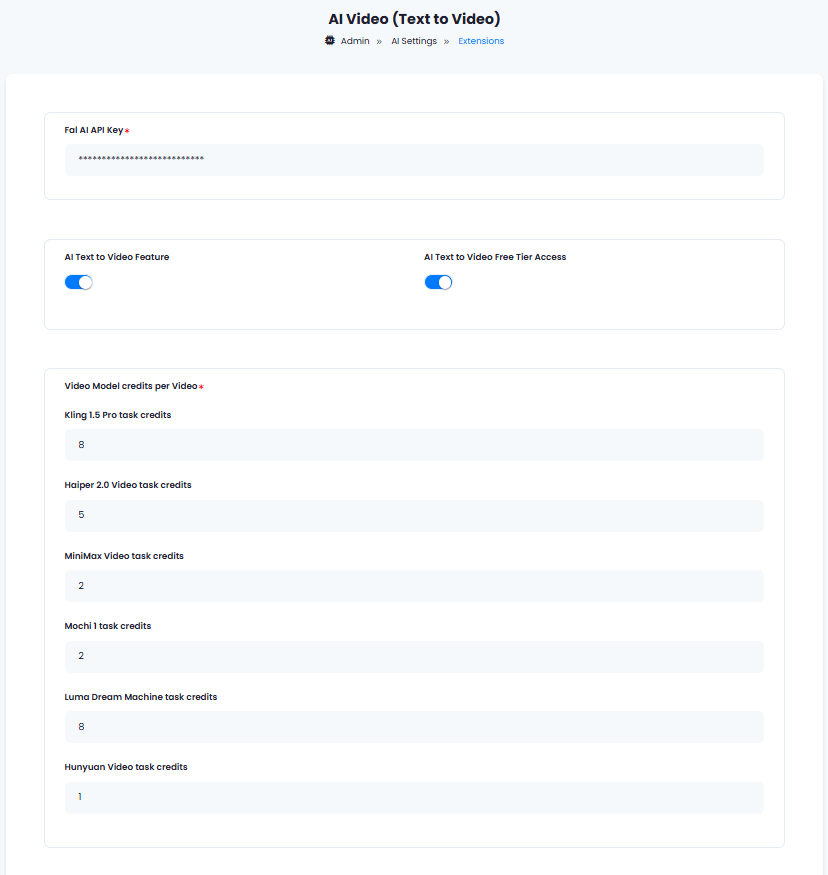
1. Enter your **Fal AI API Key** in the input field.
2. Turn on the checkboxes for **AI Text to Video Feature** and **AI Text to Video Free Tier Access**
If you don't turn on AI Text to Video Free Tier Access, then users who did not subscribe to any subscription plan where you have AI Text to Video feature enabled, will not have any access to this feature
3. **Video Model credits per Video** section allows you set how many media credits each Text to Video model task will use for each video generation. Davinci AI give you full control on credit assignment per each media task.
4. After you are done with configuration, click the **Save** button.
Go to Fal AI website, sign up with them and get your **API Key** on your profile page after you successfully complete the registration process on their website.
Make sure to fill up your balance on your Fal AI account as they do not offer any free credits upon registration.
Store your API key securely and never share it publicly. The key provides direct access to your account.
To control the settings of **AI Text to Video** exension, return to **AI Settings** page in Admin Panel and click on the **Extensions** tab, and select **AI Video (Text to Video)** extension.
1. Enter your **Fal AI API Key** in the input field.
2. Turn on the checkboxes for **AI Text to Video Feature** and **AI Text to Video Free Tier Access**
If you don't turn on AI Text to Video Free Tier Access, then users who did not subscribe to any subscription plan where you have AI Text to Video feature enabled, will not have any access to this feature
3. **Video Model credits per Video** section allows you set how many media credits each Text to Video model task will use for each video generation. Davinci AI give you full control on credit assignment per each media task.
4. After you are done with configuration, click the **Save** button.
 You know have completed the AI Video (Text to Video) extension configuration. Proceed to the section below on how to use it.
You have successfully comleted the setup process of this extension.
## How to Use
To get a full details of each and every technical featuer of the Text to Video model, you can refer to the Fal AI Text to Video API Page
### Create Text to Video task
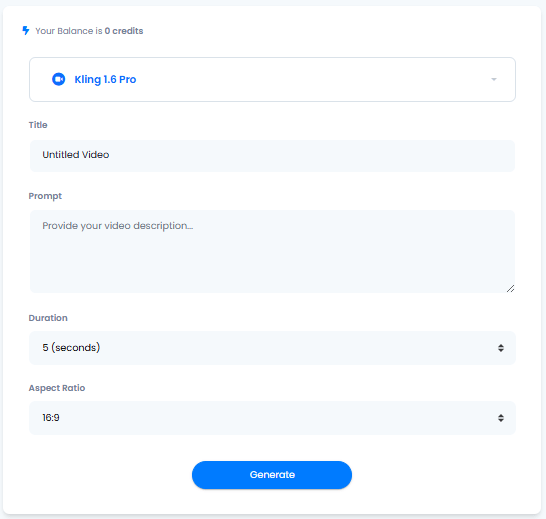
1. Go to AI Text to Video tab in the User panel
2. (Optional) Provide video title name as needed
3. Select your Text to Video task LLM, there are 6 different models available
Upon selecting your Text to Video LLM option, settings below will change dynamically and will be fully relevant only for the selected model
4. Depending on the Text to Video task you have selected, provide the information as needed such as:
* **Prompt** - What this video needs to be about
* **Duration** - Length of the final video, length are predefined by the video models, and not applicable to each and every model, which change dynamically based on the selected model
* **Aspect Ratio** - Video aspect ration of the final results, will change dynamically based on video models, and not applicable to each and every model
6. To learn more about each of the features there, please refer to the Fal AI Text to Video API Page
You know have completed the AI Video (Text to Video) extension configuration. Proceed to the section below on how to use it.
You have successfully comleted the setup process of this extension.
## How to Use
To get a full details of each and every technical featuer of the Text to Video model, you can refer to the Fal AI Text to Video API Page
### Create Text to Video task
1. Go to AI Text to Video tab in the User panel
2. (Optional) Provide video title name as needed
3. Select your Text to Video task LLM, there are 6 different models available
Upon selecting your Text to Video LLM option, settings below will change dynamically and will be fully relevant only for the selected model
4. Depending on the Text to Video task you have selected, provide the information as needed such as:
* **Prompt** - What this video needs to be about
* **Duration** - Length of the final video, length are predefined by the video models, and not applicable to each and every model, which change dynamically based on the selected model
* **Aspect Ratio** - Video aspect ration of the final results, will change dynamically based on video models, and not applicable to each and every model
6. To learn more about each of the features there, please refer to the Fal AI Text to Video API Page