> ## Documentation Index
> Fetch the complete documentation index at: https://magicads.mintlify.site/llms.txt
> Use this file to discover all available pages before exploring further.
# Elevenlabs Integration
> Enhance your Davinci AI platform with ElevenLabs advanced text-to-speech capabilities. This guide walks you through setting up and leveraging ElevenLabs powerful voice generation feature.
## Introduction
Davinci AI’s ElevenLabs integration unlocks a world of AI-powered voice capabilities for your platform. From natural-sounding text-to-speech to voice isolation and voice cloning.
## Connect ElevenLabs Account
To be able to use your Elevenlabs API for **AI Voiceover** feature, follow these steps to setup integration.
If you don’t have an Elevenlabs account, [sign up here](https://elevenlabs.io/)
Once logged in, navigate to your Elevenlabs dashboard.
In the bottom left corner of the page, click on your profile name. In the dropdown menu, select **API Keys** to access your API key management page.
On the API Keys page, click on **Create new API key**, and copy your API key.
Keep your API key secure. It provides access to Elevenlabs’s services and should not be shared publicly.
Login to Davinci AI using your admin credentials.
In **Admin Panel**, navigate to **AI Settings** -> **AI API Keys** tab.
Click on **Elevenlabs** tab there.
 Include your API key under **Elevenlabs API Key** input field, make sure to turn on **Activate Elevenlabs Voices** checkbox.
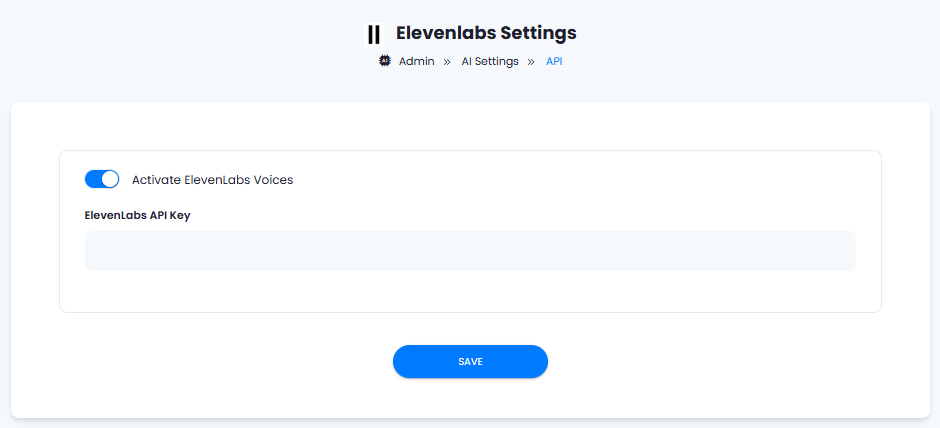 After you are done with configurations, click on **Save** button.
Congratulations! You have successfully completed the Elevenlabs setup process for **AI Voiceover** feature.
## Use Elevenlabs with AI Voiceover
You need to list which vendors you want to be available in the AI Voicever feature. For detailed instructions on AI Voiceover configuration please refer to the [AI Voiceover](/core/voiceover) tab.
## Davinci AI Tools Powered by Elevenlabs
Following AI tools can be used with ElevenLabs
1. **AI Voiceover** - what you have just configured
2. **Voice Cloning** - use the configuration links below
3. **Voice Isolator** - use the configuration links below
Setup Elevenlabs for Voice Cloning feature
Setup ElevenLabs for Voice Isolator feature
After you are done with configurations, click on **Save** button.
Congratulations! You have successfully completed the Elevenlabs setup process for **AI Voiceover** feature.
## Use Elevenlabs with AI Voiceover
You need to list which vendors you want to be available in the AI Voicever feature. For detailed instructions on AI Voiceover configuration please refer to the [AI Voiceover](/core/voiceover) tab.
## Davinci AI Tools Powered by Elevenlabs
Following AI tools can be used with ElevenLabs
1. **AI Voiceover** - what you have just configured
2. **Voice Cloning** - use the configuration links below
3. **Voice Isolator** - use the configuration links below
Setup Elevenlabs for Voice Cloning feature
Setup ElevenLabs for Voice Isolator feature