> ## Documentation Index
> Fetch the complete documentation index at: https://magicads.mintlify.site/llms.txt
> Use this file to discover all available pages before exploring further.
# Stability AI Integration
> Enhance your Davinci AI platform with Stability AI’s advanced image generation capabilities. This guide walks you through setting up and leveraging Stability AI’s powerful models for creating unique and high-quality images.
## Introduction
Davinci AI’s Stability AI integration unlocks advanced image generation capabilities for your platform. With access to Stability AI’s cutting-edge models, you can significantly enhance your Imagine tool, allowing users to create unique and high-quality images from text descriptions.
### Image Generation Models
* Stability AI | Stable Diffusion Ultra
* Stability AI | Stable Diffusion Core
* Stability AI | Stable Diffusion 3.5 Large
* Stability AI | Stable Diffusion 3.5 Large Turbo
* Stability AI | Stable Diffusion 3.5 Medium
* Stability AI | SDXL v1.0
* Stability AI | Stable Diffusion v1.6
## Connect Stability AI Account
To be able to use your Stability AI for **AI Images** feature, follow these steps to setup integration.
If you don’t have an Stability AI account, [sign up here](https://platform.stability.ai/sign-up)
Once logged in, click on your profile image in the top right corner of the page.
Select **API Keys** from the left side menu and click the **+ Create API Key** button in the top right corner of the API Keys section.
After you have generated a new API key or selected existing one, copy your API key.
Keep your API key secure. It provides access to Stability AI’s services and should not be shared publicly.
Login to Davinci AI using your admin credentials.
In **Admin Panel**, navigate to **AI Settings** -> **AI API Keys** tab.
Click on **Stable Diffusion** tab there.
 Include your API key under **Stable Diffusion API Key** input field.
Optionally you can use many API keys and the **SD API Key Usage Model** as **Random API Key**, but we highly recommend you to have it set as **Only Main API Key**..
If you enable **Personal Stable Diffusion API Key**, all users will be required to use their own API keys that they need to include in their **My Account** page.
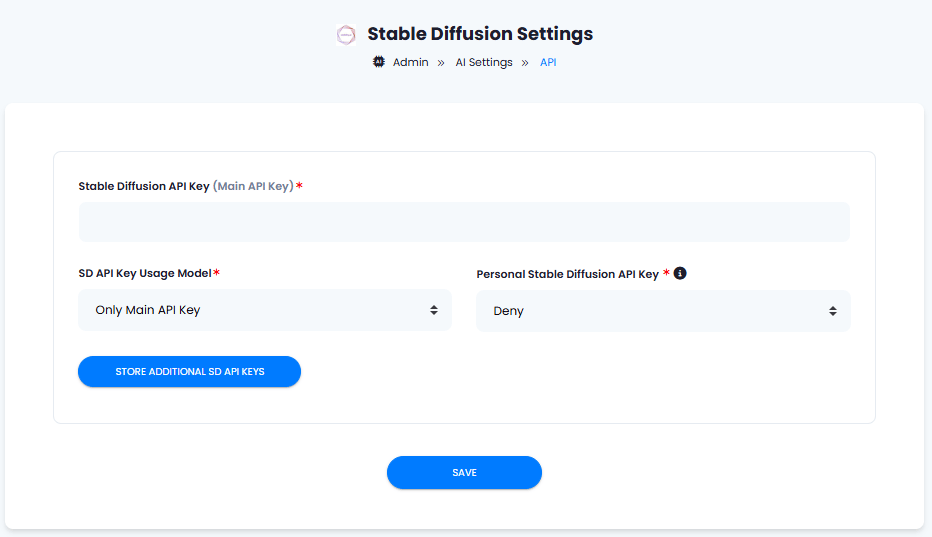 After you are done with configurations, click on **Save** button.
Congratulations! You have successfully completed the Stability AI setup process for **AI Images** feature.
## Use Stability AI with AI Images
You need to list which vendors you want to be available in the AI Images feature. For detailed instructions on AI Images configuration please refer to the [AI Images](/core/images) tab.
## Davinci AI Tools Powered by Stability AI
Following AI tools can be used with Stability AI
1. **AI Images** - what you have just configured
2. **AI Image to Video** - use the configuration links below
3. **AI Photo Studio** - use the configuration links below
Setup Stability AI for AI Image to Video extension
Setup Stability AI For AI Photo Studio extension
After you are done with configurations, click on **Save** button.
Congratulations! You have successfully completed the Stability AI setup process for **AI Images** feature.
## Use Stability AI with AI Images
You need to list which vendors you want to be available in the AI Images feature. For detailed instructions on AI Images configuration please refer to the [AI Images](/core/images) tab.
## Davinci AI Tools Powered by Stability AI
Following AI tools can be used with Stability AI
1. **AI Images** - what you have just configured
2. **AI Image to Video** - use the configuration links below
3. **AI Photo Studio** - use the configuration links below
Setup Stability AI for AI Image to Video extension
Setup Stability AI For AI Photo Studio extension