> ## Documentation Index
> Fetch the complete documentation index at: https://magicads.mintlify.site/llms.txt
> Use this file to discover all available pages before exploring further.
# Amazon S3 Storage Integration
> Offload your media inputs and results to Amazon S3 Storage
## Introduction
Davinci AI’s allows you to integrate cloud storages to store results of various media related features of the script. This allows you to make sure that you always have sufficent storage space for your customers.
Using cloud storage option also minimizes the latency for your user to access their media results as data could be avaiable via CDN framework of the cloud vendors.
## Create Amazon S3 Bucket
To be able to use your Amazon S3 bucket, follow these steps to setup integration.
If you don’t have a AWS account, [sign up here](https://www.aws.com/)
Once you are logged into your AWS Management Console, select **Amazon S3** from the menu list or from the search field.
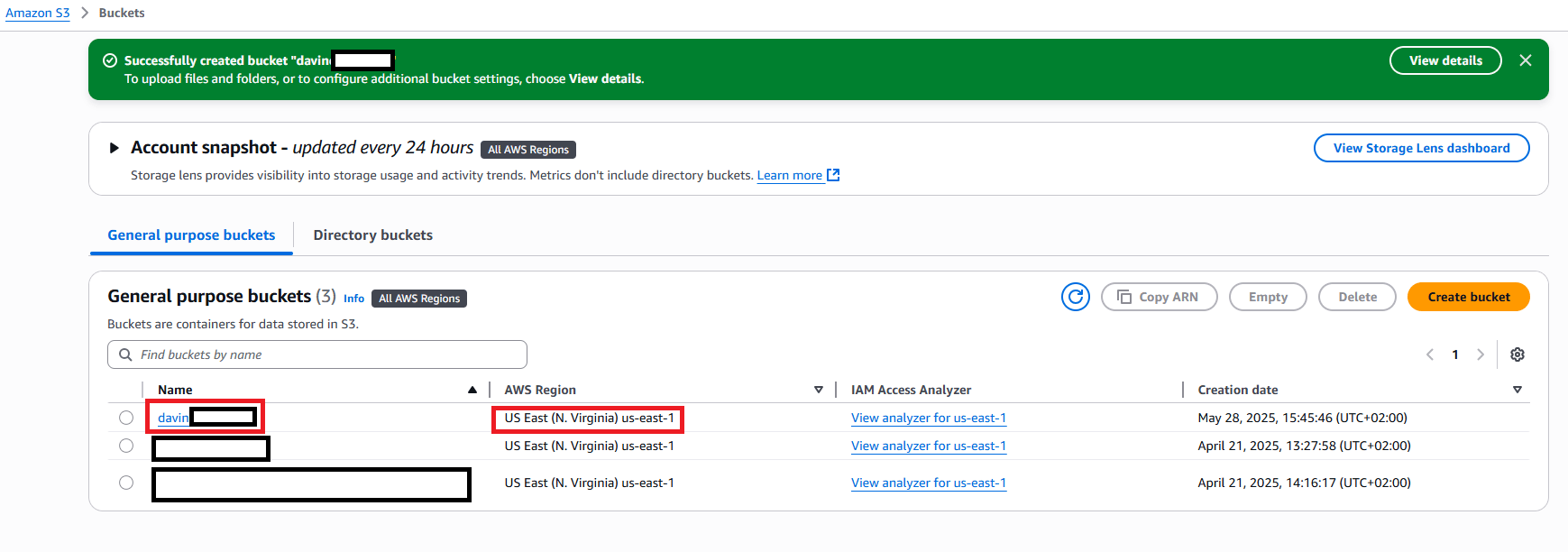
On the Amazon S3 page, select **General Purpose Buckets** on the left menu panel and then click on the **Create bucket** button.
Please note that all s3 buckets are `region` specific, so make sure you are selecting the right AWS region for you on the top right corner.
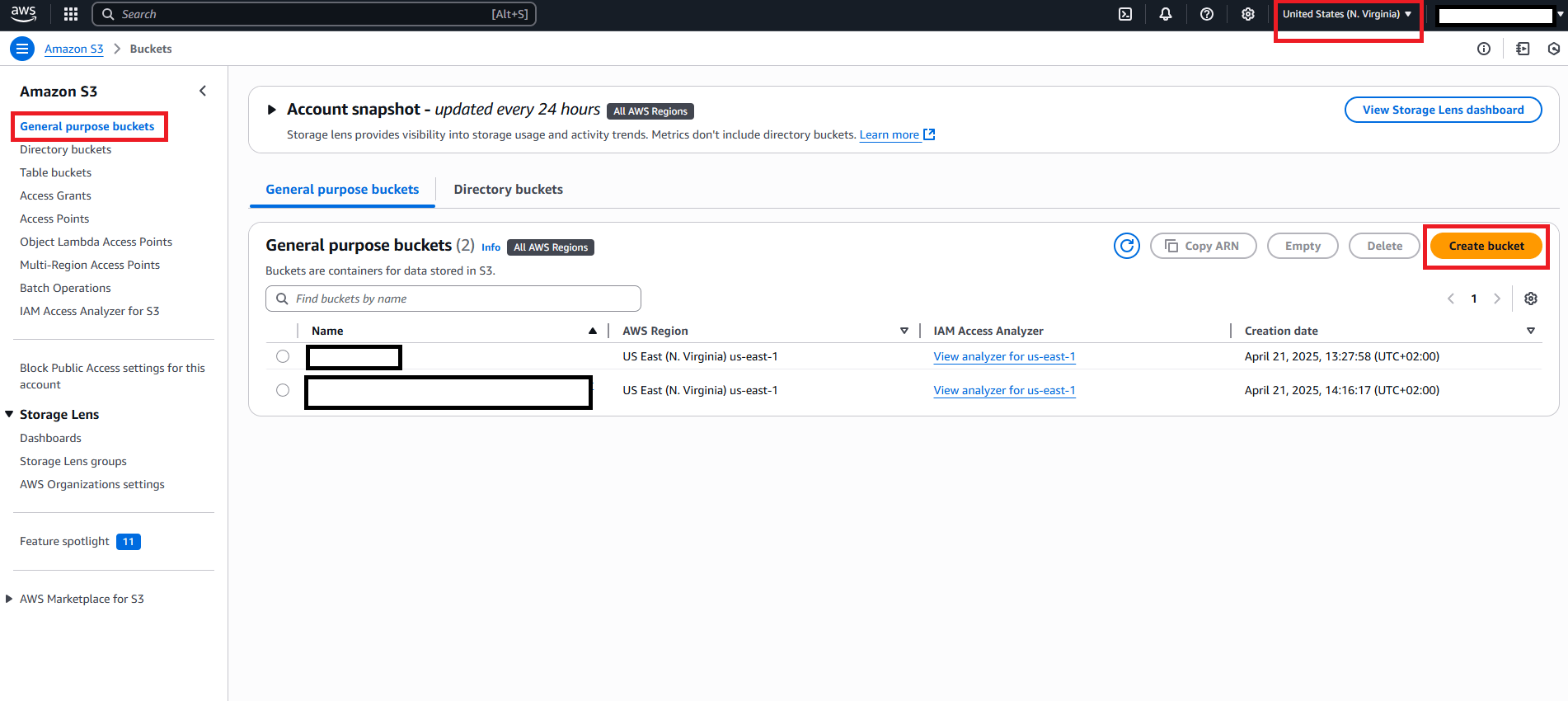 Next fill in the following information:
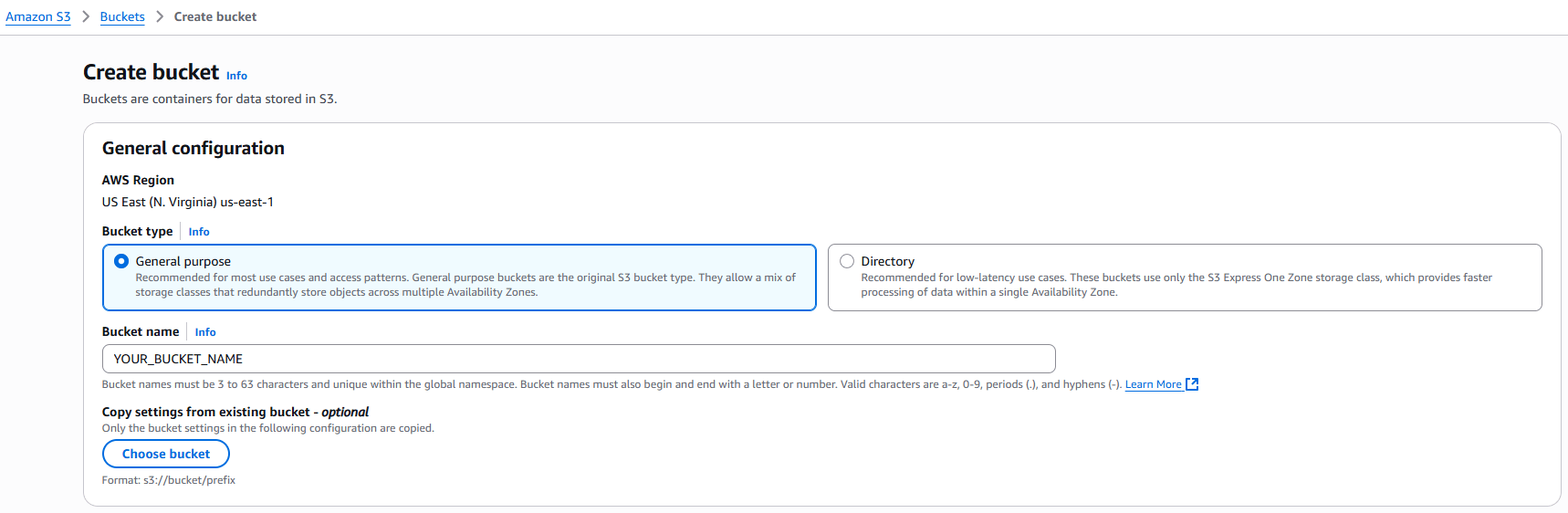
1. For **Bucket Type** select **General purpose** and provide a valid **Bucket name**.
Note that all Amazon S3 bucket names are unique at global scale, so come up with something creative but easy to remember for yourself
Next fill in the following information:
1. For **Bucket Type** select **General purpose** and provide a valid **Bucket name**.
Note that all Amazon S3 bucket names are unique at global scale, so come up with something creative but easy to remember for yourself
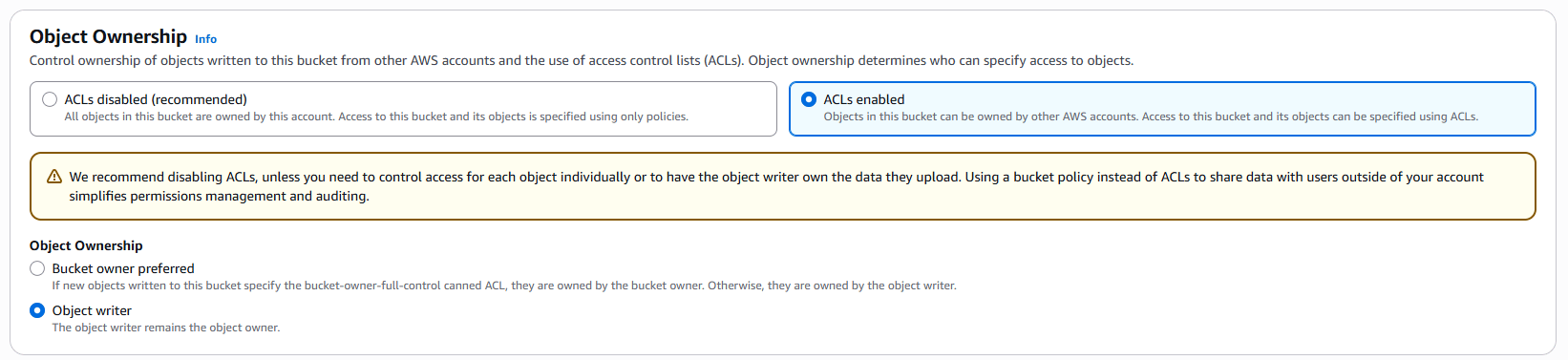
 2. Under **Object Ownership**, select **ACLs enabled** and for **Object Ownership** select **Object writer**.
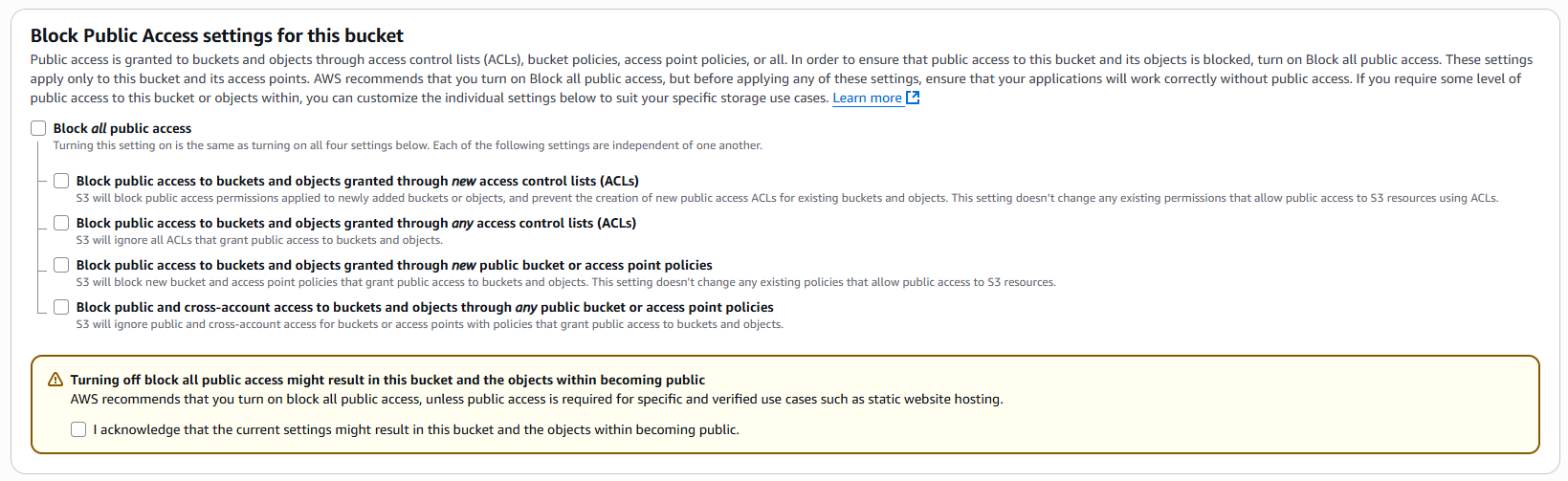
 3. For **Block Publicc Access for this bucket** deselect **Block all public access** for this bucket.
 4. You can leave rest of the settings in their default stages and click on the **Crate bucket** button.
Now you have your S3 bucket created, pay close attention to the **region**, you will need to specify the region id as well along with the bucket name in the Davinci AI settings page.
4. You can leave rest of the settings in their default stages and click on the **Crate bucket** button.
Now you have your S3 bucket created, pay close attention to the **region**, you will need to specify the region id as well along with the bucket name in the Davinci AI settings page.
Click on your newly crated bucket name.
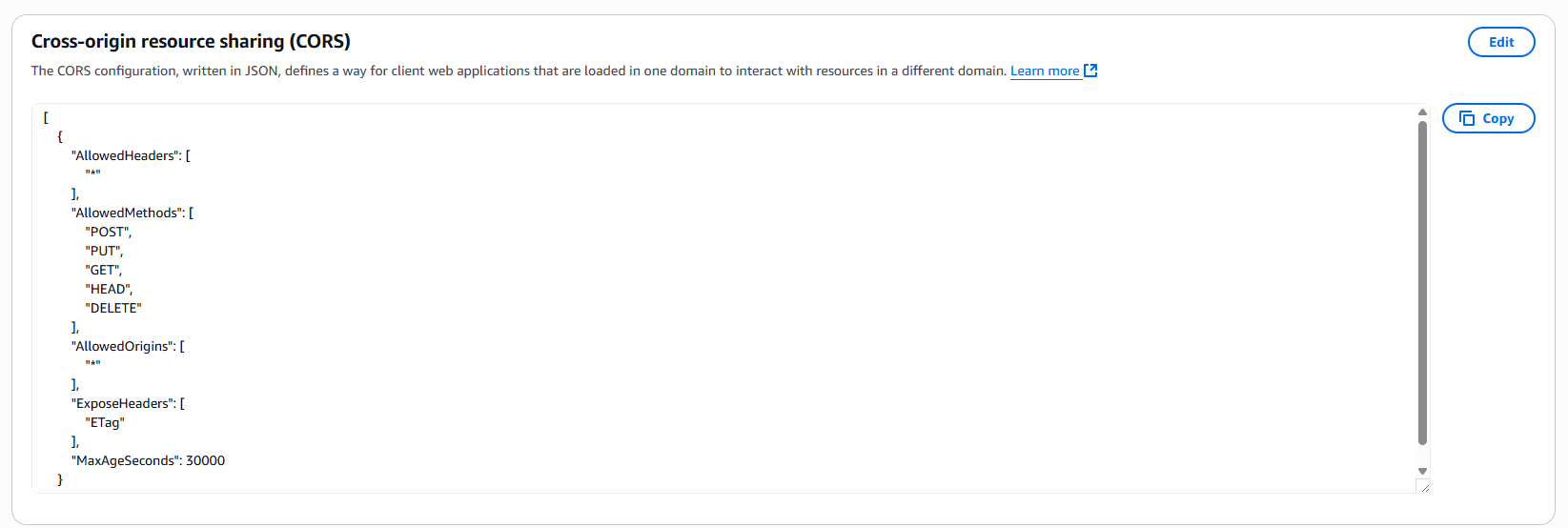
 Once you are on the selected bucket page, click on the **Permissions** tab and scroll down to **Cross-origin resource sharing (CORS)** section.
Enter following **CORS configuration** and click on **Save changes** button.
```php theme={null}
[
{
"AllowedHeaders": [
"*"
],
"AllowedMethods": [
"POST",
"PUT",
"GET",
"HEAD",
"DELETE"
],
"AllowedOrigins": [
"*"
],
"ExposeHeaders": [
"ETag"
],
"MaxAgeSeconds": 30000
}
]
```
Once you are on the selected bucket page, click on the **Permissions** tab and scroll down to **Cross-origin resource sharing (CORS)** section.
Enter following **CORS configuration** and click on **Save changes** button.
```php theme={null}
[
{
"AllowedHeaders": [
"*"
],
"AllowedMethods": [
"POST",
"PUT",
"GET",
"HEAD",
"DELETE"
],
"AllowedOrigins": [
"*"
],
"ExposeHeaders": [
"ETag"
],
"MaxAgeSeconds": 30000
}
]
```
Once saved, your CORS section will look like following:
 Login to Davinci AI using your admin credentials.
In **Admin Panel**, navigate to **AI Settings** -> **AI API Keys** tab.
Click on **AWS** tab there.
Login to Davinci AI using your admin credentials.
In **Admin Panel**, navigate to **AI Settings** -> **AI API Keys** tab.
Click on **AWS** tab there.
 Enter your newly created **Amazon S3 Bucket Name** and select the **AWS Region** where the bucket is located.
It is important to seelct the exact region where Amazon S3 bucket was created
Enter your newly created **Amazon S3 Bucket Name** and select the **AWS Region** where the bucket is located.
It is important to seelct the exact region where Amazon S3 bucket was created
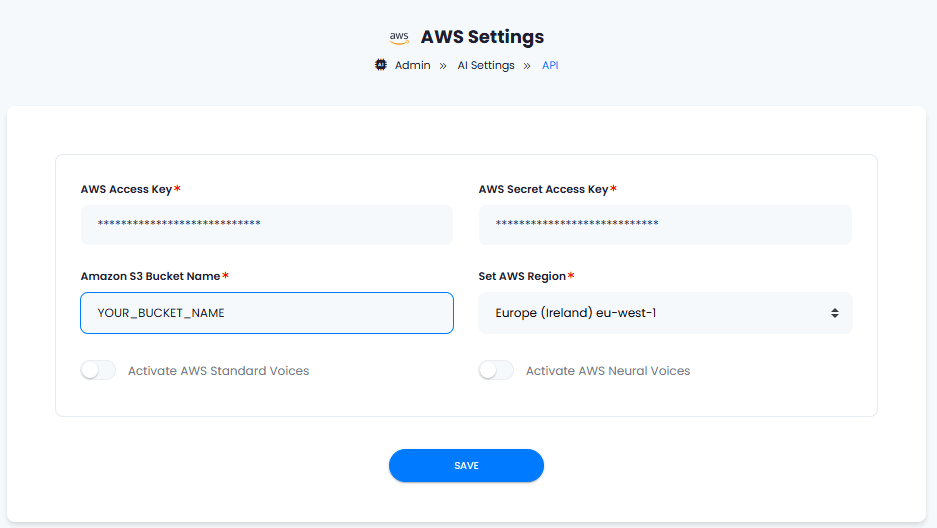 Enter valid **Access Key** and **Secret Access Key** for IAM user with **S3FullAccess** policy attached.
For creating AWS IAM user, [refer to this link](/integrations/ai/aws#aws-iam-user-creation)
Once you are done with your settings, click on **Save** button.
Congratulations! You have successfully comleted the Amazon S3 setup process.
## Davinci AI Tools which supports storing results in Amazon S3
Following AI tools can be store results in Amazon S3 Storage
Support for more AI tools will be added soon, we are actively working on that
1. **AI Voiceover**
2. **AI Images**
3. **AI Speech to Text**
Via AI Settings page in Admin Panel, you can set default cloud storage vendor for each of the supported AI tools individually