> ## Documentation Index
> Fetch the complete documentation index at: https://magicads.mintlify.site/llms.txt
> Use this file to discover all available pages before exploring further.
# Referral System
> Let your users bring in new customers and earn along with you with the help of Referral System integrated into Magic Ads
Referral System is part of SaaS features, hence it requires you to have Extended License
## Referral System configuration
To active **Referral System** and let your users earn along with you, follow the steps listed below.
After you have installed and activated **SaaS Business** extension, go to **Finance Management** tab and click on **Referral System** tab in the list.
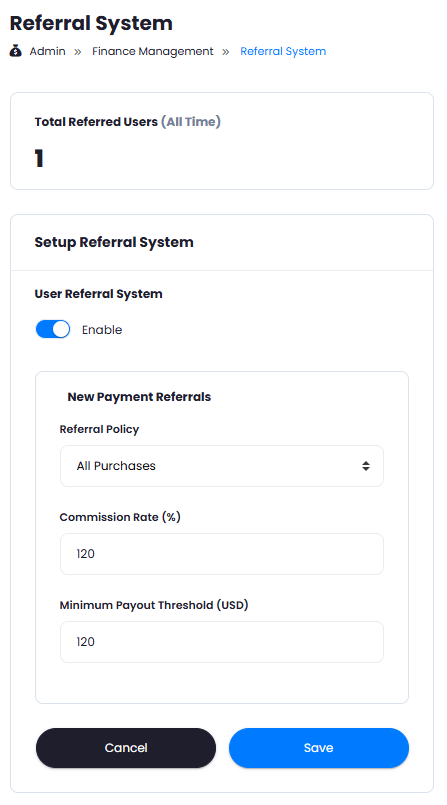
Once you are on the **Referral System** page, the **Setup Referral System** section is the place that you need configure as needed.
1. To let your users be able to refer their friends, turn on the **User Referral System** checkbox
2. Under **Referral Policy**, set if you want to count only **First Purchase** of the referred person, or **All Purchases**
3. Under **Commission Rate** field set `%` of how much commission you want to return to your users for referring his friend (% of the purchase made by the referred user)
4. Under **Minimum Payout Threshold (USD)** you can set a minimum value for users to request payout for their earned commissions.
5. Once you are done with settings, click on **Save** button.
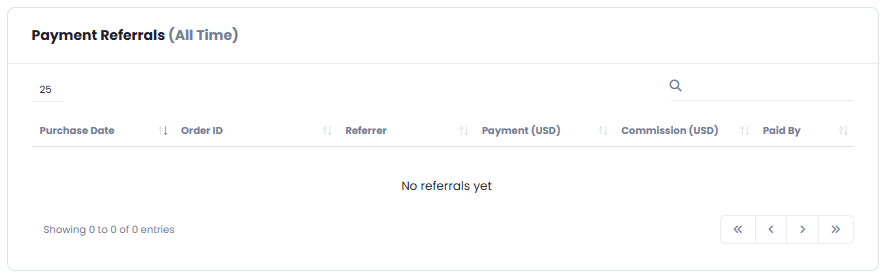
 You can also track all referred payments under **Payment Referrals** table, there you get access to each trasaction along with information on who was the user referring and refferred user, etc.
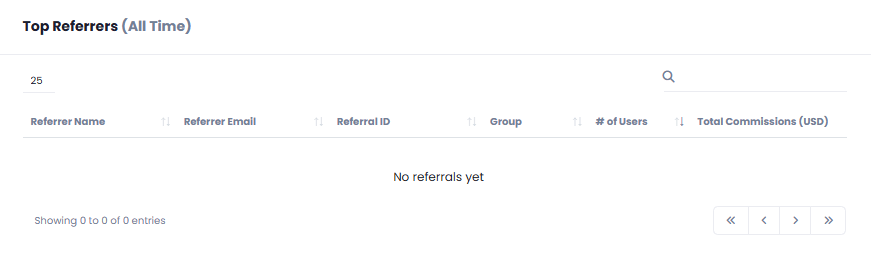
 You can also see your top referrers under **Top Referrers** table
 Congratulations! You now have completed setting up your Referral System.
## Referral System Payouts
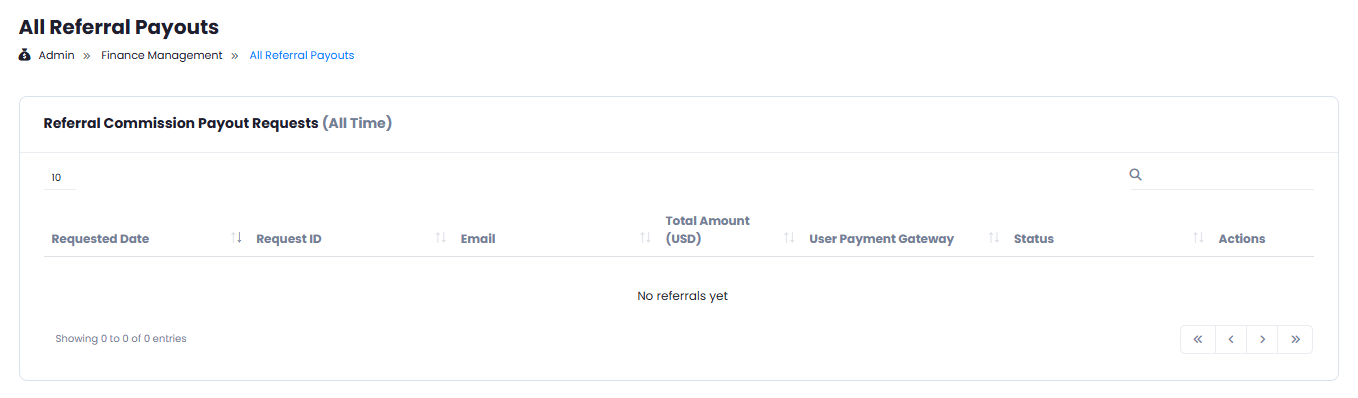
Whenever user exceeds the minimum payout threshold on their account, they can request a payout from your side, they can either request a **Paypal** or a **Wire Transfer** payment based on which option they select and provided relevant paypal of bank information.
All the requests from users are stored under **Finance Management** -> **Referral Payouts** tab in the **Admin Panel**.
From here you have full control to **approve/process/decline** the payout requests.
Congratulations! You now have completed setting up your Referral System.
## Referral System Payouts
Whenever user exceeds the minimum payout threshold on their account, they can request a payout from your side, they can either request a **Paypal** or a **Wire Transfer** payment based on which option they select and provided relevant paypal of bank information.
All the requests from users are stored under **Finance Management** -> **Referral Payouts** tab in the **Admin Panel**.
From here you have full control to **approve/process/decline** the payout requests.
 ## How it Works for User
Here how it works for your users
### Invite friends
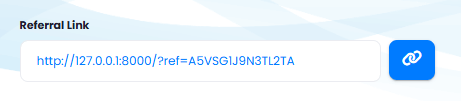
After you have enabled **Referral System**, all users will see **Affiliate Program** tab appear in the **User Panel**.
1 - From there, they can either share **Referral Link** directly with someone
## How it Works for User
Here how it works for your users
### Invite friends
After you have enabled **Referral System**, all users will see **Affiliate Program** tab appear in the **User Panel**.
1 - From there, they can either share **Referral Link** directly with someone
 2 - Or, they can invite directly via email their frieds.
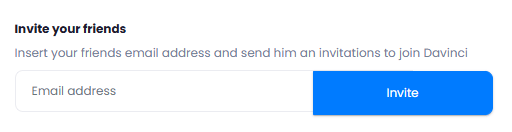 Make sure that you have properly configured SMTP settings in the Magic Ads's Admin panel, otherwise your users will not be able to send invites
### Payout Method Configuration
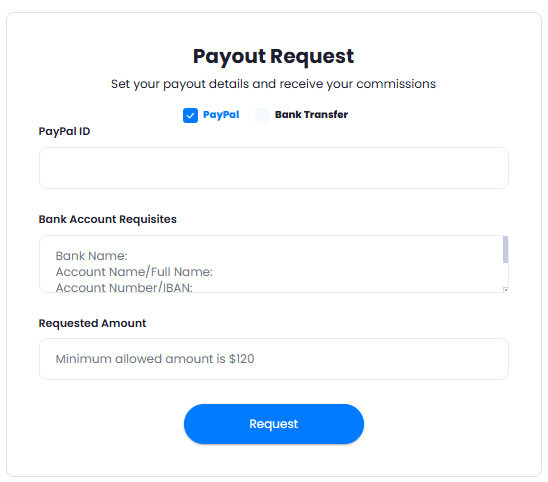
On that same **Affiliate Program** page, your users can configure their preferred payout methods along with required information.
Make sure that you have properly configured SMTP settings in the Magic Ads's Admin panel, otherwise your users will not be able to send invites
### Payout Method Configuration
On that same **Affiliate Program** page, your users can configure their preferred payout methods along with required information.
 ### Change Referral ID Name
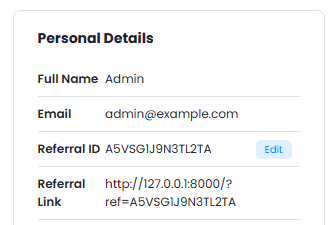
Magic Ads also allows your users to change their **Referral IDs** to a custom ones, and then share it accordingly with their friends.
To change Referral ID, go to **My Accounts** page in **User Panel**, and under **Personal Details** section, click on the `Edit`button next to your `Referral Id`, change as needed.
### Change Referral ID Name
Magic Ads also allows your users to change their **Referral IDs** to a custom ones, and then share it accordingly with their friends.
To change Referral ID, go to **My Accounts** page in **User Panel**, and under **Personal Details** section, click on the `Edit`button next to your `Referral Id`, change as needed.