> ## Documentation Index
> Fetch the complete documentation index at: https://magicads.mintlify.site/llms.txt
> Use this file to discover all available pages before exploring further.
# Wallet System
> Allow your users to store funds on their account and use it to pay for their Subscription and Prepaid plans
Wallet System is part of SaaS features, hence it requires you to have Extended License
## Introduction
Wallet system allows your users to redeem **Gift Cards** that you generate for them, which they can use to pay for Subscription and Prepaid plans, and also transfer between each other if needed.
Wallet system provides you full control of gift card generation, analytical data on how, when and by whom they were used.
## Wallet System configuration
To active **Wallet System** and let your users earn along with you, follow the steps listed below.
Go to the **Marketplace** in **Admin Panel** and install **Wallet** extension.
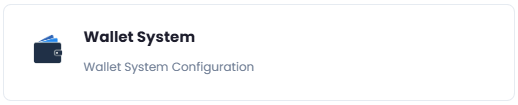
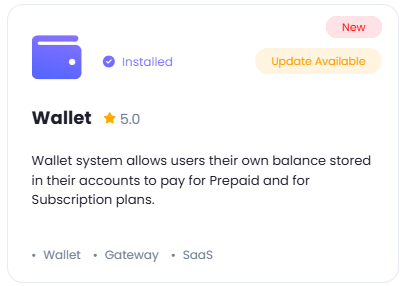 After installation is completed, go to **AI Settings** page in Admin Panel and click on **Extensions** tab there. Click on **Wallet System** tab there.
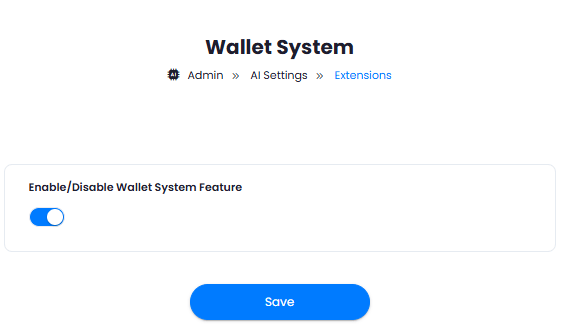
 From here you can **Enable** or completly **Disable** wallet feature for all users by toggling `Enable/Disable Wallet System Feature` checkbox. Once done with configuration, click on the **Save** button.
 Congratulations! You now have completed setting up your Wallet System.
## Gift Cards Generation
As user with Admin credentails, you can generate gift cards for your users which they can redeem via their profile page.
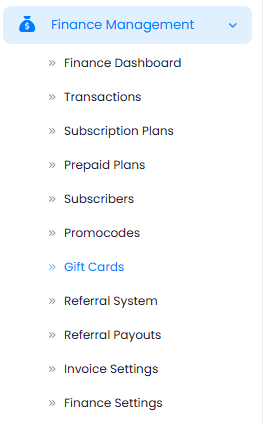
To generate new **Gift Cards**, go to **Finance Management** tab in Admin Panel and click on **Gift Cards** tab.
Congratulations! You now have completed setting up your Wallet System.
## Gift Cards Generation
As user with Admin credentails, you can generate gift cards for your users which they can redeem via their profile page.
To generate new **Gift Cards**, go to **Finance Management** tab in Admin Panel and click on **Gift Cards** tab.
 Next, click on **Create New Gift Card** button.
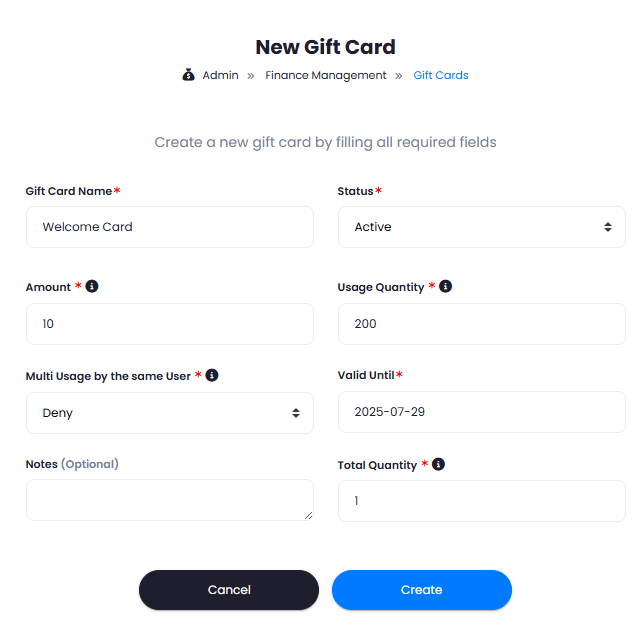
You will be shown Gift Card creation page, fill in the fields as you prefer and click **Create** button.
Next, click on **Create New Gift Card** button.
You will be shown Gift Card creation page, fill in the fields as you prefer and click **Create** button.
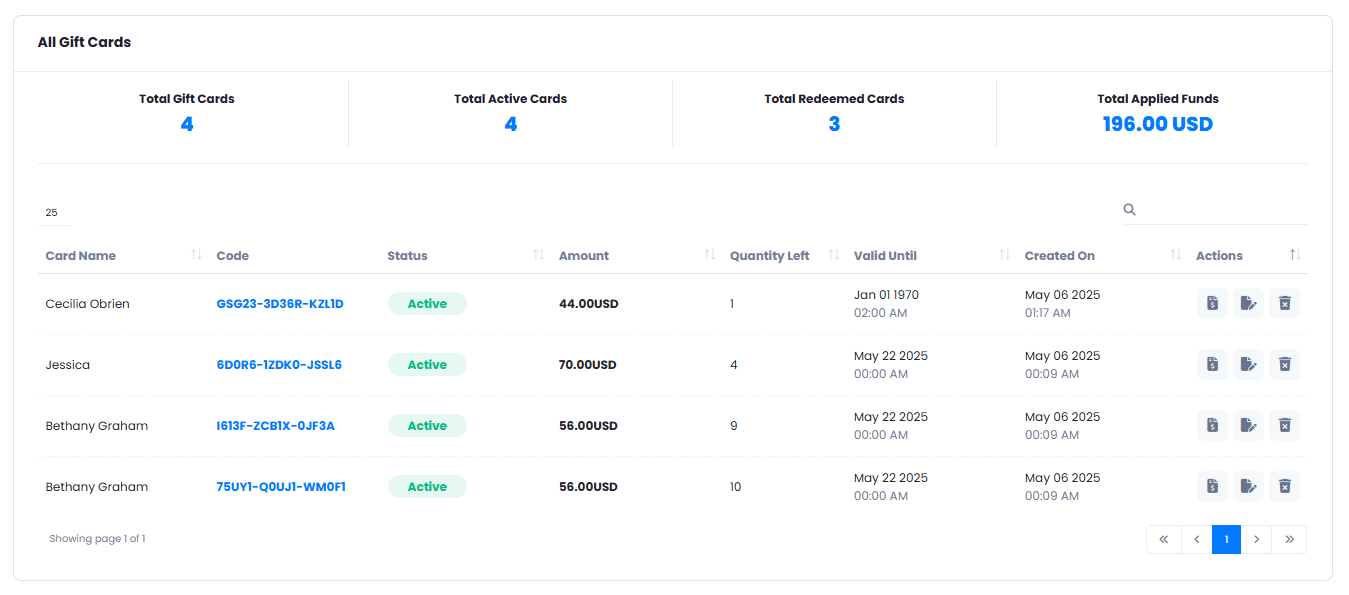
 Under **All Gift Cards** table, you can see each and every created gift card, full information about them and `edit` or `delete` as needed
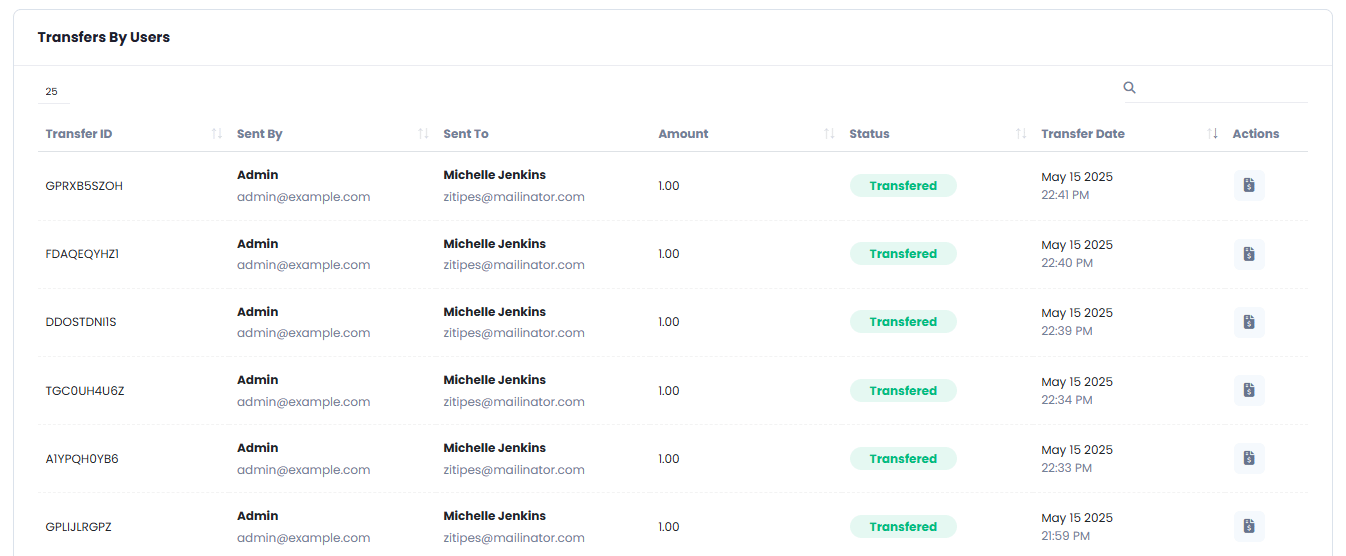
 Under **Transfers by Users** table, you can track each transfer made between your users and view record information.
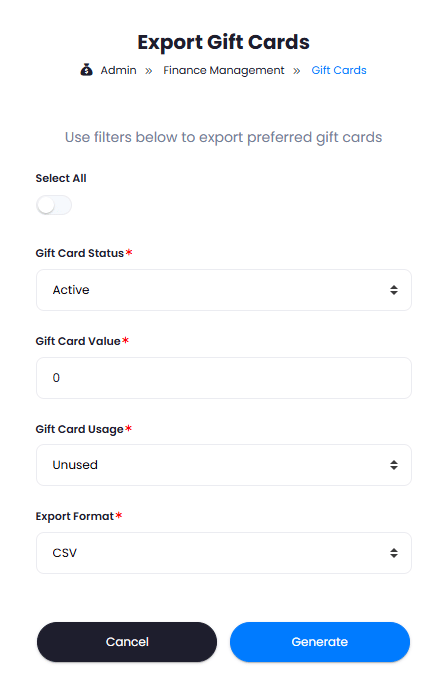
 You can also **export** all your created gift cards via **Export Gift Cards** button. You have full flexibity to filter out needed gift cards, and export in one of the following file formats: **csv, xlsx, pdf**
 This completes the Gift Card creation process.
## How it Works for User
After you shared a gift card with your users, they can redeem them via their profile page once they are logged in.
In the User Panel, go to the **My Account** tab. And click on **My Wallet** tab there.
This completes the Gift Card creation process.
## How it Works for User
After you shared a gift card with your users, they can redeem them via their profile page once they are logged in.
In the User Panel, go to the **My Account** tab. And click on **My Wallet** tab there.
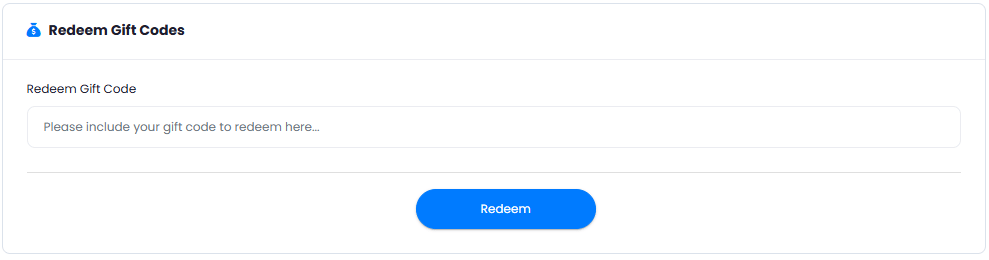
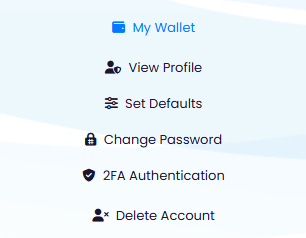 Once you are on your My Wallet page, under the **Redeem Gift Codes** section, enter your gift card code and click **Redeem** button.
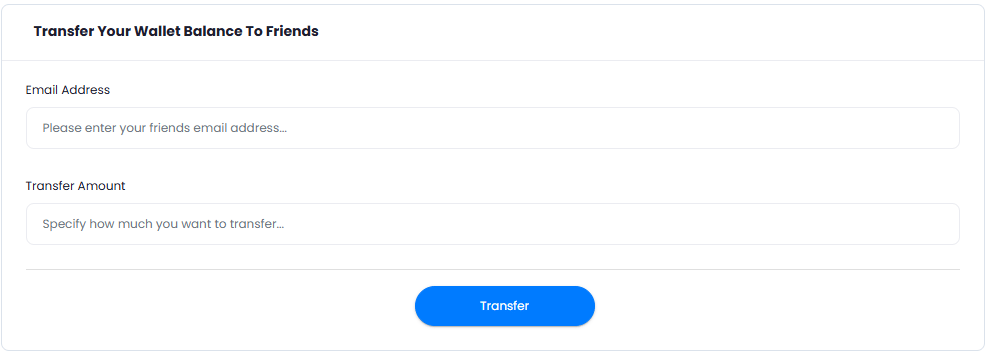
 You can also transfer your wallet funds to existing users on the platform via **Transfer Your Wallet Balance to Frieds** section. Make sure you know their emails first.
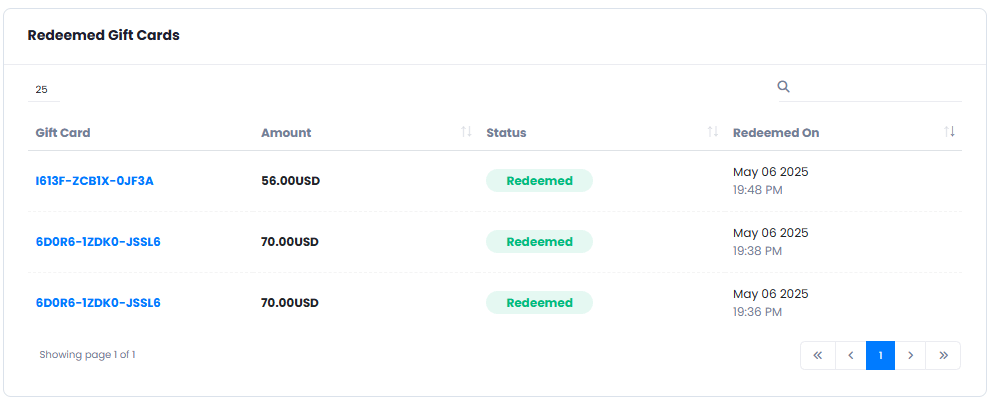
 You can see full statistics of redeemed funds, etc as well.
 Users can also see their previous redeemed gift cards in a read-only mode.
 Congratulations! You now have successfully redeemed your first Gift Card.
## Pay for Prepaid | Subscription plans
As admin, you can allow/disable using wallet system for paying for Subscription and Prepaid plans upon checkout just like with any other payment gateway.
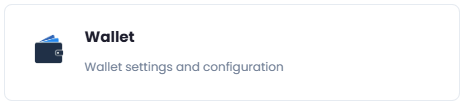
1. Go to the **Admin Panel** -> **Finance Management** -> **Finance Settings** page and select **Wallet** from the list.
Congratulations! You now have successfully redeemed your first Gift Card.
## Pay for Prepaid | Subscription plans
As admin, you can allow/disable using wallet system for paying for Subscription and Prepaid plans upon checkout just like with any other payment gateway.
1. Go to the **Admin Panel** -> **Finance Management** -> **Finance Settings** page and select **Wallet** from the list.
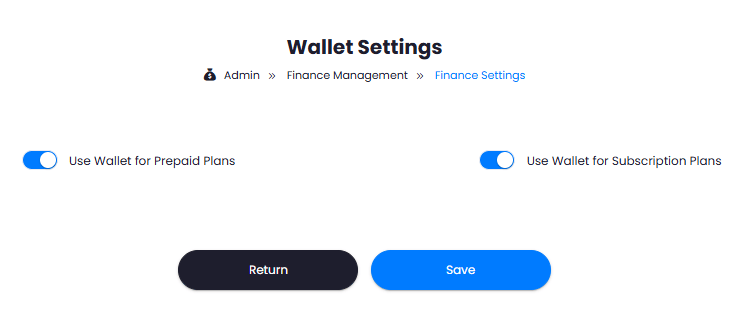
 2. **Turn on/off** checkboxes as you prefer for both Prepaid and Subscription plans. Once you are done with the configuration, click on the **Save** button.
 3. Now, all users will see Wallet in the list of payment options upon checkout, and if they have sufficient funds in their wallets, they will be able to pay with it for their selected subcription or prepaid plans.
4.
Congratulations! This completes the configuration of wallet system for payment.
3. Now, all users will see Wallet in the list of payment options upon checkout, and if they have sufficient funds in their wallets, they will be able to pay with it for their selected subcription or prepaid plans.
4.
Congratulations! This completes the configuration of wallet system for payment.