> ## Documentation Index
> Fetch the complete documentation index at: https://magicads.mintlify.site/llms.txt
> Use this file to discover all available pages before exploring further.
# Update Instructions
> Follow update instructions as listed below for each version.
Always backup all your files AND your database before starting the update process
Always test on your development environment first before upgrading your production domain. Your license does allow you to install on one locahost or subdomain for dev & test.
## Update process for v1.6
Go to the **Update** tab in the **Admin Panel**, and click on the **Install Update** button. It will start the upgrade process.
In rare cases upgrade packages can be up to 120MB in size, depending on your Internet bandwidth, download and installation time will vary
You have successfully completed the upgrade process
## Update process for v1.5
Go to the **Update** tab in the **Admin Panel**, and click on the **Install Update** button. It will start the upgrade process.
In rare cases upgrade packages can be up to 120MB in size, depending on your Internet bandwidth, download and installation time will vary
You have successfully completed the upgrade process
## Update process for v1.4
Go to the **Update** tab in the **Admin Panel**, and click on the **Install Update** button. It will start the upgrade process.
In rare cases upgrade packages can be up to 120MB in size, depending on your Internet bandwidth, download and installation time will vary
You have successfully completed the upgrade process
## Update process for v1.3
Step 1 is ONLY for Extended License users or users who bought and installed SaaS Business extension separately
Important! If you have installed SaaS Business extension before, make sure to finish this step before proceeding with other steps for this particular update
1. Go to Admin Panel - Plugins page, and click Update button for your SaaS Business plugin which you have already installed before
2. It will automatically make sure that you have new routes available, and will avoid any 500 errors.
3. Done. You can now continue with Step 2.
Go to the **Update** tab in the **Admin Panel**, and click on the **Install Update** button. It will start the upgrade process.
In rare cases upgrade packages can be up to 120MB in size, depending on your Internet bandwidth, download and installation time will vary
You have successfully completed the upgrade process
Make sure that all steps for previous update version is completed before proceeding with this one in case if you didn't do a fresh install of the previous version
## Update process for v1.2
Before proceeding with the udpate process. Do following:
1. Go to the /resources/views/flux/ folder.
2. Right click on it, and select **Change Permissions**
3. Set the **Write** permissions and select **Recursive** for all files and folders.
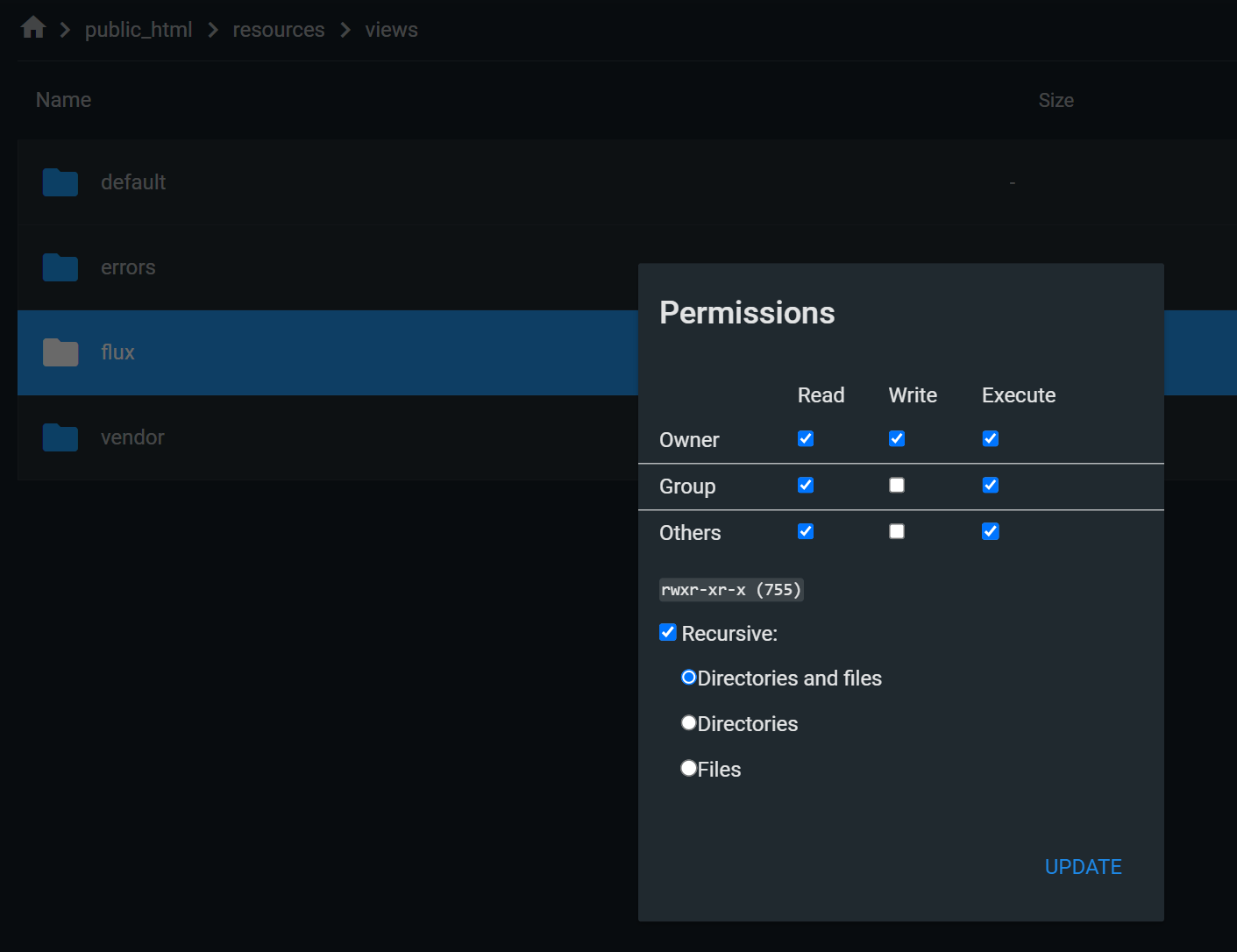 4. Click Ok.
Go to the **Update** tab in the **Admin Panel**, and click on the **Install Update** button. It will start the upgrade process.
In rare cases upgrade packages can be up to 120MB in size, depending on your Internet bandwidth, download and installation time will vary
You have successfully completed the upgrade process
## Update process for v1.1
Go to the **Update** tab in the **Admin Panel**, and click on the **Install Update** button. It will start the upgrade process.
In rare cases upgrade packages can be up to 120MB in size, depending on your Internet bandwidth, download and installation time will vary
After installation of update package is successfully completed, type in your browser:
```php theme={null}
https://YOUR_DOMAIN_NAME/app/admin/update/now
```
and hit **Enter** button. It will run the migration and seeder commands for this specific version only behind the scenes to update the database tables.
You have successfully completed the upgrade process
4. Click Ok.
Go to the **Update** tab in the **Admin Panel**, and click on the **Install Update** button. It will start the upgrade process.
In rare cases upgrade packages can be up to 120MB in size, depending on your Internet bandwidth, download and installation time will vary
You have successfully completed the upgrade process
## Update process for v1.1
Go to the **Update** tab in the **Admin Panel**, and click on the **Install Update** button. It will start the upgrade process.
In rare cases upgrade packages can be up to 120MB in size, depending on your Internet bandwidth, download and installation time will vary
After installation of update package is successfully completed, type in your browser:
```php theme={null}
https://YOUR_DOMAIN_NAME/app/admin/update/now
```
and hit **Enter** button. It will run the migration and seeder commands for this specific version only behind the scenes to update the database tables.
You have successfully completed the upgrade process